# Copy Excel Objects to SpreadJS
## Content
You can copy Excel styles and floating objects from Excel and paste them to worksheets in SpreadJS. This makes it easy for you to copy Excel styles and floating objects without importing the entire spreadsheet. You can enable copying and pasting of styles and objects by setting the `allowCopyPasteExcelStyle` property to true.
## Excel Styles
Set the **`allowCopyPasteExcelStyle`** property to true to allow copying and pasting of styles.
```JavaScript
spread.options.allowCopyPasteExcelStyle = true;
```
The following table displays the style options that are copied from Excel and pasted into SpreadJS.
| | Google Chrome | Mozilla Firefox | Microsoft Edge | Microsoft Internet Explorer | Safari on Mac | Chrome on Mac |
| --- | ------------- | --------------- | -------------- | --------------------------- | ------------- | ------------- |
| backColor | @cols=2:Supported | @cols=2:Supported | Supported | Supported |
| foreColor | @cols=2:Supported | @cols=2:Supported | Supported | Supported |
| font | @cols=2:Supported | @cols=2:Supported | Supported | Supported |
| vAlign | @cols=2:top -> top
center -> center
bottom -> bottom
justify -> bottom
distributed -> bottom | @cols=2:top -> center
center -> center
bottom -> center
justify -> center
distributed -> center | top -> top
center -> center
bottom -> bottom
justify -> bottom
distributed -> bottom | top -> top
center -> center
bottom -> bottom
justify -> bottom
distributed -> bottom |
| hAlign | @cols=2:left -> left
center -> center
right -> right
general -> general
fill -> general
justify -> general
center across selection -> general
distributed -> general | @cols=2:left -> left
center -> left
right -> left
general -> left
fill -> left
justify -> left
center across selection -> center
distributed -> left | left -> left
center -> center
right -> right
general -> general
fill -> general
justify -> general
center across selection -> general
distributed -> general | left -> left
center -> center
right -> right
general -> general
fill -> general
justify -> general
center across selection -> general
distributed -> general |
| borderLeft | @cols=2:@rows=4:thin -> medium
medium -> medium
dashed -> mediumDashed
dotted -> dotted
thick -> medium
double -> double
hair -> None
mediumDashed -> mediumDashed
dashDot -> None
mediumDashDot -> None
dashDotDot -> None
mediumDashDotDot -> None
slantedDashDot -> None | @cols=2:@rows=4:thin -> medium
medium -> medium
dashed -> mediumDashed
dotted -> dotted
thick -> medium
double -> double
hair -> None
mediumDashed -> mediumDashed
dashDot -> None
mediumDashDot -> None
dashDotDot -> None
mediumDashDotDot -> None
slantedDashDot -> None | @rows=4:thin -> medium
medium -> medium
dashed -> mediumDashed
dotted -> dotted
thick -> medium
double -> double
hair -> None
mediumDashed -> mediumDashed
dashDot -> None
mediumDashDot -> None
dashDotDot -> None
mediumDashDotDot -> None
slantedDashDot -> None | @rows=4:thin -> medium
medium -> medium
dashed -> mediumDashed
dotted -> dotted
thick -> medium
double -> double
hair -> None
mediumDashed -> mediumDashed
dashDot -> None
mediumDashDot -> None
dashDotDot -> None
mediumDashDotDot -> None
slantedDashDot -> None |
| borderRight |
| borderTop |
| borderBottom |
| textDecoration | @cols=2:strikethrough -> lineThrough
single -> underline
double -> underline
single accounting -> underline
double accounting -> underline | @cols=2:strikethrough -> lineThrough
single -> underline
double -> underline
single accounting -> underline
double accounting -> underline | strikethrough -> lineThrough
single -> underline
double -> underline
single accounting -> underline
double accounting -> underline | strikethrough -> lineThrough
single -> underline
double -> underline
single accounting -> underline
double accounting -> underline |
| wordWrap | @cols=2:Supported | @cols=2:Supported | Supported | Supported |
## Floating Objects
Floating objects such as images, charts, and shapes can also be copied from Excel and pasted into SpreadJS worksheets by setting the **`allowCopyPasteExcelStyle`** property to true. Note that you can copy charts and shapes from Excel and paste them into SpreadJS as images. This feature is already enabled in SpreadJS by default however, it does not provide support for copying and pasting images from SpreadJS to Excel.
You can use the Ctrl + V and Command + V keyboard combination in Windows and Mac while pasting the images to SpreadJS worksheets as shown in the following gif.
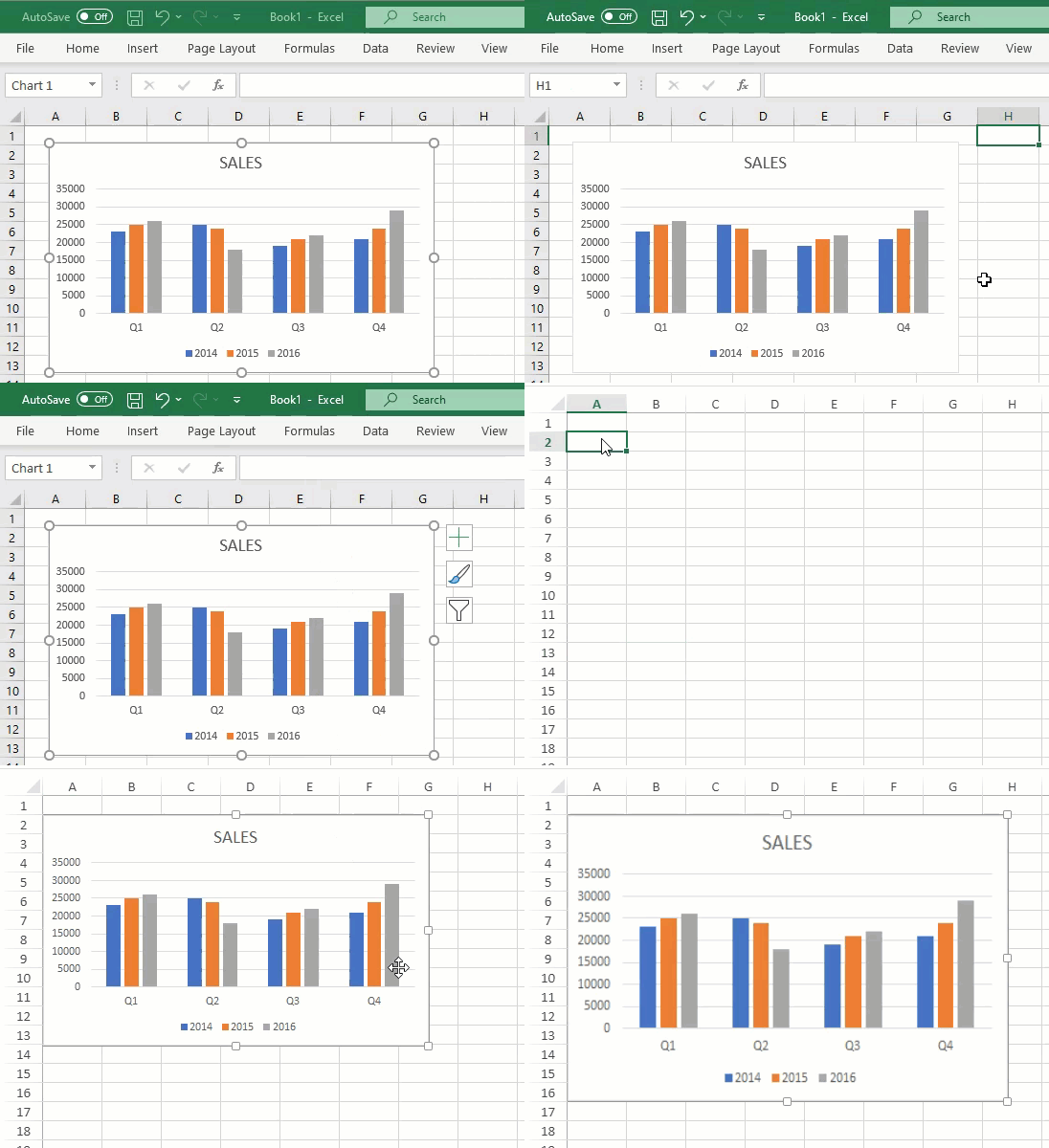
You can observe that there was no impact on the size and content of the original image while pasting it in SpreadJS. However, you can resize the pasted image by using the resize handlers. The location of the image in the worksheet is determined by the active cell of SpreadJS. You can either copy-paste images one by one in the SpreadJS worksheet or copy all the images from Excel and paste them as a single big image in the worksheet.