# TableSheet Interactive Behavior
## Content
TableSheet has rich interaction behaviors which help to make the tablesheet accessible and usable by as many people as possible.
## Zoom In and Out
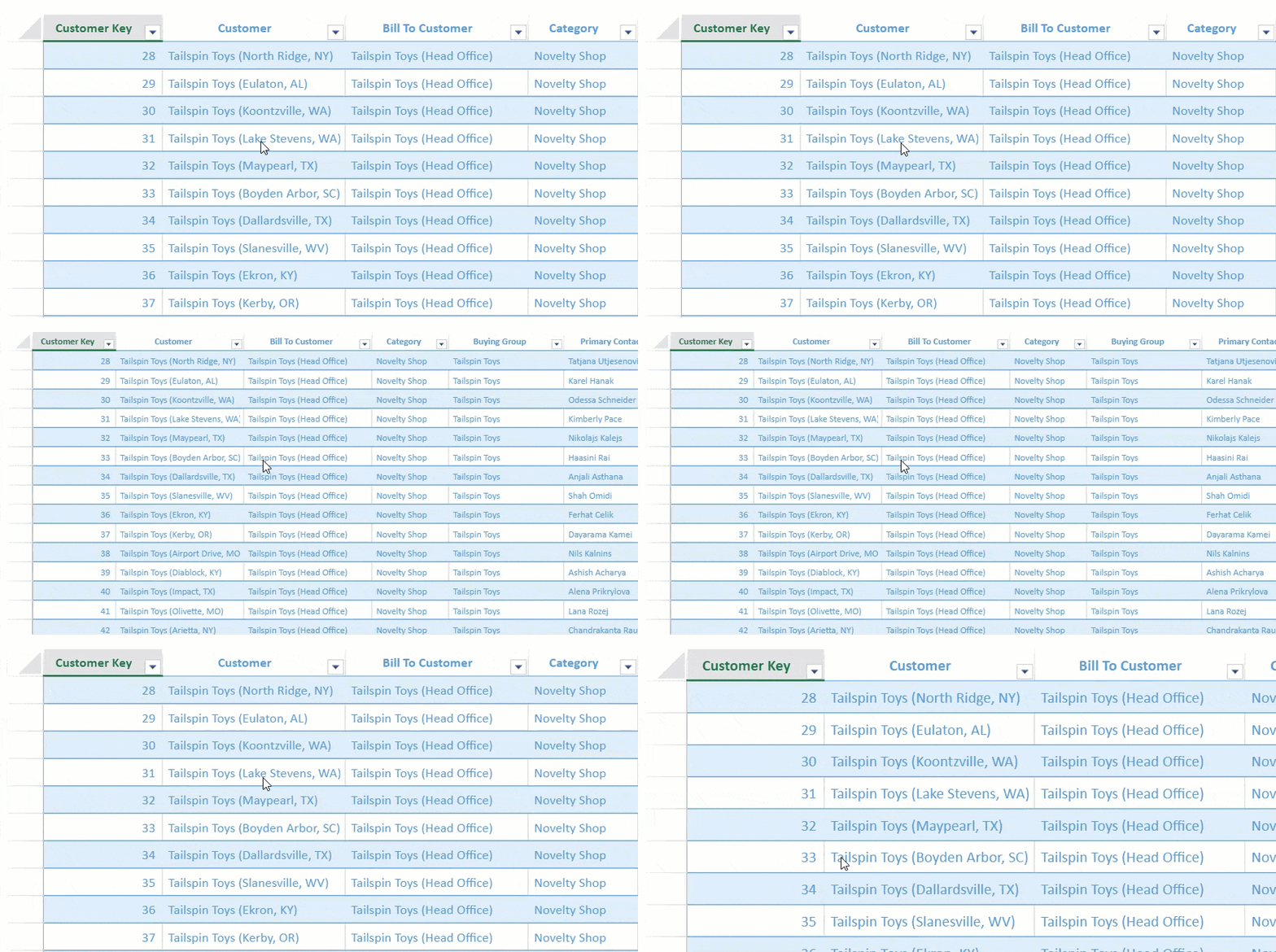
TableSheet supports zoom in and zoom out by mouse wheel with Ctrl key.
Zoom in using Ctrl + Mouse wheel up and zoom out using Ctrl + Mouse wheel down.
## Resize Columns
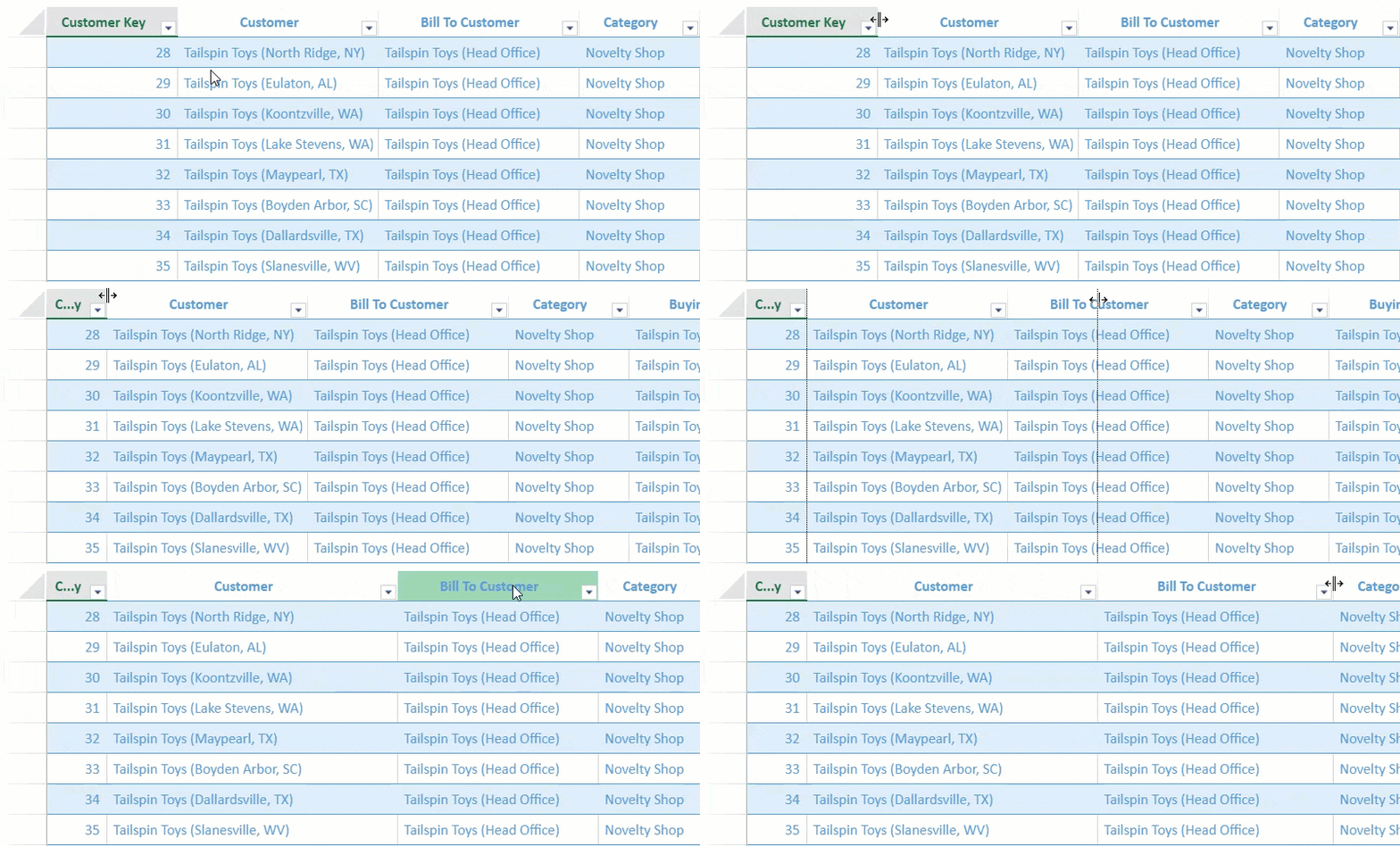
TableSheet supports resizing the column by dragging the right edge of the column header cell.
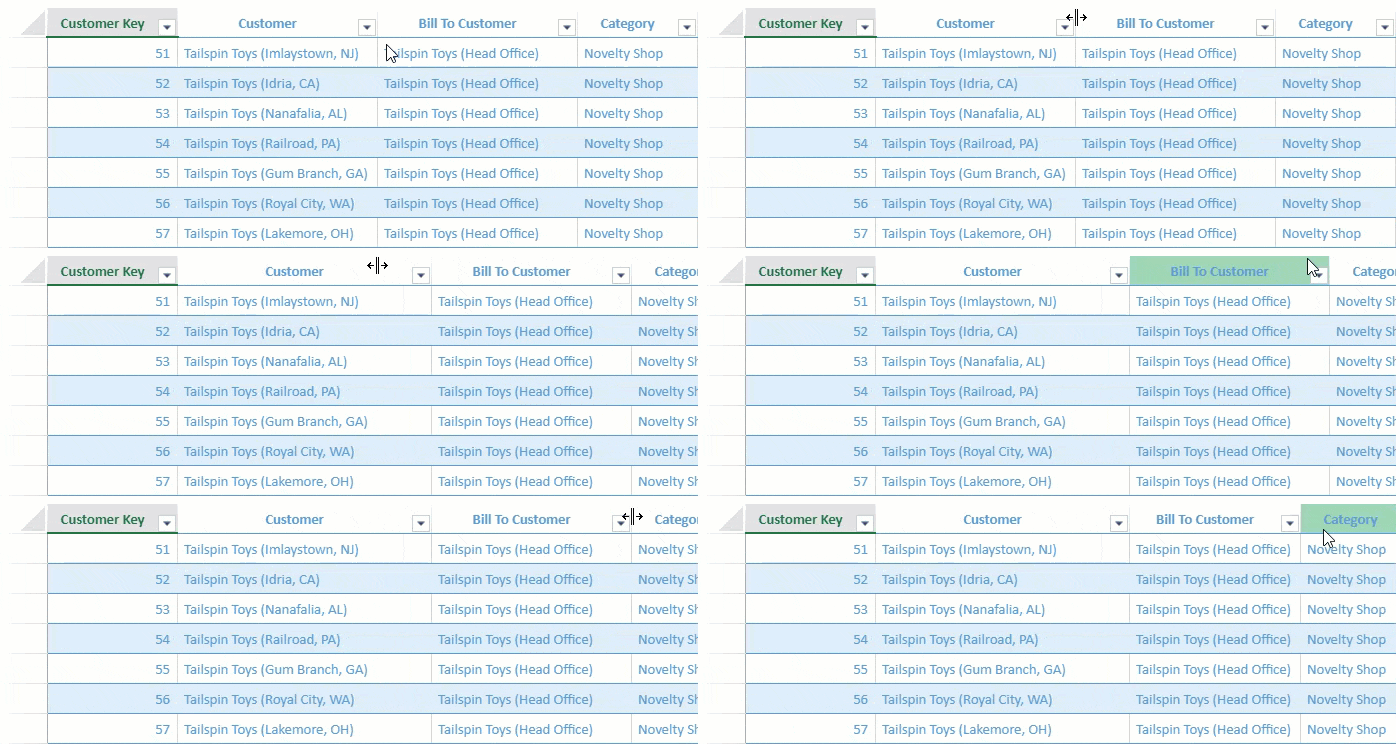
You can automatically fit a column width by double-clicking the right edge of a column header cell. The [AutoFitType](/spreadjs/api/v16/enums/GC.Spread.Sheets.AutoFitType) enumeration option `cellWithHeader` can be set as well.
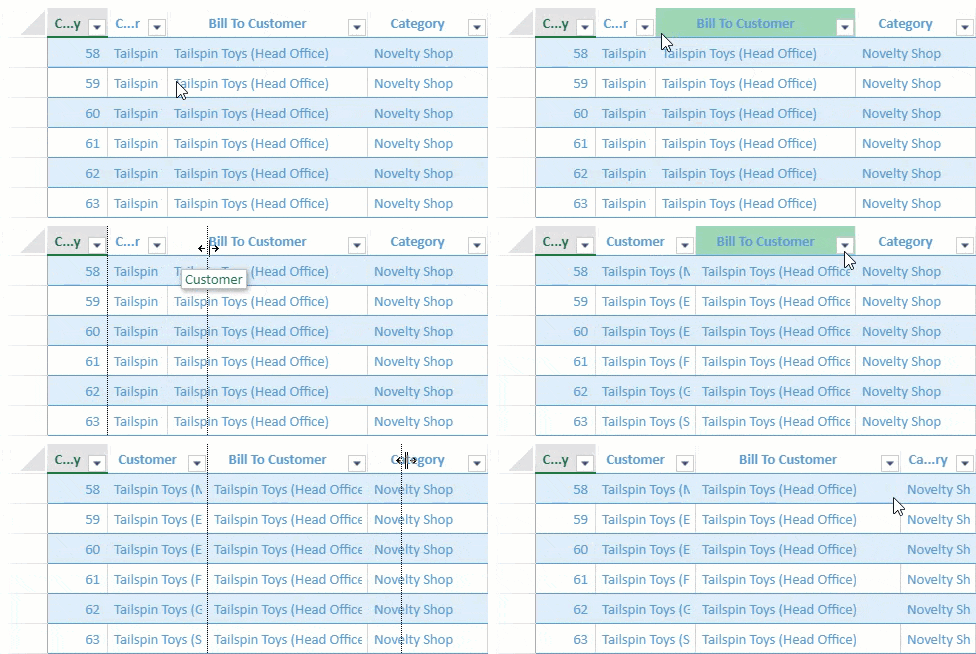
If you want to retroactively change the neighboring column’s width along with resizing the selected column, the **columnResizeMode** can be set to `split` to change the default behavior.
The following code sample shows how to set the column resizing to automatic fit mode as well as change the resize mode to split.
```javascript
// set autoFitType to cellWithHeader
spread.options.autoFitType = GC.Spread.Sheets.AutoFitType.cellWithHeader;
// set the ResizeMode to Split
spread.options.columnResizeMode = GC.Spread.Sheets.ResizeMode.split;
```
You can also set a default column width for the tablesheet view using the ViewOptions class property `defaultColumnWidth`. By default, the column width is 60.
```javascript
var view = customerTable.addView("myView", [
{ value: "customerKey", caption: "Customer Key" },
{ value: "customer", caption: "Customer" },
{ value: "billToCustomer", width: 200, caption: "Bill To Customer" },
{ value: "category", width: 120, caption: "Category" },
{ value: "buyingGroup", width: 180, caption: "Buying Group" },
{ value: "primaryContact", width: 170, caption: "Primary Contact" },
{ value: "validFrom", width: 150, caption: "Valid From" },
], false, {
// Set default column width
defaultColumnWidth: 100
});
```
## Cut, Copy, and Paste
TableSheet supports cutting, copying, and pasting cells, rows, or columns using shortcut keys or through the context menu.
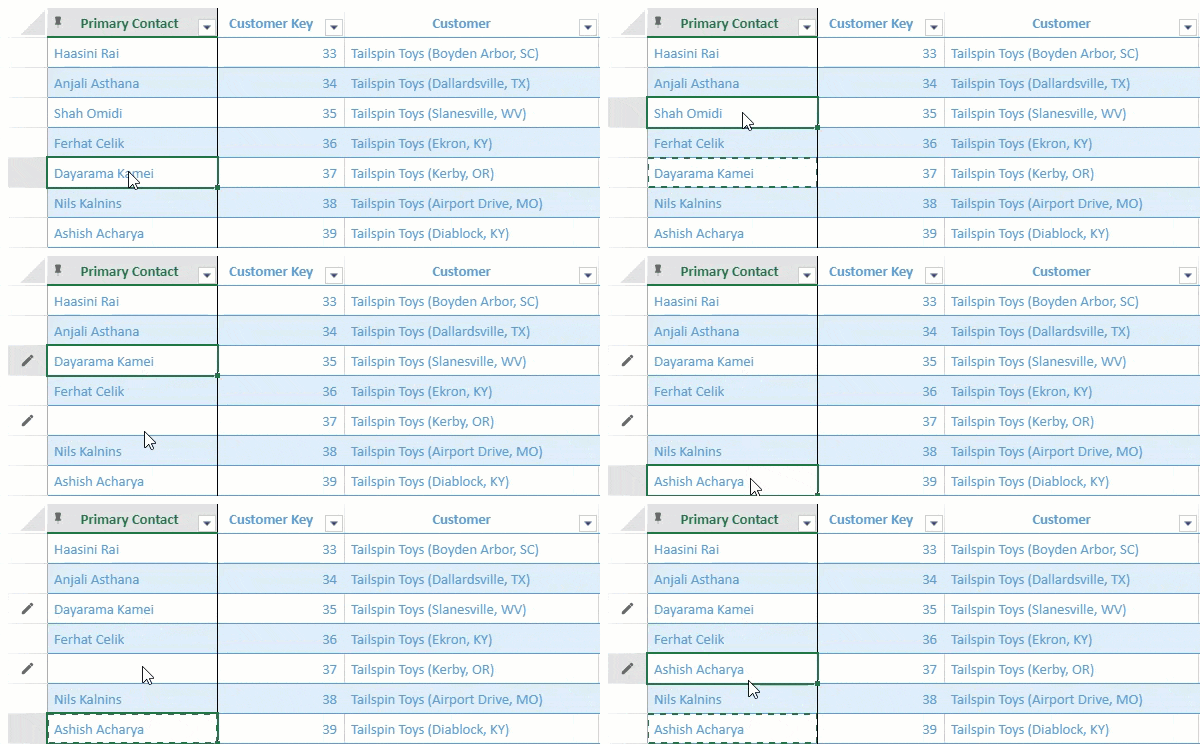
The following shortcut keys are supported for the clipboard operations:
| Operation | Windows | Mac |
| --------- | ------- | --- |
| Cut | Ctrl + X | Command + X |
| Copy | Ctrl + C | Command + C |
| Paste | Ctrl + V | Command + V |
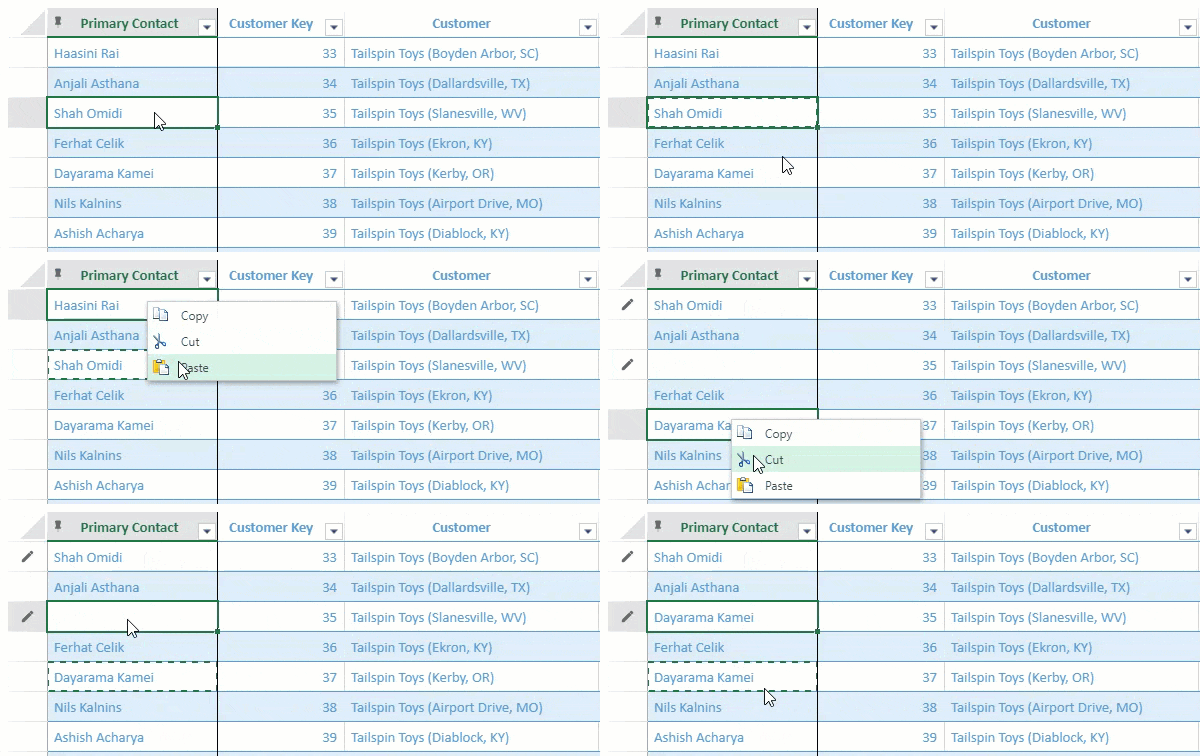
Right-clicking on a cell, row, or column selection will display the context menu consisting of the clipboard operations.
If you want to paste multiple rows in a new row, the **allowExtendPasteRange** option should be set to true.
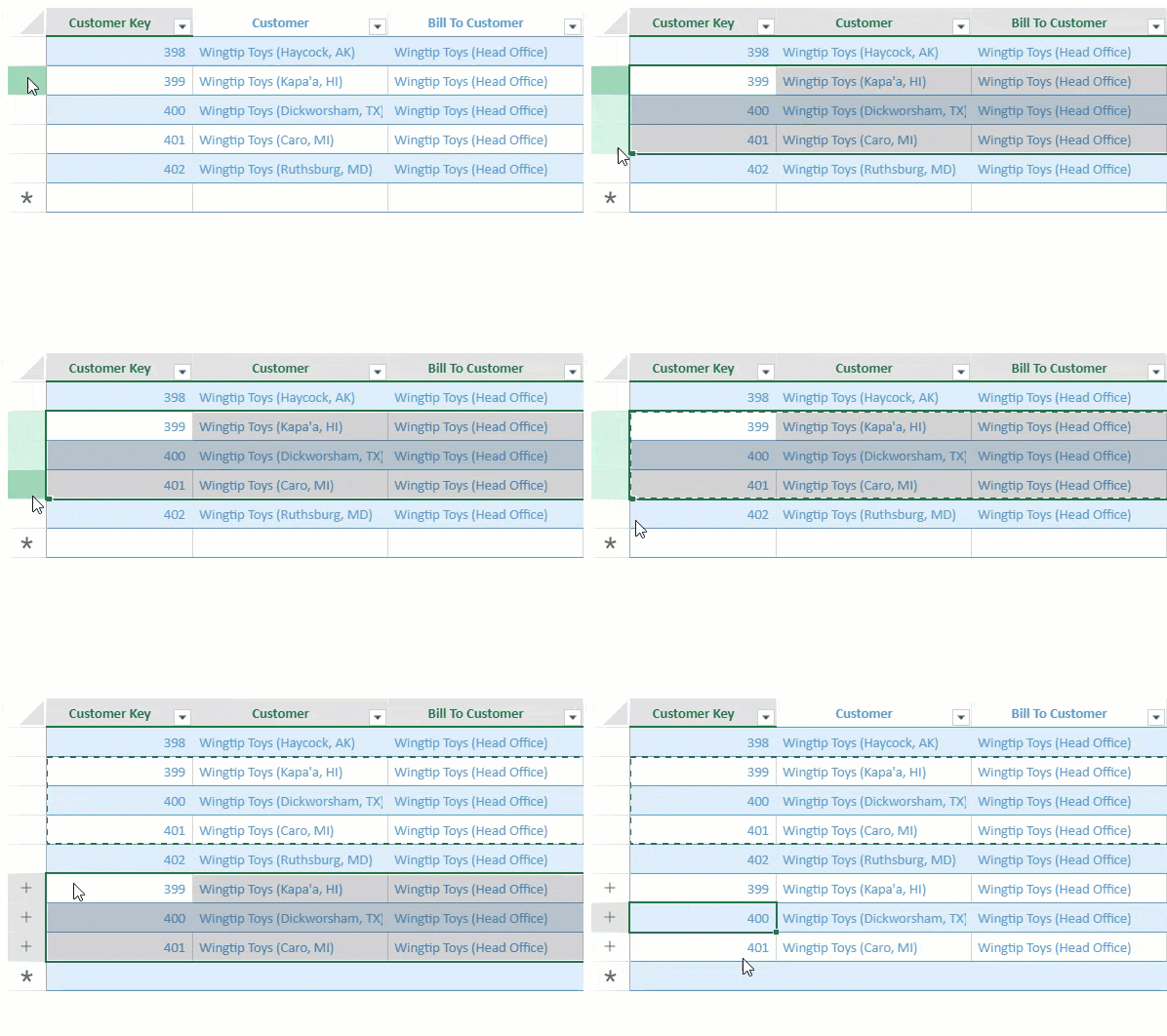
The following code sample shows how to enable the allowExtendPasteRange option in SpreadJS.
```javascript
// enable allowExtendPasteRange option to enable pasting multiple rows in new row
spread.options.allowExtendPasteRange = true;
```
## Drag Operations
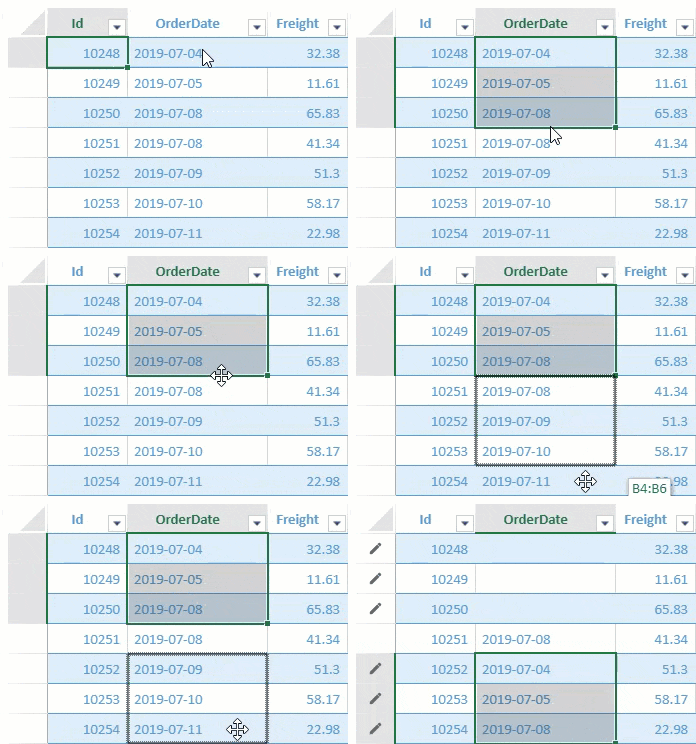
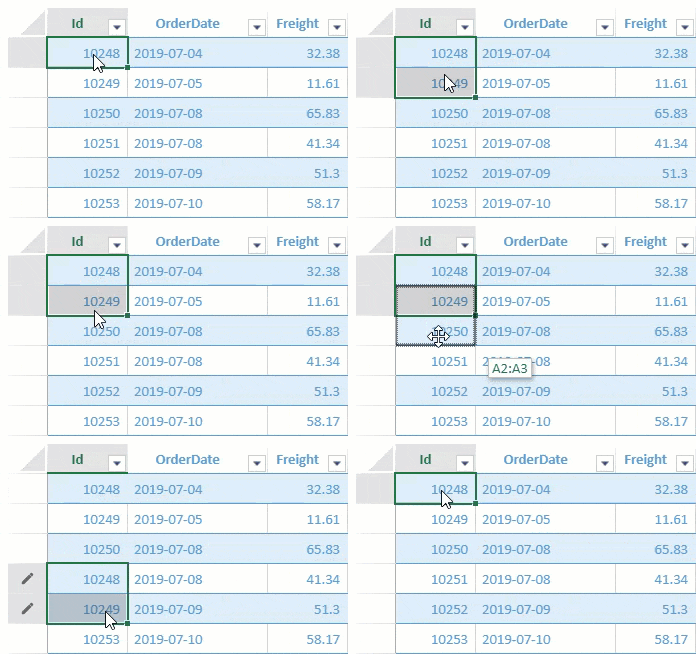
TableSheet supports various drag operations like drag fill, drag-drop, and drag copy.
* **Drag fill** is done by clicking on the bottom right corner of a selected area and moving the mouse down or up.
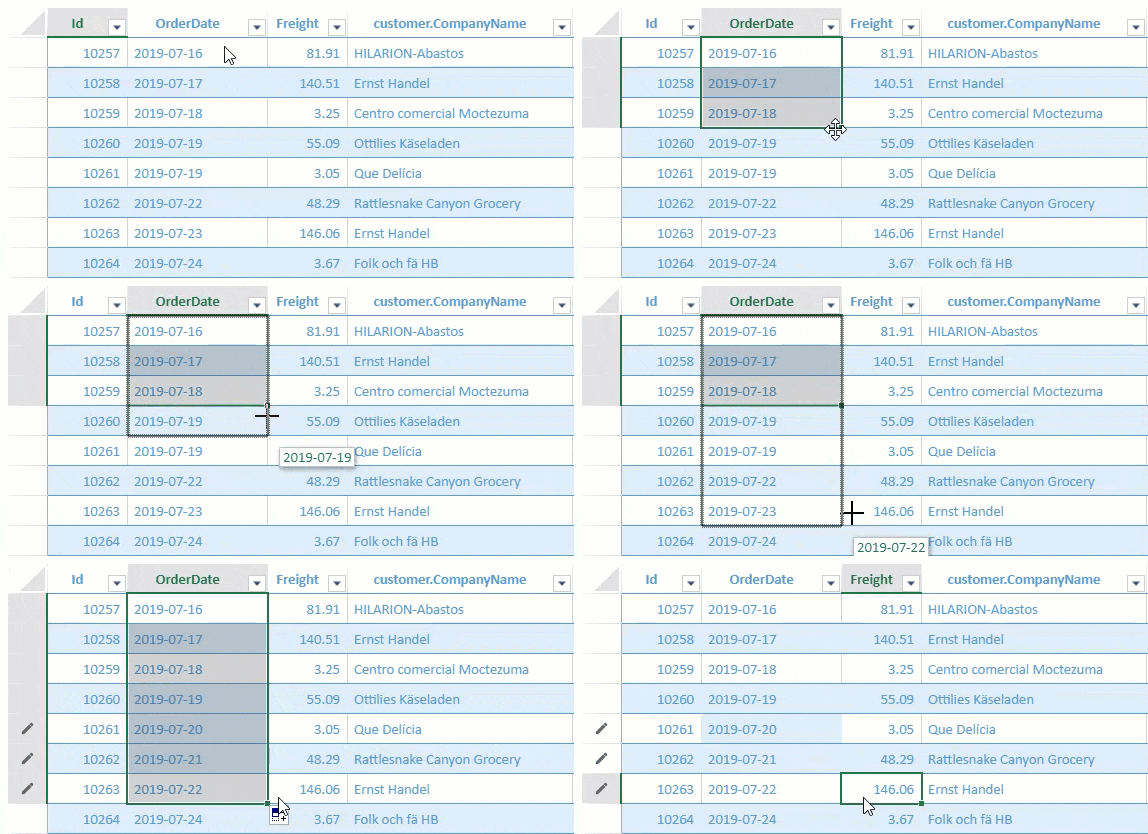
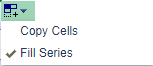
The series is copied when dragging directly, or the series is filled when dragging with the Ctrl key pressed. The drag fill result can be changed to either "Copy Series" or "Fill Series" by the pop-up menu.
* **Drag-drop** is done by dragging the selection border of a selected area and dropping it into the destination cell.
* **Drag copy** is done by dragging the selection border f the selected area while holding the Ctrl key and dropping it into the destination cell.
## Shortcut Keys
TableSheet supports various shortcut keys including tablesheet-specific operations such as "Save all inserted and updated rows".
The following table lists all the supported shortcut keys by tablesheet.
| Operation | Shortcut Key |
| --------- | ------------ |
| @cols=2:**General** |
| Copy | Ctrl+C |
| Cut | Ctrl+X |
| Paste | Ctrl+V |
| Enter Edit | F2 |
| Direct Input | Char |
| Exit Edit | Esc |
| Delete | Del |
| Delete and Enter Edit | BackSpace |
| Input submit, Move Down | Enter |
| Input submit, Move Up | Shift + Enter |
| Next line input | Alt+Enter, Ctrl+Enter |
| Save all inserted and updated rows | Ctrl + Shift + S |
| @cols=2:**Navigation** |
| Move up | Up key |
| Move down | Down key |
| Move left | Left key |
| Move right | Right key |
| Move down | Enter |
| Move right | Tab |
| Move left | Shift + Tab |
| Move to Top/Bottom/Left/Right
first cell | Ctrl + Arrow |
| Move to the next page | PageDown |
| Move to the previous page | PageUp |
| @cols=2:**Selection** |
| Expand to mouse click selection | Shift + Mouse click |
| Expand cell selection | Shift + Arrow |