# Importing Files to SpreadJS
## Content
The following section describes the steps to import Excel (.xlsx) and JSON files (json or ssjson) into SpreadJS.
In additional to SpreadJS API, following methods are also used:
* [FileReader.readAsText()](https://developer.mozilla.org/en-US/docs/Web/API/FileReader/readAsText)
* [JSON.parse()](https://developer.mozilla.org/en-US/docs/Web/JavaScript/Reference/Global_Objects/JSON/parse)
* [String.prototype.substr()](https://developer.mozilla.org/en-US/docs/Web/JavaScript/Reference/Global_Objects/String/substr)
* [String.prototype.lastIndexOf()](https://developer.mozilla.org/en-US/docs/Web/JavaScript/Reference/Global_Objects/String/lastIndexOf)
## Step 1: Add ExcelIO script reference in HTML
1. Add a reference to the ExcelIO script file in the HTML HEAD tag to instantiate ExcelIO.
```html
Import files into SpreadJS
```
## Step 2: Load Spread Instance from JSON String
1. Create **importJSON** function to load the Spread instance from a specified JSON string using **fromJSON** method.
2. Use **focus** method to focus the workbook component.
```javascript
// Create importJSON()
function importJSON(spreadJson) {
var ss = GC.Spread.Sheets.findControl(document.getElementById("ss"));
if (spreadJson.version && spreadJson.sheets) {
// Load the object from the JSON string spreadJSON
ss.fromJSON(spreadJson);
// Focus the workbook component
ss.focus();
}
}
```
## Step 3: Import an Excel File
1. Create **importSpreadFromExcel** function and invoke **excelIO.open** method to import the Excel file by converting it into a JSON string.
2. Invoke **importJSON** function to load the SpreadJS instance from the JSON data string created from **excelIO.open** method.
```javascript
// Create importSpreadFromExcel()
function importSpreadFromExcel(file, options) {
// Load an Excel file to paint the SpreadJS instance
excelIO.open(
file,
function (json) {
// Invoke importJson() created in Step 1 to import an Excel file
importJSON(json);
},
function (e) {
console.log(e);
},
options
);
}
```
## Step 4: Import JSON Files to SpreadJS Instance
1. Create importSpreadFromJSON function to import a JSON file.
2. Create a new **FileReader** and store it in 'reader' variable.
3. Use **FileReader.readAsText** function to read the contents of JSON file to a string. The onload event is triggered after FileReader is finished.
4. Invoke the **importSuccessCallback** method to parse the result to a JavaScript object using **JSON.parse** method.
```
// Create importSpreadFromJSON()
function importSpreadFromJSON(file) {
function importSuccessCallback(responseText) {
// Parse the JSON string
var spreadJson = JSON.parse(responseText);
// Execute the importJSON method to load the SpreadJS instance from the parsed JSON string
importJSON(spreadJson);
}
// Create a file to read the JSON string too
var reader = new FileReader();
// When the below readAsText() is finished this event will trigger to return a successful call back
reader.onload = function () {
importSuccessCallback(this.result);
};
// Trigger the readAsText() method
// This will read the contents of the file and when done the load event is triggered
reader.readAsText(file);
return true;
}
```
## Step 5: Determine the Format of Imported File
1. Create **importFile** function which takes the file name of imported file as a parameter and determines the file type i.e. Excel or JSON by finding the index of the last "." in the file name.
2. Create an If/Else statement to determine whether to import the file using the **importSpreadFromJSON** or **importSpreadFromExcel** function.
```javascript
// Create importFile() function to decide if a file is .xlsx or .JSON/.SSJSON
function importFile(file) {
// Get the name of the selected file
var fileName = file.name;
// Get the index position of last "." of the file name
var index = fileName.lastIndexOf(".");
// Return the last portion of the file name after the index of the last "."
var fileExt = fileName.substr(index + 1).toLowerCase();
// Determine what import spread function to invoke determined by the file extension
if (fileExt === "json" || fileExt === "ssjson") {
importSpreadFromJSON(file);
} else if (fileExt === "xlsx") {
importSpreadFromExcel(file);
}
}
```
## Step 6: Add HTML Input Element
Create **processFileSelected** function to execute the **importFile** function when a file is selected using the HTML input with id *fileSelector* .
```html
Section 3: Importing files to SpreadJS
Select file to import:
```
```javascript
// Create processFileSelected()
function processFileSelected() {
//Get the file selected from the HTML input with id fileSelector
var fileSelector = document.getElementById("fileSelector");
var file = fileSelector.files[0];
if (!file) return false;
fileSelector.innerHTML = "";
// Execute the importFile() when a file has been selected
return importFile(file);
}
```
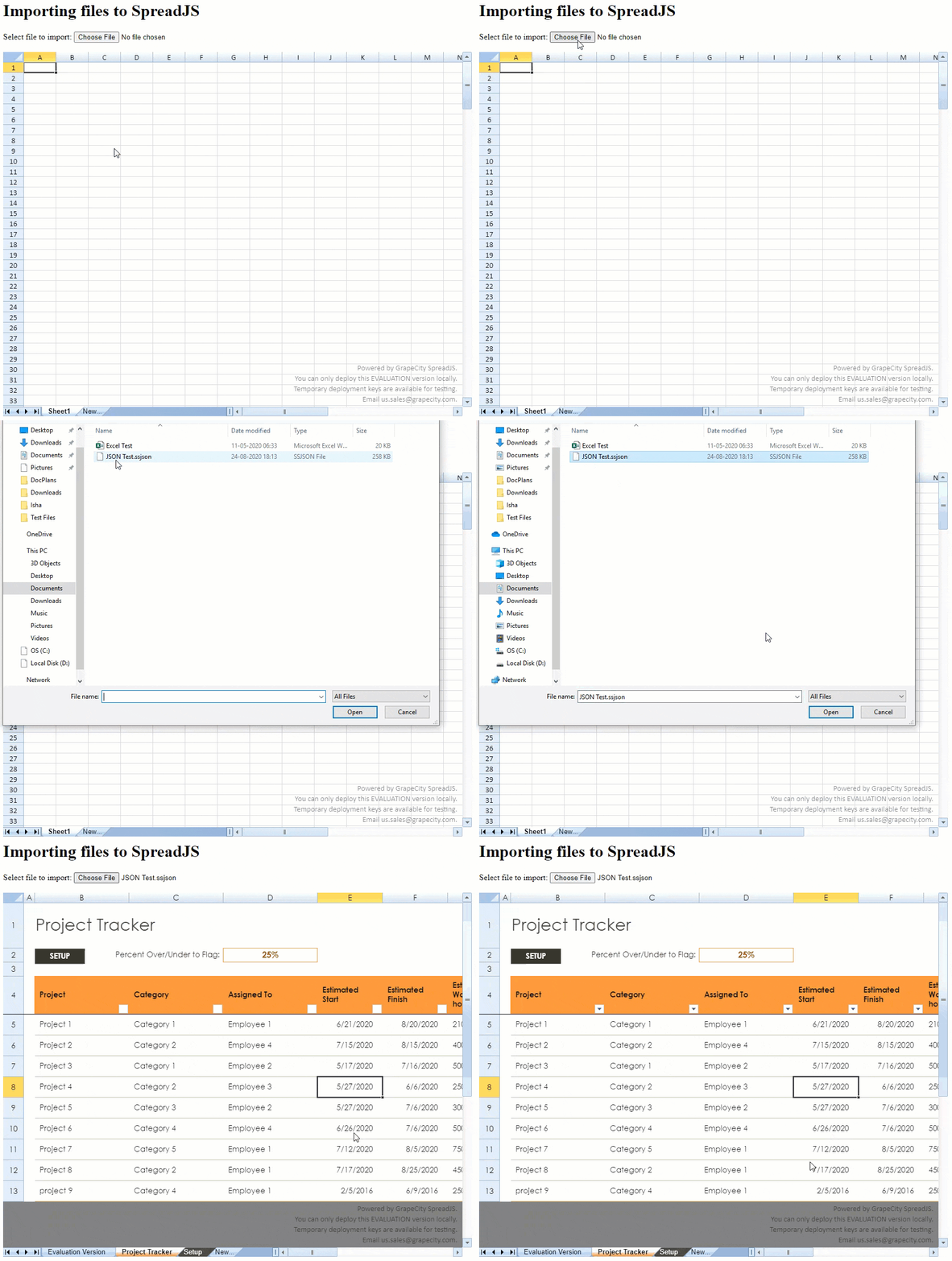
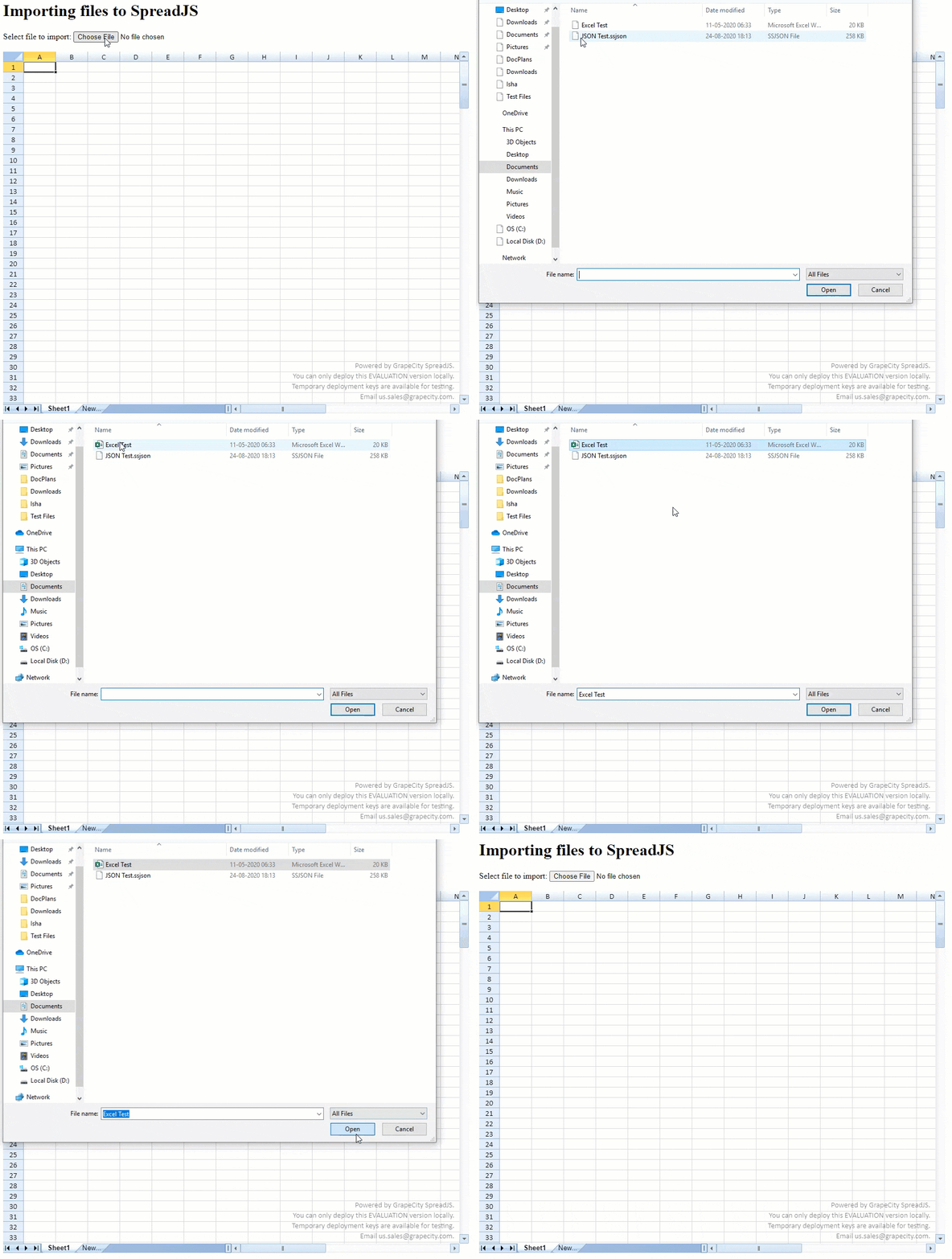
The output of above code will look like below:
**Excel File Import**
**JSON File Import**