# Export Range to HTML
## Content
You can export a range of cells or an entire worksheet to an HTML string using [toHTML](/spreadjs/api/v17/classes/GC.Spread.Sheets.CellRange#toHtml) method of the [CellRange](/spreadjs/api/v17/classes/GC.Spread.Sheets.CellRange) class.
The **toHTML** method provides two parameters, `includeStyle` and `headerOptions`.
* The `includeStyle` parameter indicates whether or not to include style and span, and its default value is true.
* The `headerOptions` parameter indicates whether or not to include a row or column header when the cell range is whole rows or whole columns in the viewport area.
The [HeaderOptions](/spreadjs/api/v17/enums/GC.Spread.Sheets.HeaderOptions) enumeration has 4 options as follows:
* `noHeaders`: This is the default value. Removes column and row headers when exporting range data to HTML.
* `rowHeaders`: Includes specified row headers when exporting range data to HTML.
* `columnHeaders`: Includes specified column headers when exporting range data to HTML.
* `allHeaders`: Includes both the specified row and column headers when exporting range data to HTML.
You can use the `includeStyles` parameter to specify whether you want to include the cell styling when exporting the range to HTML string. The default value for this parameter is true.
Below are the features that are supported when exporting range to HTML.
* Cell text
* Cell span
* Cell style settings such as backColor, foreColor, font, vAlign, hAlign, borderLeft, borderRight, borderTop, borderBottom, and textDecoration
* Gridlines
* Row height / Column width
Below are the features that are unsupported when exporting a range to HTML.
* Cell style properties such as textIndent, wordWrap, showEllipsis, shrinkToFit, backgroundImage, cellType, watermark, diagonalDown, diagonalUp, isVerticalText, cellButtons, dropDowns, textOrientation, etc.
* Zoom
* Scrollbar
* TabStrip
* AutoMerge
* Barcode
* Chart
* Comment
* Data bar and Icon set
* Filter
* Picture and custom floating object
* Formula TextBox
* Group
* Hyperlink
* OutlineColumn
* Pivot table
* Shape
* Slicer
* Sparkline
* Status bar
* Table
* Validation
## Export Range to HTML
Use the **toHTML** method to export the selected range to HTML string both at runtime and via code.
You can use the **toHTML** method to export the selected range of viewport areas to an HTML string at runtime. The following example exports the selected range of cells at runtime in HTML.
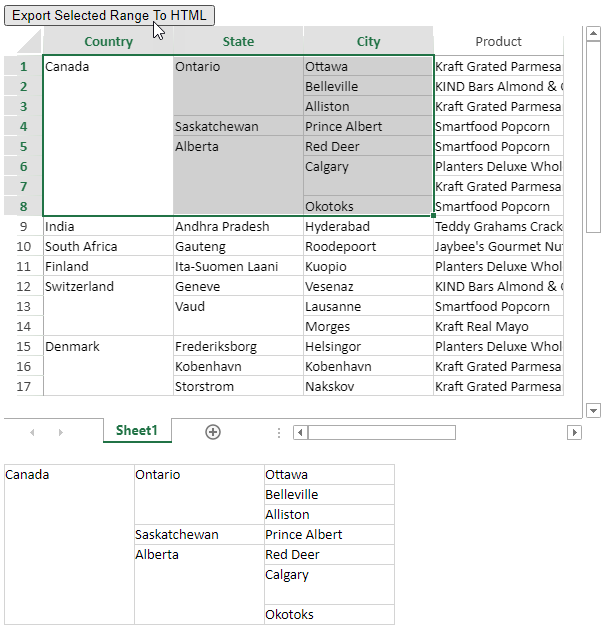
The following code sample exports the selected range of viewport areas to the HTML string at runtime.
```JavaScript
//Gets the Html content from selected range of viewport area to an htmlContainer
var r, c, rc, cc;
// Acquiring selection range
var selectedRanges = activeSheet.getSelections();
r = selectedRanges[0].row;
rc = selectedRanges[0].rowCount;
c = selectedRanges[0].col;
cc = selectedRanges[0].colCount;
var html = activeSheet.getRange(r, c, rc, cc).toHtml();
document.getElementById("htmlContainer").innerHTML = html;
```
You can also export the selected range of viewport area to HTML string at the backend, using code and not at runtime.
The following code exports a specific range of cells [A1:B8] in the worksheet to an HTML string.
```JavaScript
// Gets the Html content from range "A1:B8" of viewport area to an htmlContainer
var html = activeSheet.getRange("A1:B8").toHtml();
document.getElementById("htmlContainer").innerHTML = html;
```
## Export Whole Worksheet to HTML
Use the **toHTML** method to export the entire worksheet to an HTML string. The following example exports the entire worksheet containing information about the sale of products in different cities and states across the countries.
The following code exports the whole worksheet to an HTML string.
```JavaScript
// Gets the Html content from viewport area having data to an htmlContainer
var html = activeSheet.getRange(-1, -1, -1, -1).toHtml(GC.Spread.Sheets.HeaderOptions.allHeaders);
document.getElementById("htmlContainer").innerHTML = html;
```