# Picture Shape
## Content
SpreadJS provides support for adding and formatting a picture as a shape.
The picture object is created using the ShapeBase class and inherits the properties of a shape. This helps to format the pictures and interact with shapes.
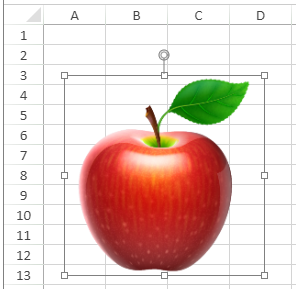
You can add a picture shape using the **addPictureShape** method. It accepts parameters such as name, source, location (x and y), and size (width and height).
```JavaScript
// Configure Workbook and Worksheet
var spread = new GC.Spread.Sheets.Workbook("ss");
var sheet = spread.getActiveSheet();
// Add picture as shape
var originalPic = sheet.shapes.addPictureShape("Apple", '/apple.png', 20, 50, 200, 200);
```
The [PictureShape](https://grapecity-document-site.azurewebsites.net/spreadjs/api/classes/GC.Spread.Sheets.Shapes.PictureShape) class provides various methods to control the appearance of the picture shape. For example, the following image illustrates a rotated picture added in an oval geometry type shape.

```JavaScript
var pic = sheet.shapes.addPictureShape("Apple", '/apple.png', 280, 60, 200, 200);
// Set style
var style = pic.style();
style.fill.type = GC.Spread.Sheets.Shapes.ShapeFillType.solid;
style.fill.color = 'rgb(14, 242, 200)';
style.line.color = 'rgb(255, 204, 0)';
style.line.width = 3;
pic.style(style);
// Set to different shape
pic.geometryType(GC.Spread.Sheets.Shapes.AutoShapeType.oval);
// Rotate picture
var n = pic.rotate();
pic.rotate(n + 30);
```
> **Note**: Copying and pasting image files in the worksheet create picture shape by default. The shape plugin must be added, otherwise, a floating object picture is created instead of a picture shape.
## Picture Format
There are a lot of adjustment options available to help format picture shapes. You can set a formatting array consisting of the following options in the **pictureFormat** method.
| Option | Description | Example |
| ------ | ----------- | ------- |
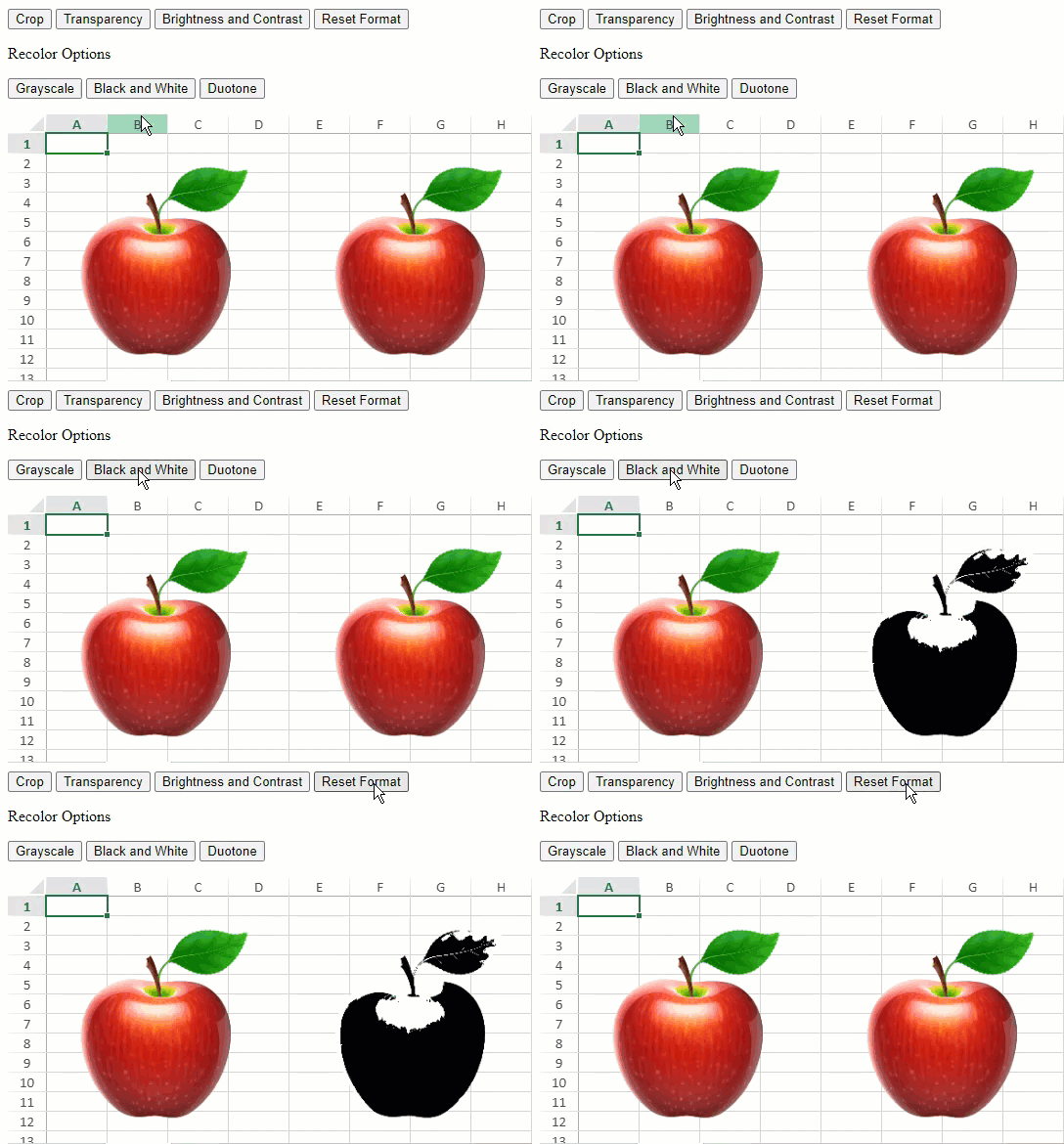
| [blackAndWhite](https://grapecity-document-site.azurewebsites.net/spreadjs/api/interfaces/GC.Spread.Sheets.Shapes.IPictureFormat#blackandwhite)
*[number](https://grapecity-document-site.azurewebsites.net/spreadjs/api/interfaces/GC.Spread.Sheets.Shapes.IPictureFormat#blackandwhite)* | Specifies the Bi-level effect. Value range is [0, 1].- If the luminance is greater or equal to the threshold, it is set to white.
- If the luminance is less than the threshold, it is set to black.
|  |
| brightness number | Adjusts the picture brightness. The value range is [-1, 1].
It linearly shifts all colors closer to white or black. | @rows=2: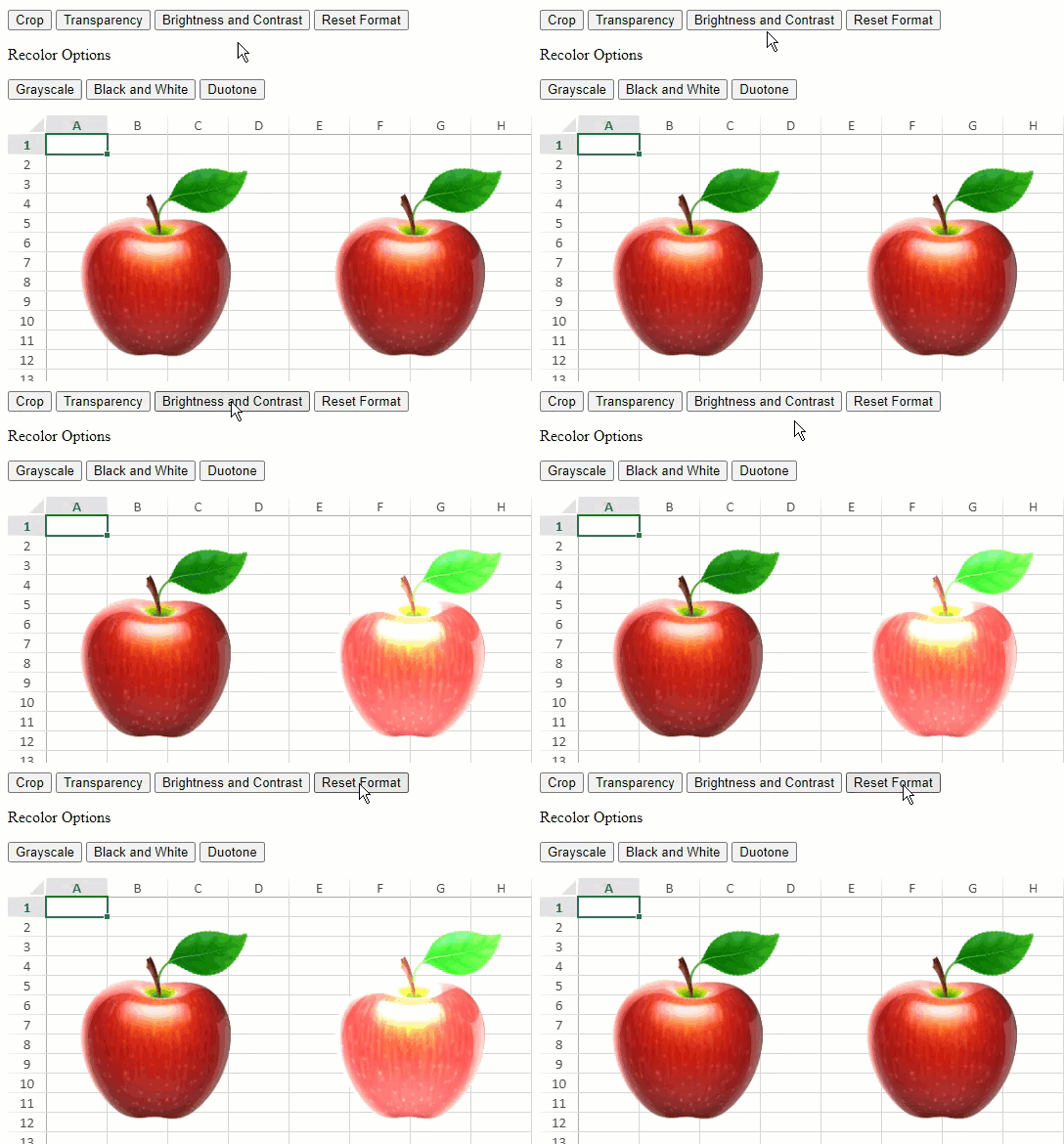 |
| contrast number | Adjusts the picture contract. The value range is [-1, 1].
It scales all the colors to be either closer or further apart. |
| crop
IPictureCropInfo | Specifies the portion of the image used for the fill. | 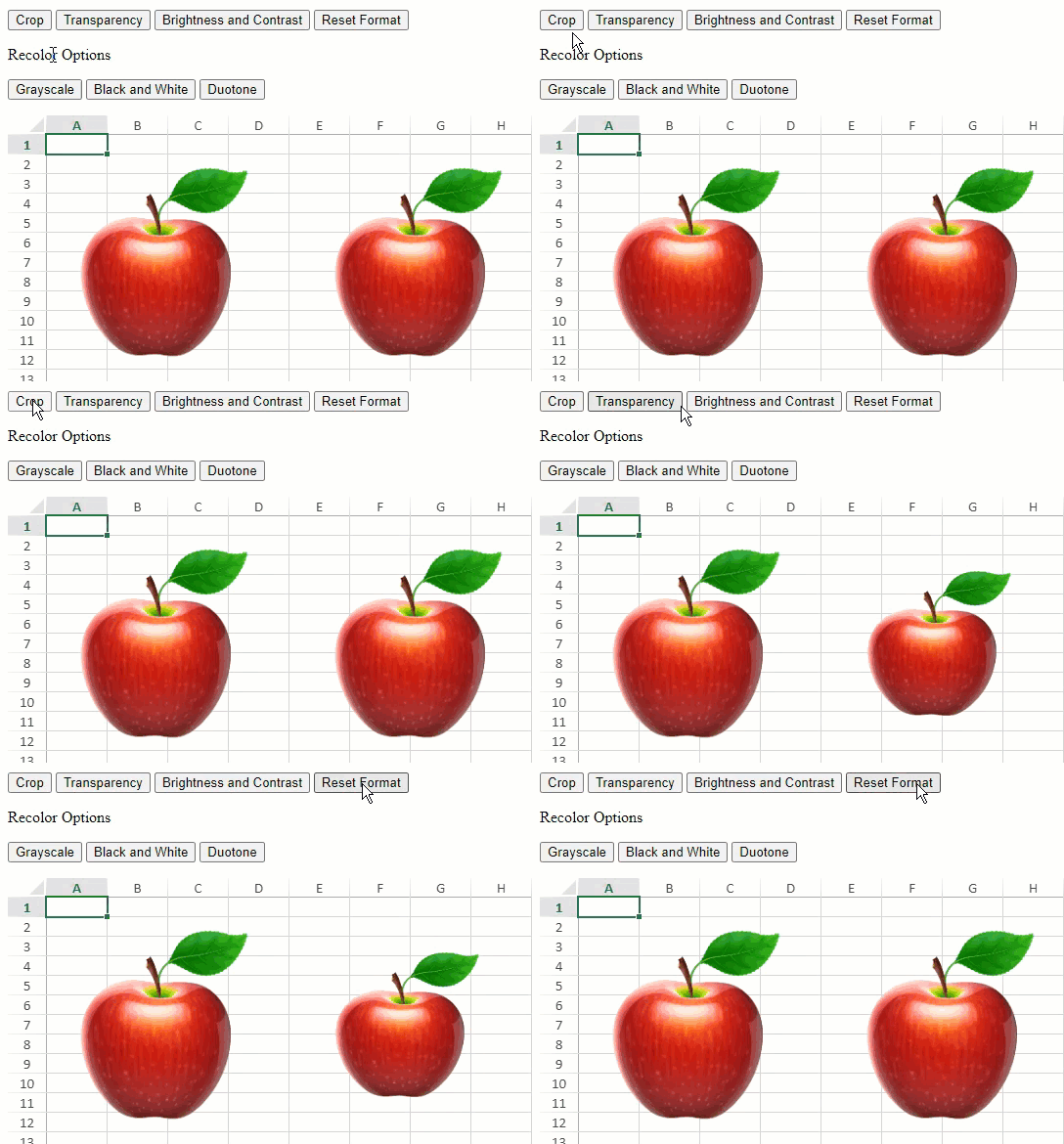 |
| duotone Object | Specifies the duotone effect.
It combines color1 and color2 through a linear interpolation to determine the new color for each pixel. | 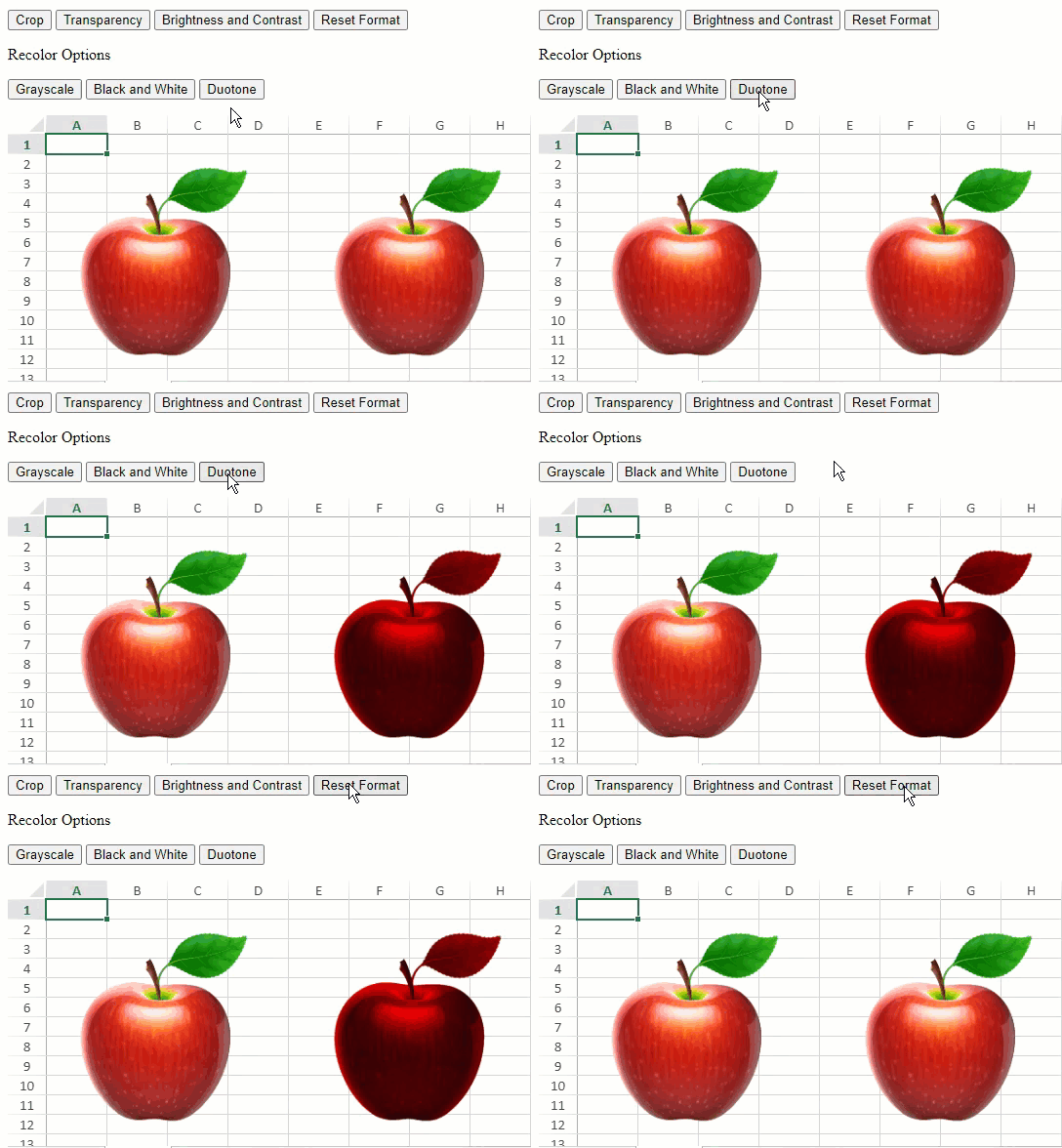 |
| transparency number | Adjusts the transparency level. Value range is [0, 1]. | 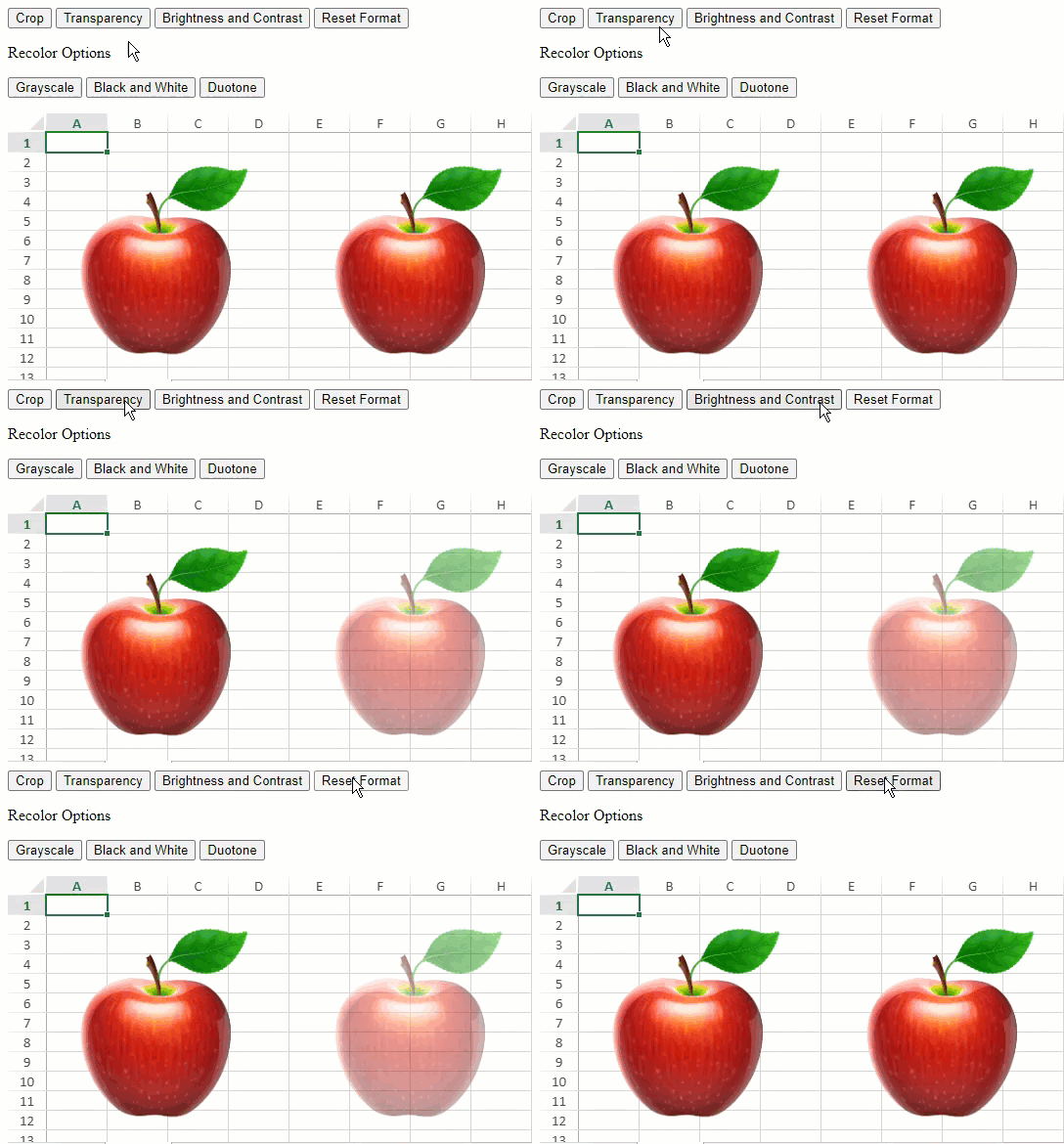 |
| grayscale boolean | Specifies whether the grayscale is applied. The default value is False.
It converts all the affected color values to a shade of gray corresponding to their luminance. | 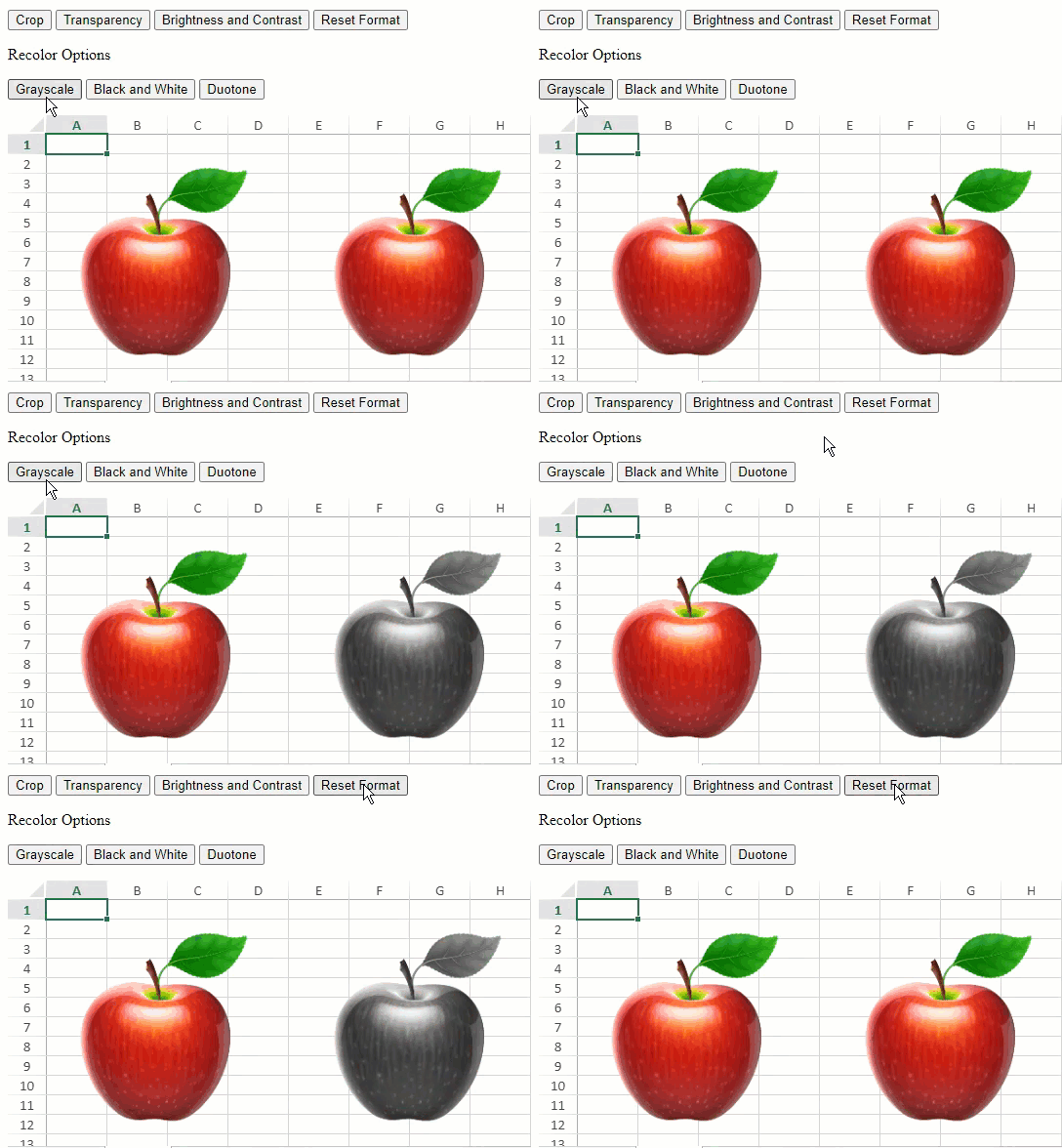 |
The following code sample shows how to apply each formatting option to a picture shape in the SpreadJS worksheet.
```JavaScript
// Set black and white
pic.pictureFormat({ blackAndWhite: 0.5 });
// Set brightness and contrast
var format = pic.pictureFormat();
// Set Brightness and Contrast
format.brightness = 0.4;
format.contrast = 0.4;
pic.pictureFormat(format);
// Set crop
var format = pic.pictureFormat();
// Crop picture
format.crop = { left: -.015, right: -0.15, top: -0.15, bottom: -0.15 };
pic.pictureFormat(format);
// Set duotone
pic.pictureFormat({ duotone: { color1: "black", color2: "red" } });
// Set transparency
var format = pic.pictureFormat();
// Set transparency
format.transparency = 0.5;
pic.pictureFormat(format);
// Set grayscale
pic.pictureFormat({ grayscale: true });
```