# Data Binding
## Content
SpreadJS supports binding to array objects and Knockout.observableArray. SpreadJS also supports cell-level binding, which allows binding to any object. SpreadJS supports two-way data binding.
## Cell Binding
You can use cell-level binding in SpreadJS.
Cell-level binding binds an object's property to a sheet cell. Wrap the data object to GC.Spread.Sheets.Bindings.[CellBindingSource](/spreadjs/api/v17/modules/GC.Spread.Sheets.Bindings#CellBindingSource) before binding the cell. Then bind the wrapped source to the sheet (sheet.[setDataSource](/spreadjs/api/v17/classes/GC.Spread.Sheets.Worksheet#setDataSource)).
The following code sample binds cells in the sheet.
```javascript
var person = {name: "Wang feng", age: 25, address: {postcode: "710075"}};
var source = new GC.Spread.Sheets.Bindings.CellBindingSource(person);
activeSheet.setBindingPath(0, 0, "name");
activeSheet.setBindingPath(1, 1, "age");
activeSheet.setBindingPath(3, 3, "address.postcode");
activeSheet.setDataSource(source);
```
## Column Binding
Specific columns can be bound with the [bindColumn](/spreadjs/api/v17/classes/GC.Spread.Sheets.Worksheet#bindColumn) method.
The following code sample binds specific columns with the **bindColumn** method.
```javascript
var datasource = [
{ name: "Alice", age: 27, birthday: "1985/08/31", position: "PM" },
{ name: "Aimee", age: 28, birthday: "1984/07/31", position: "TL" },
{ name: "Charles", age: 29, birthday: "1983/03/31", position: "QC" },
{ name: "Fred", age: 30, birthday: "1982/02/20", position: "DL" },
{ name: "Angelia", age: 31, birthday: "1981/05/30", position: "QC" },
{ name: "Peter", age: 32, birthday: "1980/11/08", position: "QC" }
];
var nameColInfo = { name: "name", displayName: "Name", size: 70 };
var ageColInfo = { name: "age", displayName: "Age", size: 40, resizable: false };
var birthdayColInfo = { name: "birthday", displayName: "Birthday",formatter:"d/M/yy", size: 120 };
var positionColInfo = { name: "position", displayName: "Position", size: 50, visible: false };
activeSheet.autoGenerateColumns = true;
activeSheet.setDataSource(datasource);
activeSheet.bindColumn(0, nameColInfo);
activeSheet.bindColumn(1, ageColInfo);
activeSheet.bindColumn(2, birthdayColInfo);
activeSheet.bindColumn(3, positionColInfo);
```
The following code sample binds to a JSON array object.
```javascript
var jsonArray = '{"phoneNumbers": [{"type": "home","number": "212 555-1234"},{"type": "fax","number": "646 555-4567"}]}';
var arr = JSON.parse(jsonArray);
activeSheet.setDataSource(arr.phoneNumbers);
```
## Table Binding
You can create a table and bind it to a data source.
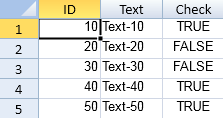
The following code sample manually creates and binds to a table.
```javascript
window.onload = function()
{
var spread =
new GC.Spread.Sheets.Workbook(document.getElementById("ss"),{sheetCount:3});
var activeSheet = spread.getActiveSheet();
// Create a data table manually.
var sampleTable =
[
{"ID":10, "Text":"Text-10", "Check":true},
{"ID":20, "Text":"Text-20", "Check":false},
{"ID":30, "Text":"Text-30", "Check":false},
{"ID":40, "Text":"Text-40", "Check":true},
{"ID":50, "Text":"Text-50", "Check":true}
];
// Bind the data table
activeSheet.setDataSource(sampleTable);
}
```
## Add New Row with Data and Update Data Source
You can add rows after binding.
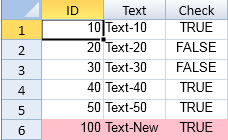
The following code sample adds rows after the last row.
```javascript
window.onload = function()
{
var spread =
new GC.Spread.Sheets.Workbook(document.getElementById("ss"),{sheetCount:3});
var activeSheet = spread.getActiveSheet();
// Create a data table manually.
var sampleTable =
[
{"ID":10, "Text":"Text-10", "Check":true},
{"ID":20, "Text":"Text-20", "Check":false},
{"ID":30, "Text":"Text-30", "Check":false},
{"ID":40, "Text":"Text-40", "Check":true},
{"ID":50, "Text":"Text-50", "Check":true}
];
// Bind the data table
spread.getActiveSheet().setDataSource(sampleTable);
$("#button1").click(function()
{
console.log("The number of all rows in the datasource before addition:" + sampleTable.length);
var activeSheet = spread.getActiveSheet();
var row = activeSheet.getRowCount();
// Add rows after the last row
activeSheet.addRows(row, 1);
// Set data.
activeSheet.setValue(row, 0, 100);
activeSheet.setValue(row, 1, "Text-New");
activeSheet.setValue(row, 2, true);
activeSheet.getCell(row, -1).backColor("pink");
// Data table has been updated.
console.log("The number of all rows in the datasource after addition:" + sampleTable.length);
console.log("The value of the Text field in the last row of the datasource: " + sampleTable[sampleTable.length - 1].Text);
});
}
```
## Add Unbound Columns
You can add unbound columns to the widget.
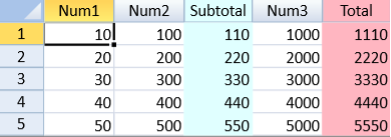
The following code sample adds unbound columns.
```javascript
$(document).ready(function ()
{
var spread =
new GC.Spread.Sheets.Workbook(document.getElementById("ss"),{sheetCount:3});
var activeSheet = spread.getActiveSheet();
var rowCount, colCount;
// Create a data table manually.
var sampleTable =
[
{"Num1":10, "Num2":100, "Num3":1000},
{"Num1":20, "Num2":200, "Num3":2000},
{"Num1":30, "Num2":300, "Num3":3000},
{"Num1":40, "Num2":400, "Num3":4000},
{"Num1":50, "Num2":500, "Num3":5000}
];
// Bind the data table.
activeSheet.setDataSource(sampleTable);
// Add columns (they will become unbound columns).
activeSheet.addColumns(2, 1);
activeSheet.addColumns(activeSheet.getColumnCount(), 1);
// Display a subtotal.
rowCount = activeSheet.getRowCount();
spread.options.referenceStyle =
GC.Spread.Sheets.ReferenceStyle.R1C1;
activeSheet.setValue(0, 2,
"Subtotal", GC.Spread.Sheets.SheetArea.colHeader);
for(var i = 0; i < rowCount; i++)
{
activeSheet.setFormula(i, 2, "SUBTOTAL(9, RC[-2]:RC[-1])");
}
activeSheet.getRange(-1, 2, -1, 1).backColor("LightCyan");
activeSheet.getCell(0, 2, GC.Spread.Sheets.SheetArea.colHeader).backColor("LightCyan");
activeSheet.setColumnWidth(2, 60);
// Display a total.
colCount = activeSheet.getColumnCount();
activeSheet.setValue(0, colCount - 1,
"Total", GC.Spread.Sheets.SheetArea.colHeader);
for(var i = 0; i < rowCount; i++)
{
activeSheet.setFormula(i, colCount - 1, "SUBTOTAL(9,RC[-4]:RC[-1])");
}
activeSheet.getRange(-1, colCount - 1, -1, 1).backColor("LightPink");
activeSheet.getCell(0, colCount - 1,
GC.Spread.Sheets.SheetArea.colHeader).backColor("LightPink");
activeSheet.setColumnWidth(colCount - 1, 60);
});
```
Also, refer [SpreadJS Designer Template with Cell Binding](/spreadjs/docs/v17/features/binding/designertemplate).