# SpreadJS Designer Template with Cell Binding

## Content

You can use the SpreadJS designer to create a binding relationship to the data with a template. This saves time by reducing the amount of coding.

The **Template** option in the designer is used to design the cell-binding template. The **Template** option is located under the **Data** tab. Use the template to create field nodes that match the actual data fields. You can also set cell types for the data ( **Home** tab and **CellType** option). Use the **AutoGenerateLabel** option to automatically create the binding path label.

Select the green plus symbol to add a field node. Then type the field name (for example, name). You can specify a field option such as **CheckBox** using the drop-down arrow. The following image illustrates the area for adding field nodes.
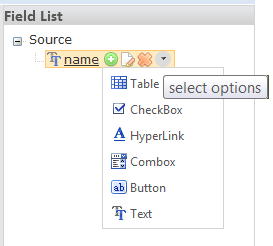
![](https://gcdocumentsitekrblob.blob.core.windows.net/document-site-files/images/8d606653-16a0-474d-b9dc-e2b4d01c2446/images/SpreadJSbindingtemplate3.png)

The following image illustrates the **Template** option in the SpreadJS designer.
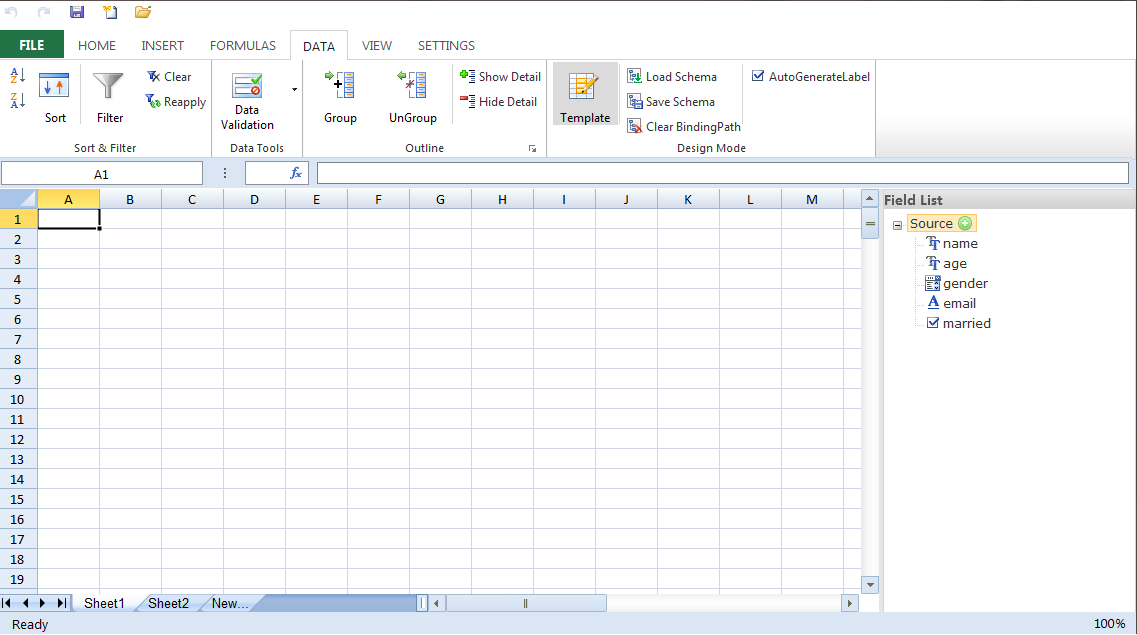
![](https://gcdocumentsitekrblob.blob.core.windows.net/document-site-files/images/8d606653-16a0-474d-b9dc-e2b4d01c2446/images/SpreadJSbindingtemplate.png)

Drag the nodes to the cell area to generate the layout. You can also use the **CellType** option to change the cell settings (such as removing a caption from the check box cell).
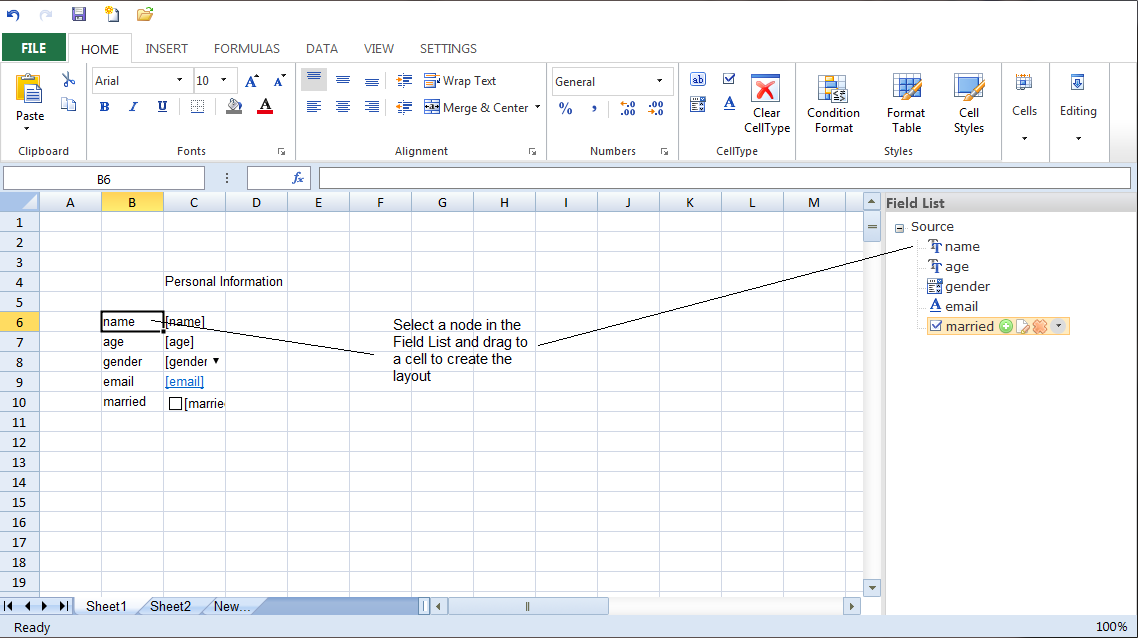
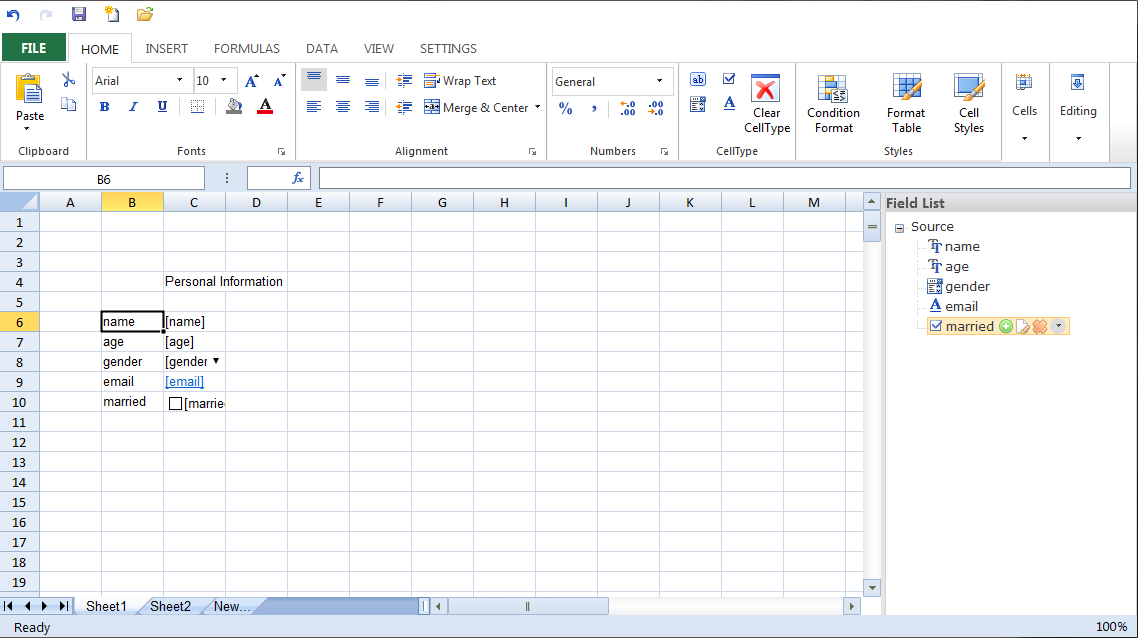
![](https://gcdocumentsitekrblob.blob.core.windows.net/document-site-files/images/8d606653-16a0-474d-b9dc-e2b4d01c2446/images/SpreadJSbindingtemplate2.png)

![](https://gcdocumentsitekrblob.blob.core.windows.net/document-site-files/images/8d606653-16a0-474d-b9dc-e2b4d01c2446/images/SpreadJSbindingtemplate1.png)

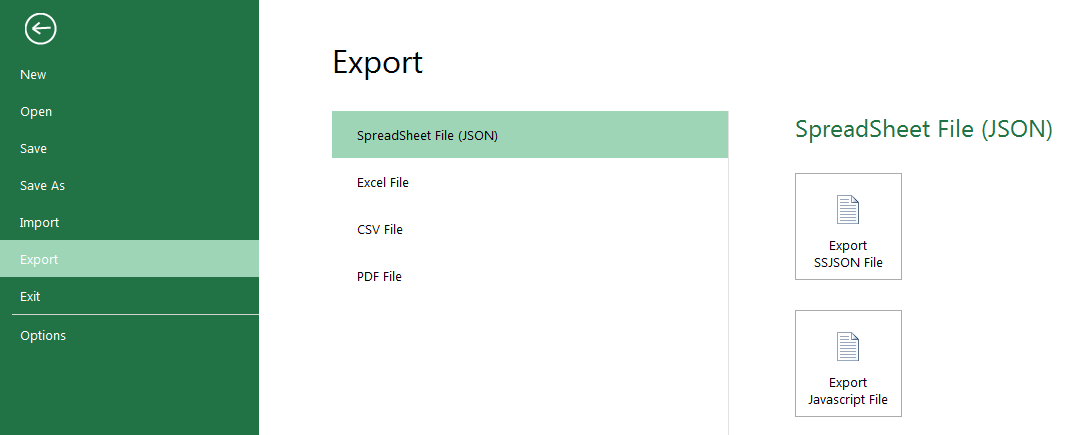
Save to a SpreadJS designer file (ssjson) if you wish to redesign the template later. Save to a js file to use in an HTML page. The JSON object is saved as a variable field. The field name is the same as the file name. Use the **Export** option under the **File** tab to save to an SSJSON or Javascript file.
![](https://gcdocumentsitekrblob.blob.core.windows.net/document-site-files/images/8d606653-16a0-474d-b9dc-e2b4d01c2446/images/SpreadJSbindingtemplate4.png)

The following code sample shows how to add code to the page that references the js file. This example uses a file named binding.js. Add code similar to the following:

```html
<!DOCTYPE html>
<html>
<head>
<title>SpreadJS Binding</title>
<link type="text/css" href="./css/gc.spread.sheets.x.x.x.css" rel="stylesheet" />
<script src="http://code.jquery.com/jquery-2.0.2.js" type="text/javascript"></script>
<script type="text/javascript" src="./scripts/gc.spread.sheets.all.x.x.x.min.js"></script>
<script type="text/javascript" src="binding.js"></script>
<script type="text/javascript">
$(document).ready(function () {
var spread = new GC.Spread.Sheets.Workbook(document.getElementById("ss"),{sheetCount:3});
var data = { name: "bob", age: 20, gender: "Male", email: "bob@test.com",
married: true }; // customer's data source.
spread.fromJSON(binding); //Use fromJSON method to load the template, here template variable field is defined in binding.js.
var sheet = spread.getActiveSheet();
sheet.setDataSource(new GC.Spread.Sheets.Bindings.CellBindingSource(data)); //setDataSource with CellBindingSource.
});
</script>
</head>
<body>
<div id="ss" style="width: 600px; height: 250px; border: 1px solid gray">
</div>
</body>
</html>
```

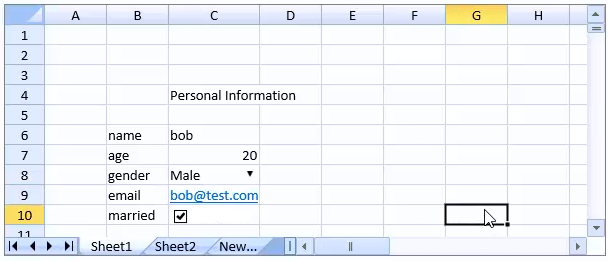
The completed sample appears as follows:
![](https://gcdocumentsitekrblob.blob.core.windows.net/document-site-files/images/8d606653-16a0-474d-b9dc-e2b4d01c2446/images/SpreadJSbindingcomplete.png)