# Form Controls
## Content
SpreadJS allows you to add form controls to a worksheet or open an existing Excel file with form controls.
Form Controls make it easy for the users to interact with the cell data in the worksheet. For example, the form controls can be used to select items from a list of dialog sheets. This is depicted in the following snapshot.
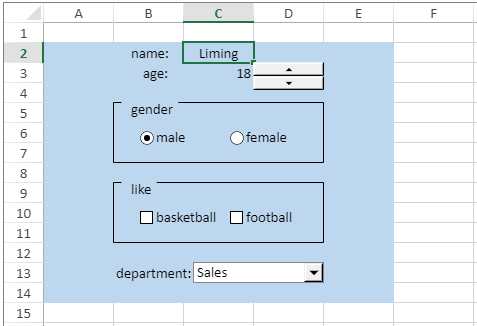
SpreadJS supports the following types of form controls:
* Button
* Spin Button
* ListBox
* ComboBox
* CheckBox
* Option Button
* GroupBox
* Label
* ScrollBar
SpreadJS provides the **[GC.Spread.Sheets.Shapes](https://developer.mescius.com/spreadjs/api/modules/GC.Spread.Sheets.Shapes)** namespace to add a new form control shape to the shape collection using the **addFormControl** function. The namespace also provides the **[FormControlType](https://developer.mescius.com/spreadjs/api/enums/GC.Spread.Sheets.Shapes.FormControlType)** enumeration to define all types of built-in form controls.
To implement form controls, the **[IFormControlOptions](https://developer.mescius.com/spreadjs/api/modules/GC.Spread.Sheets.Shapes#iformcontrolshapeoptions)** interface provides options such as IOptionButtonFormControlOptions, ICheckBoxFormControlOptions, ISpinButtonFormControlOptions, IScrollBarFormControlOptions, IListBoxFormControlOptions, **IComboBoxFormControlOptions** and **IGroupBoxFormControlOptions.**
Additionally, the form controls have the **cellLink** property that can be used to link the form control with a cell. So, when the value of the form control changes, the cell value also changes. Moreover, whenever any value of the form control changes, during a UI operation, an API call, or while changing the value of an associated cell, an event called the **FormControlValueChanged** is fired. The form controls also have an **enabled** property to control the interaction of the form controls. Once the **enabled** property is set to false, the interaction of form controls is disabled. By default, it is set to true.
> The **enabled** property supports Excel import and export, and the behavior is consistent with Excel.
## Style Settings
The following table depicts the form controls and their supported style settings.
| Control | Text Style | Text Alignment | Fill | Line | Excel Support |
| ------- | ---------- | -------------- | ---- | ---- | ------------- |
| Button | Yes | Yes | No | No | Yes |
| Option Button | Yes | Yes | Yes | Yes | Few gradient and picture fill properties are only supported. |
| Checkbox | Yes | Yes | Yes | Yes | Few gradient and picture fill properties are only supported. |
| Label | Yes | Yes | Yes | Yes | Solid fill and no fill are supported. Line style is not supported. |
| Group Box | Yes | No | No | No | Yes |
| ComboBox | Yes | No | No | No | No |
| ListBox | Yes (font)
No (color) | No | No | No | No |
| Spin Button | No | No | No | No | Yes |
| Scrollbar | No | No | No | No | Yes |
Although the style APIs are consistent with shape APIs but not all style settings can be implemented in all form controls.
> Note: SpreadJS supports Excel with form controls while performing JSON input/output operations.
## Adding Form Controls
Let's see how to add each form control to the worksheet.
#### Button
You can add a button form control to the worksheet. This can be done by passing the **button** option of the **FormControlType** enumeration as a parameter in the **addFormControl** method. You can set the text and styling in the button control using the **text** and **style** properties. You can also call the **bind** event to alert the user that the button has been clicked.
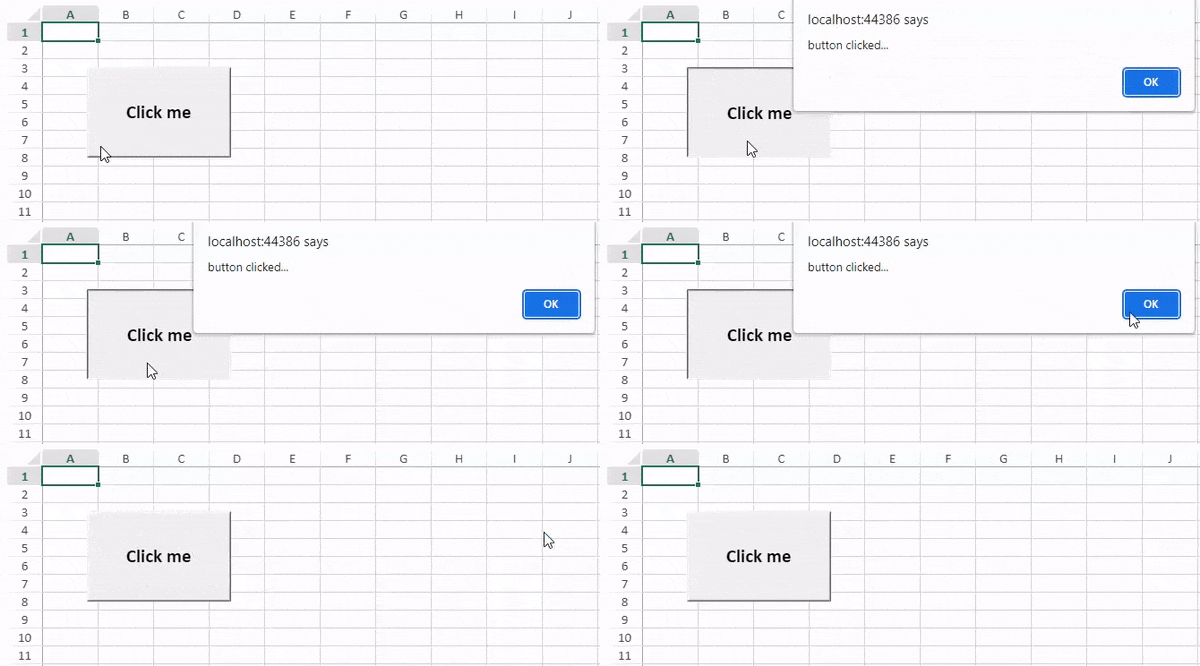
The following code implementation shows how to add a button form control:
```JavaScript
var button = sheet.shapes.addFormControl("button", GC.Spread.Sheets.Shapes.FormControlType.button, 50, 50, 160, 100);
button.text("Click me");
var style = button.style();
style.textEffect.color = "rgb(0, 0, 0)";
style.textEffect.font = "bold 21px Calibri";
style.textFrame.vAlign = GC.Spread.Sheets.VerticalAlign.center;
style.textFrame.hAlign = GC.Spread.Sheets.HorizontalAlign.center;
button.style(style);
sheet.bind(GC.Spread.Sheets.Events.FormControlButtonClicked, function (s, args) {
alert("button clicked...");
});
```
#### Spin Button
You can add a spin button form control to the worksheet. This can be done by passing the **spinButton** option of the **FormControlType** enumeration as a parameter in the **addFormControl** method. You can also set spin button options using the **options** method and assign a spin button value. Further, you can call the **bind** event to write or log a message to the console that the value of the spin button has changed.
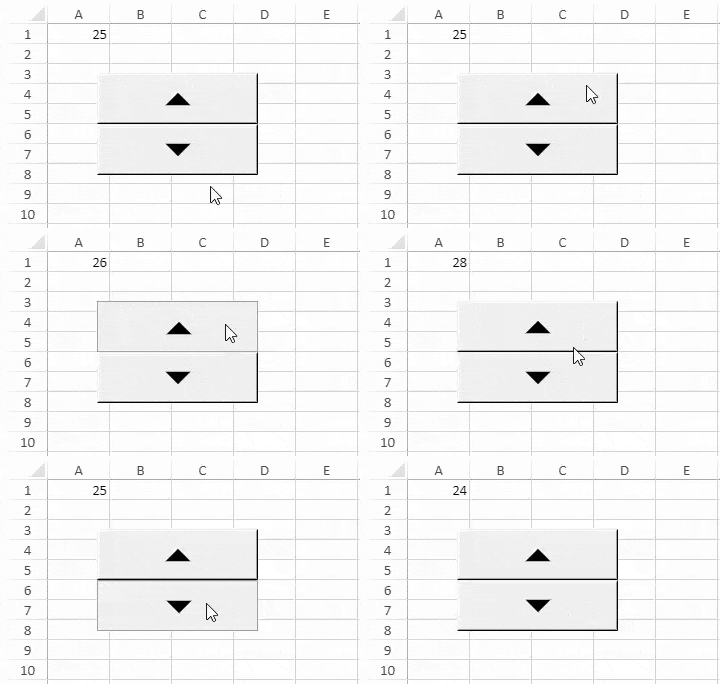
The following code implementation shows how to add a spin button form control:
```JavaScript
var spinButton = sheet.shapes.addFormControl("spin button", GC.Spread.Sheets.Shapes.FormControlType.spinButton, 50, 50, 160, 100);
var options = spinButton.options();
options.minValue = 0;
options.maxValue = 50;
options.step = 1;
options.cellLink = "A1";
spinButton.options(options);
spinButton.value(25);
sheet.bind(GC.Spread.Sheets.Events.FormControlValueChanged, function (s, args) {
console.log("value changed...", args.newValue);
});
```
#### ListBox
You can add a list box form control to the worksheet. This can be done by passing the **listBox** option of the **FormControlType** enumeration as a parameter in the **addFormControl** method. You can also set the listbox options using the **options** method, assign input range, set selection type and link a cell. So, when the user changes the value in the listbox control, the value in the cell also changes. Further, you can call the **bind** event to write or log a message to the console that the value of the control has changed.
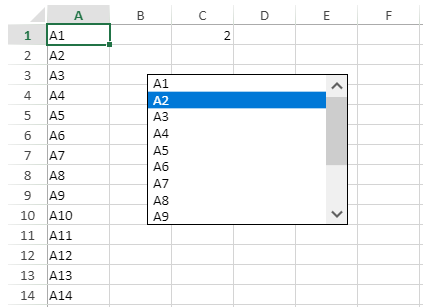
The following code implementation shows how to add a ListBox form control:
```JavaScript
for (var i = 0; i < 14; i++) {
sheet.setValue(i, 0, "A" + (i + 1));
}
var listBox = sheet.shapes.addFormControl("list box", GC.Spread.Sheets.Shapes.FormControlType.listBox, 100, 50, 200, 150);
var options = listBox.options();
options.inputRange = "A1:A14";
options.cellLink = "C1";
options.selectionType = GC.Spread.Sheets.Shapes.ListBoxSelectionType.single;
listBox.options(options);
listBox.value(2);
sheet.bind(GC.Spread.Sheets.Events.FormControlValueChanged, function (s, args) {
console.log("value changed...", args.newValue);
});
```
#### ComboBox
You can add a ComboBox form control to the worksheet. This can be done by passing the **comboBox** option of the **FormControlType** enumeration as a parameter in the **addFormControl** method. You can also set the ComboBox options using the **options** method, assign input range, set dropdown length and link a cell. So, when the user changes the value in the ComboBox control, the value in the cell also changes. Further, you can call the **bind** event to write or log a message to the console that the value of the control has changed.
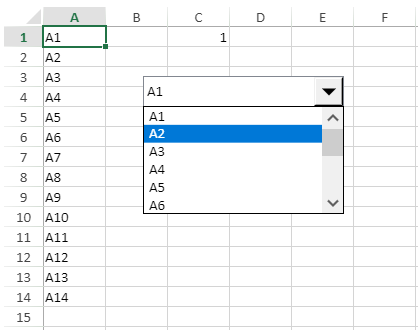
The following code implementation shows how to add a ComboBox form control:
```JavaScript
for (let i = 0; i < 14; i++) {
sheet.setValue(i, 0, "A" + (i + 1));
}
var comboBox = sheet.shapes.addFormControl("comboBox", GC.Spread.Sheets.Shapes.FormControlType.comboBox, 100, 50, 200, 30);
var options = comboBox.options();
options.inputRange = "A1:A14";
options.cellLink = "C1";
options.dropDownLines = 6;
comboBox.options(options);
comboBox.value(1);
sheet.bind(GC.Spread.Sheets.Events.FormControlValueChanged, function (s, args) {
console.log("value changed...", args.newValue);
});
```
#### CheckBox
You can add a CheckBox form control to the worksheet. This can be done by passing the **checkBox** option of the **FormControlType** enumeration as a parameter in the **addFormControl** method. You can also set the CheckBox options using the **options** method, set styling, and link a cell. Further, you can call the **bind** event to write or log a message to the console that the value of the control has changed.
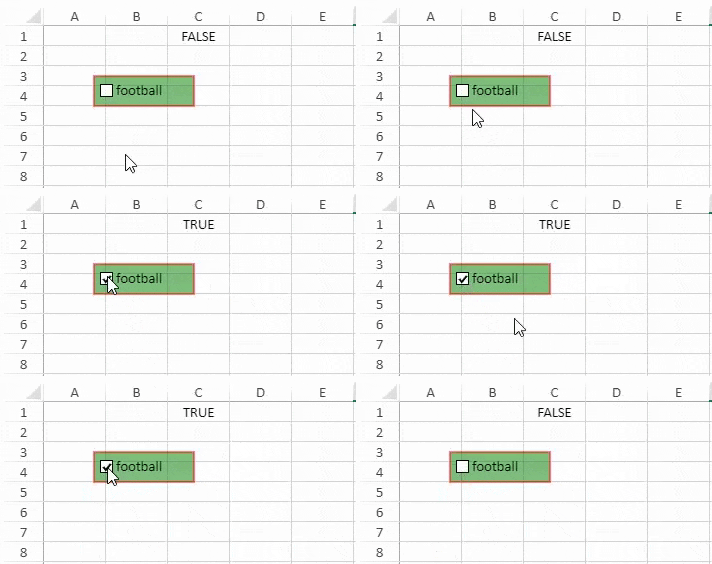
The following code implementation shows how to add a CheckBox form control:
```JavaScript
var checkBox = sheet.shapes.addFormControl("check box", GC.Spread.Sheets.Shapes.FormControlType.checkBox, 50, 50, 100, 30);
checkBox.text("football");
var options = checkBox.options();
options.cellLink = "C1";
checkBox.options(options);
var style = checkBox.style();
style.fill.type = GC.Spread.Sheets.Shapes.ShapeFillType.solid;
style.fill.color = "green";
style.fill.transparency = 0.5;
style.line.color = "red";
style.line.transparency = 0.5;
style.line.width = 2;
checkBox.style(style);
sheet.bind(GC.Spread.Sheets.Events.FormControlValueChanged, function (s, args) {
console.log("value changed...", args.newValue);
});
```
#### Option Button
You can add an Option Button form control to the worksheet. This can be done by passing the **optionButton** option from the **FormControlType** enumeration as a parameter in the **addFormControl** method. You can also set the control's options using the **options** method, set styling, and link a cell. Further, you can call the **bind** event to write or log a message to the console that the value of the control has changed.
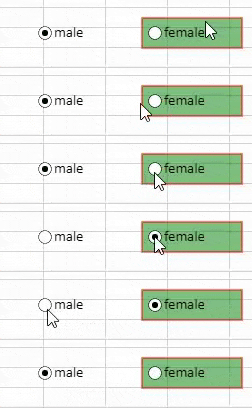
The following code implementation shows how to add an Option Button form control:
```JavaScript
var maleOptionButton = sheet.shapes.addFormControl("male", GC.Spread.Sheets.Shapes.FormControlType.optionButton, 50, 50, 100, 30);
maleOptionButton.text("male");
var options = maleOptionButton.options();
options.cellLink = "C1";
maleOptionButton.options(options);
maleOptionButton.value(true);
var femaleOptionButton = sheet.shapes.addFormControl("female", GC.Spread.Sheets.Shapes.FormControlType.optionButton, 160, 50, 100, 30);
femaleOptionButton.text("female");
var style = femaleOptionButton.style();
style.fill.type = GC.Spread.Sheets.Shapes.ShapeFillType.solid;
style.fill.color = "green";
style.fill.transparency = 0.5;
style.line.color = "red";
style.line.transparency = 0.5;
style.line.width = 2;
femaleOptionButton.style(style);
sheet.bind(GC.Spread.Sheets.Events.FormControlValueChanged, function (s, args) {
console.log("value changed...", args.newValue);
});
```
#### GroupBox
You can add a GroupBox form control to the worksheet. This can be done by passing the groupBox option of the **FormControlType** enumeration as a parameter in the **addFormControl** method. You can also set different GroupBox options using the **options** method, link a cell, and add text. Further, you can call the **bind** event to write or log a message to the console that the value of the control has changed.
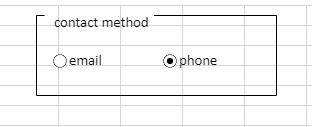
The following code implementation shows how to add a GroupBox form control:
```JavaScript
var contactMethod = sheet.shapes.addFormControl("email", GC.Spread.Sheets.Shapes.FormControlType.groupBox, 40, 130, 240, 80);
contactMethod.text("contact method");
var email = sheet.shapes.addFormControl("email", GC.Spread.Sheets.Shapes.FormControlType.optionButton, 50, 160, 100, 30);
email.text("email");
var phone = sheet.shapes.addFormControl("phone", GC.Spread.Sheets.Shapes.FormControlType.optionButton, 160, 160, 100, 30);
phone.text("phone");
options = phone.options();
options.cellLink = "C6";
phone.options(options);
phone.value(true);
sheet.bind(GC.Spread.Sheets.Events.FormControlValueChanged, function (s, args) {
console.log("value changed...", args.newValue);
});
```
The rules to group option buttons using GroupBox form control are as follows:
* The option buttons in the same group box belong to the same group. The border of the option button must be completely inside the group box, only the text inside the group box is invalid.
* All option buttons outside the group box belong to the same group.
* When you link an option button with a cell, the option buttons of the same group will be linked with this cell.
#### Label
You can add a Label form control to the worksheet by passing the **label** option from the **FormControlType** enumeration as a parameter in the **addFormControl** method. You can also add text to the label using the **text** property.
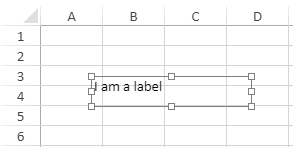
The following code implementation shows how to add a Label form control:
```JavaScript
var label = sheet.shapes.addFormControl("label", GC.Spread.Sheets.Shapes.FormControlType.label, 50, 50, 160, 30);
label.text("I am a label");
```
#### ScrollBar
You can add a ScrollBar form control to the worksheet. To do so, pass the **scrollBar** option of the **FormControlType** enumeration as a parameter in the **addFormControl** method. You can also set the ScrollBar options using the **options** method, link a cell, and set values. Further, you can call the **bind** event to write or log a message to the console that the value of the control has changed.
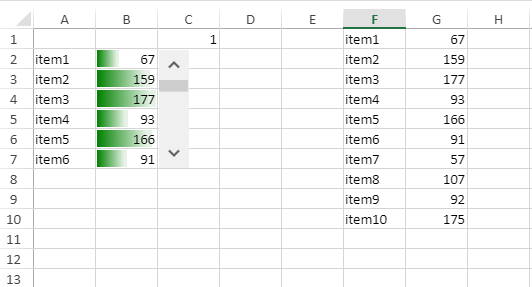
The following code implementation shows how to add a Scrollbar form control:
```JavaScript
var scrollBar = sheet.shapes.addFormControl("scrollBar", GC.Spread.Sheets.Shapes.FormControlType.scrollBar, 125, 21, 30, 118);
var options = scrollBar.options();
options.minValue = 1;
options.maxValue = 5;
options.step = 1;
options.pageChange = 2;
options.cellLink = "C1";
scrollBar.options(options);
scrollBar.value(1);
sheet.bind(GC.Spread.Sheets.Events.FormControlValueChanged, function (s, args) {
console.log("value changed...", args.newValue);
});
```
## Using Designer
To use form controls in the Designer, follow these steps:
1. In the Designer ribbon, click the **Insert** tab, and select the form controls from the **Controls** gallery.
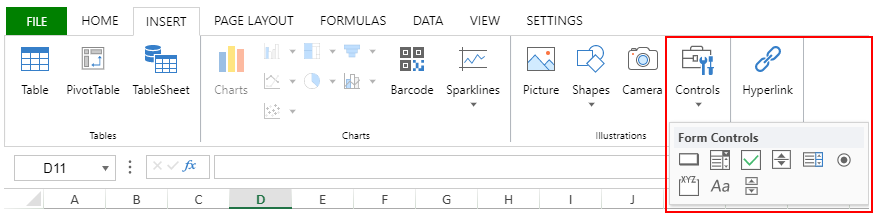
A form control gets added to the sheet.
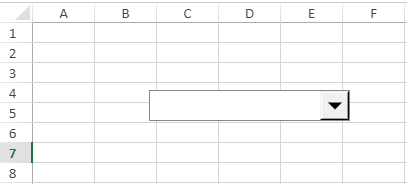
2. Select the form control and use the command shortcuts **Ctrl + left** **mouse click,** or **right** mouse click, to move or resize the control.
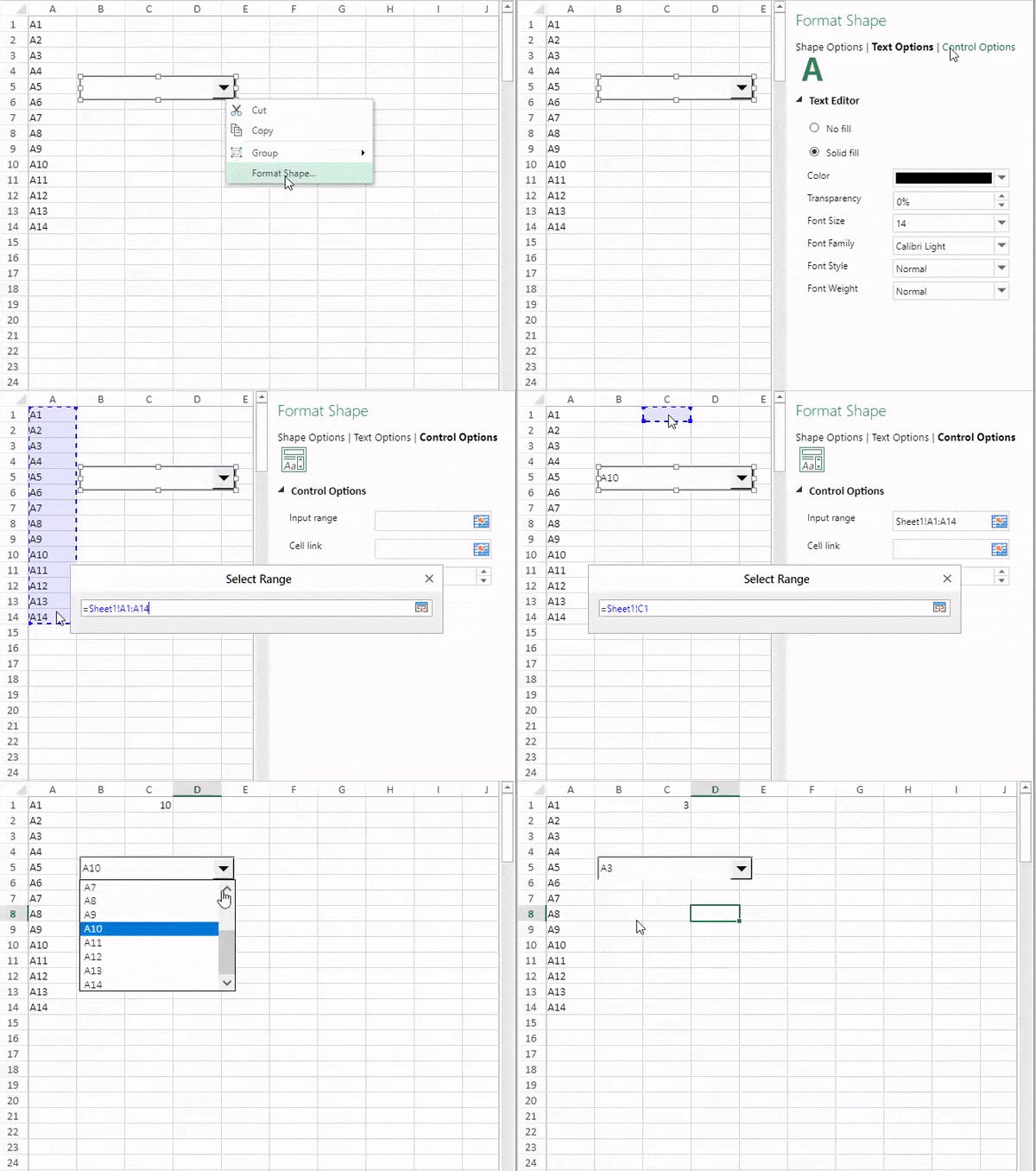
3. Select the **Format Shape** option from the context menu as depicted in the preceding GIF. Customize the shape, text and control options depending on the type of form control used.
Usually, when the form control is not selected, the interactive behavior can be directly performed by the left mouse button. When a form control is selected, you can move or resize it, but not rotate it.
## Limitation
Form controls do not support VBA code and macros.