# Sort
## Content
SpreadJS lets you sort pivot table data so that you can organize it for quick and convenient analysis. Sorting is especially useful when dealing with large amounts of data. You can sort data by using `PivotTable.sort` function that accepts the object of `sortInfo` as a parameter.
SpreadJS allows users to sort and order PivotTable data in four different ways:
1. Sort by field item name
2. Sort by value
3. Sort by custom field item value
4. Sort by custom callback
## Sort by Field Item Name
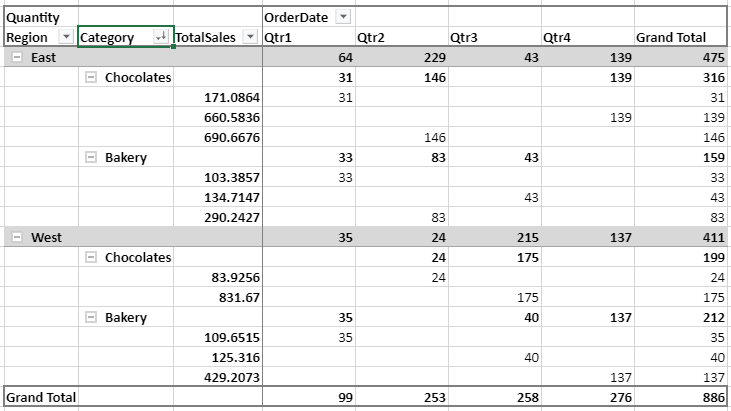
To sort pivot table data by a field, you can specify the field name and use the `sortType` property of `sortInfo` and set the sorting order to ascending, descending, or custom.
The below image demonstrates descending sort order applied to the "Category" field.
The following code sample shows how to sort pivot table data by field item name:
```javascript
let pivotTable = spread.getActiveSheet().pivotTables.get("PivotTable");
var sortInfo = {
sortType: GC.Pivot.SortType.desc
};
pivotTable.sort("Category", sortInfo);
```
### Using Designer
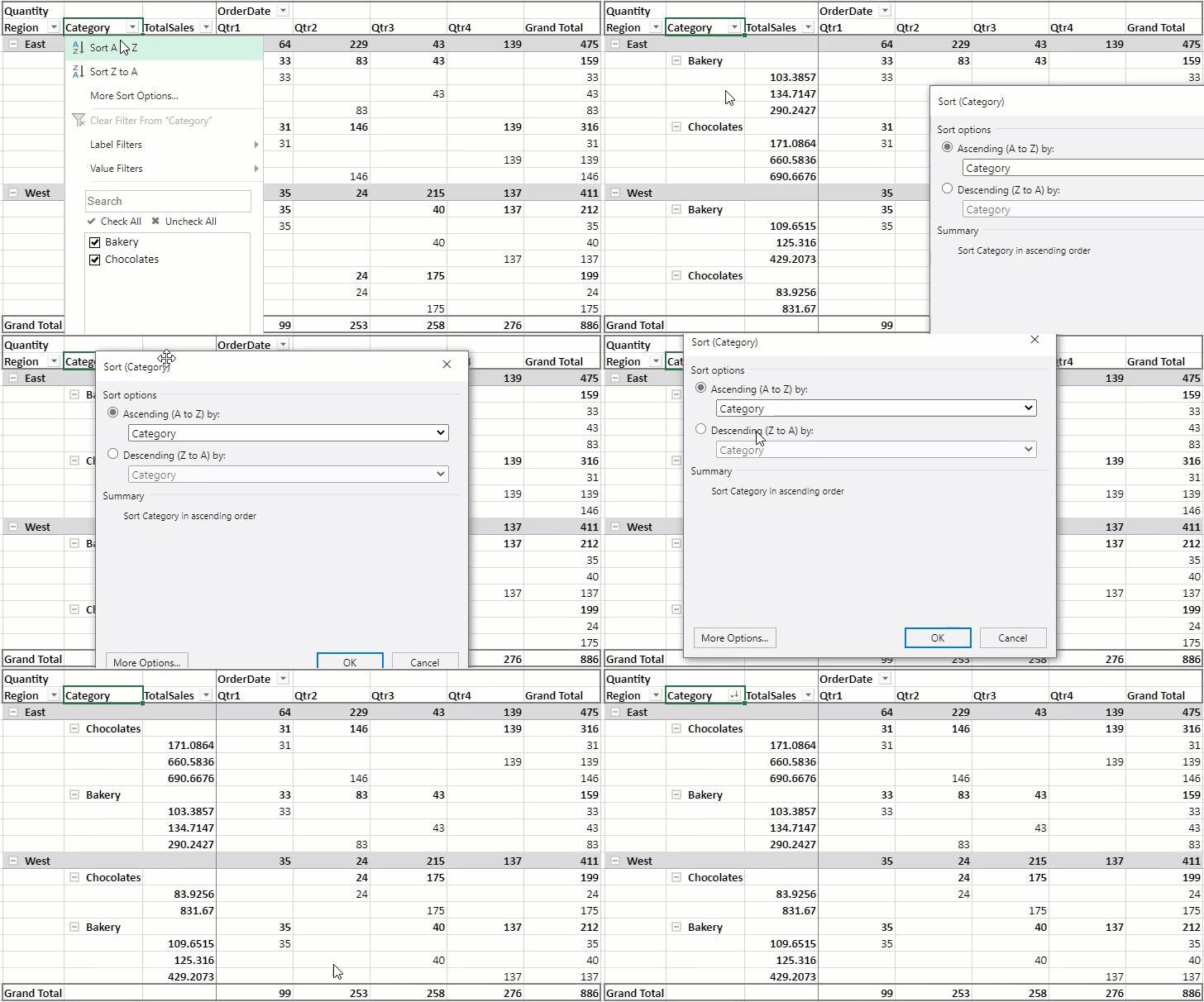
You can also sort data through the designer by clicking **More Sort Options..** from the **Filter Dropdown** of a field. This option opens a **Sort Field** dialog where you can select the target field and set the sort type as ascending or descending.
The following image demonstrates how to sort by field item name using the designer:
## Sort by Value
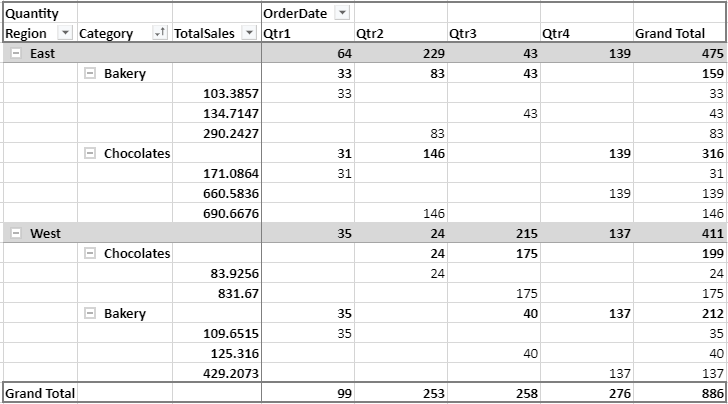
To sort a pivot table data by values of a field, you can set the `sortType` and `sortValueFieldName` properties of the `sortInfo` class. The sortValueFieldName property lets you specify name of the field by which you want to sort the data. This feature lets you sort the pivot table data by the values in the "Grand Total" column.
The below image demonstrates the **"Category"** field being sorted in ascending order by the "**Quantity**" value.
The following code sample shows how to apply sorting by value on the pivot table.
```javascript
let pivotTable = spread.getActiveSheet().pivotTables.get("PivotTable");
var sortInfo = {
sortType: GC.Pivot.SortType.asc,
sortValueFieldName: "Quantity"
};
pivotTable.sort("Category", sortInfo);
```
### Using Designer
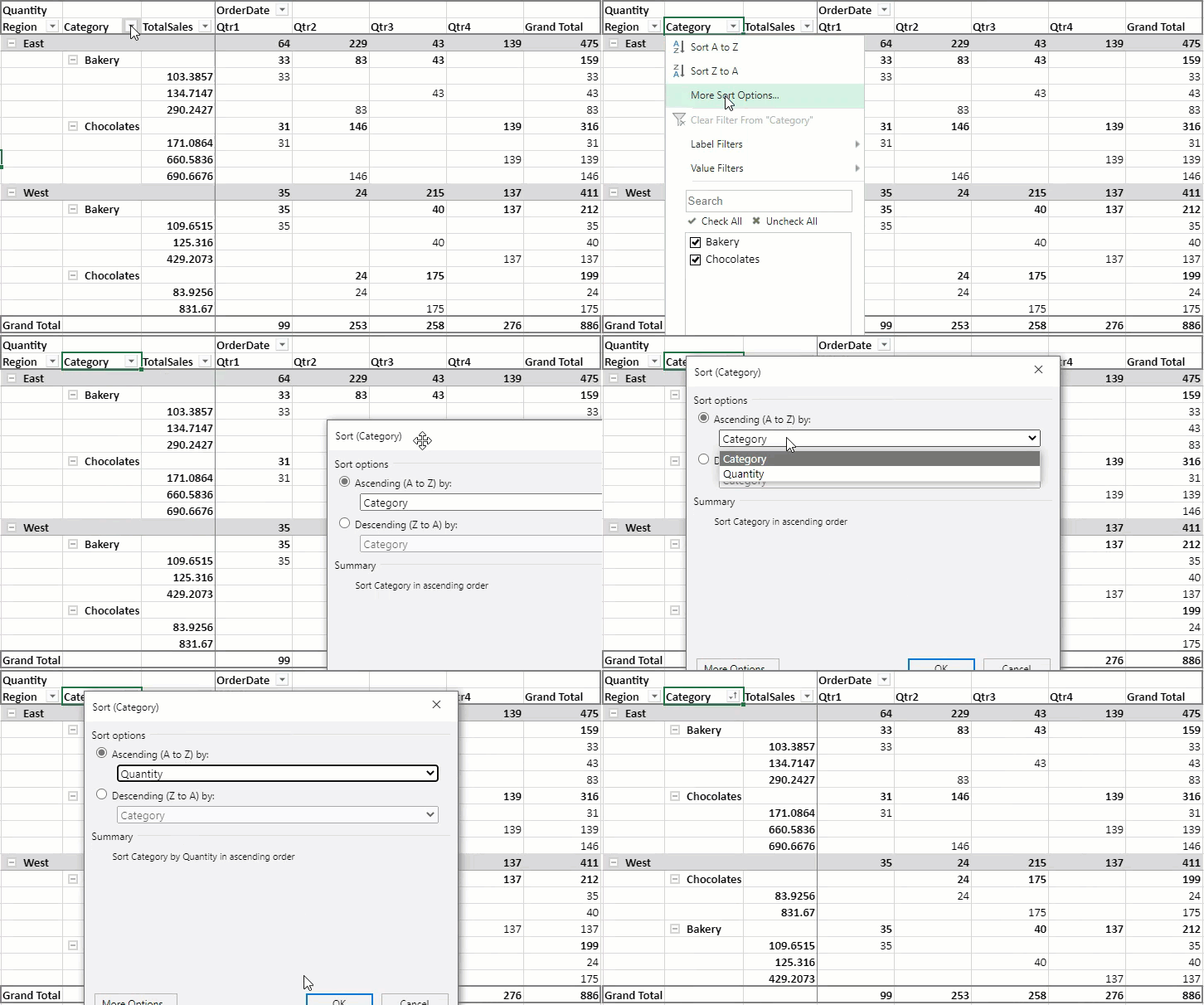
You can also sort data through the designer by clicking **More Sort Options..** from the **Filter Dropdown** of a field. This option opens a **Sort Field** dialog where you can select the target field and set the sort type as ascending or descending.
The following image demonstrates how to sort by value using the designer:
You can also use the **Sort** option from the context menu of the value area to sort pivot data by values. The context menu provides the following three sort options:
* Sort Smallest to Largest
* Sort Largest to Smallest
* More Sort Options...
While the first two options sort values in ascending and descending order, respectively, the **More Sort Options...** opens a dialog depending on the value area.
The following table describes how this option behaves when accessed through context menu of the following value areas:
| **Value Area** | **Dialog** | **Behavior** |
| ---------- | ------ | -------- |
| Normal Value Area | 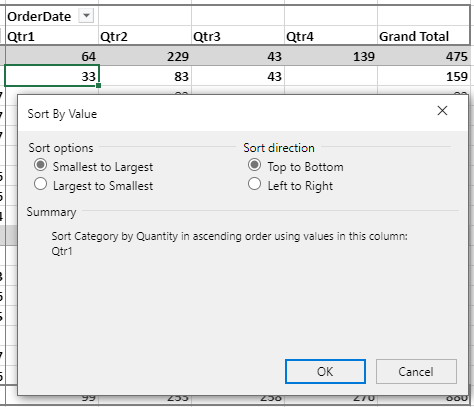 | The **Sort by Value** dialog appears. |
| Grand Total Area | 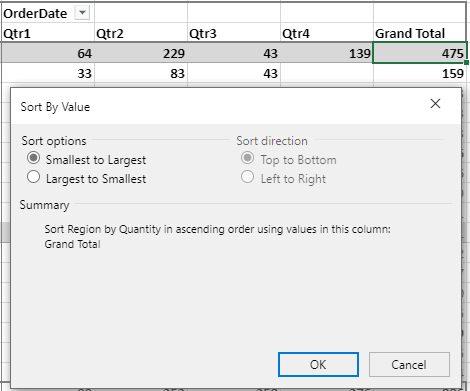 | The **Sort by Value** dialog appears. However, sort direction is disabled along with the following conditions: - In case of grand total column, the direction is top to bottom by default.
- In case of grand total row, the direction is left to right by default.
- In case of grand total row and column, the dialog does not appear.
|
| Row Header Area/Corner Area | 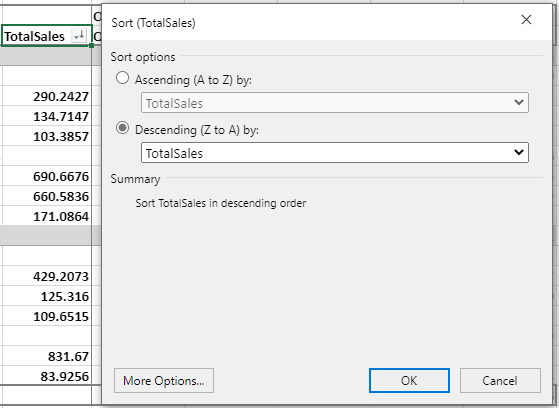 | Opens the **Sort Field** dialog along with the following conditions: - In the case of compact layout, the **Sort** option does not appear in the corner area.
- If the selected field is ΣValues field, the **Sort by Value** dialog appears.
- If the selected row area is ΣValues item, no dialog appears.
|
| Column Header Area | 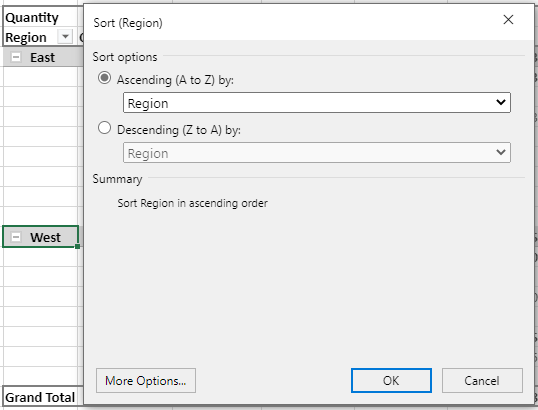 | Opens the **Sort Field** dialog along with the following conditions: - If the selected field is ΣValues field, the **Sort by Value** dialog appears.
- If the selected column area is ΣValues item, no dialog appears.
|
## Sort by Custom Field Item Value
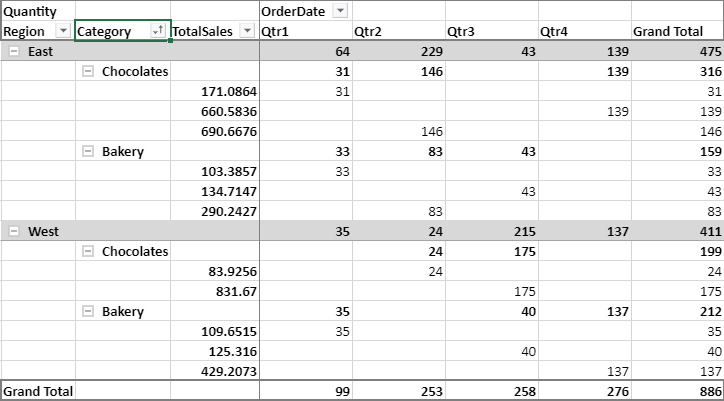
To sort pivot table data by a custom field item value, you can use `sortByPivotReferences` property of the `sortInfo` object.
The below image demonstrates ascending sort on the **Category** field as per the data in **Qtr1** of the **OrderDate** field.
The following code sample shows how to set sorting by custom field item value:
```javascript
let pivotTable = spread.getActiveSheet().pivotTables.get("PivotTable");
var sortInfo = {
sortType: GC.Pivot.SortType.asc,
sortValueFieldName: "Quantity",
sortByPivotReferences: [
{
fieldName: "OrderDate",
items: ["Qtr1"]
}
]
}
pivotTable.sort("Category", sortInfo);
```
### Using Designer
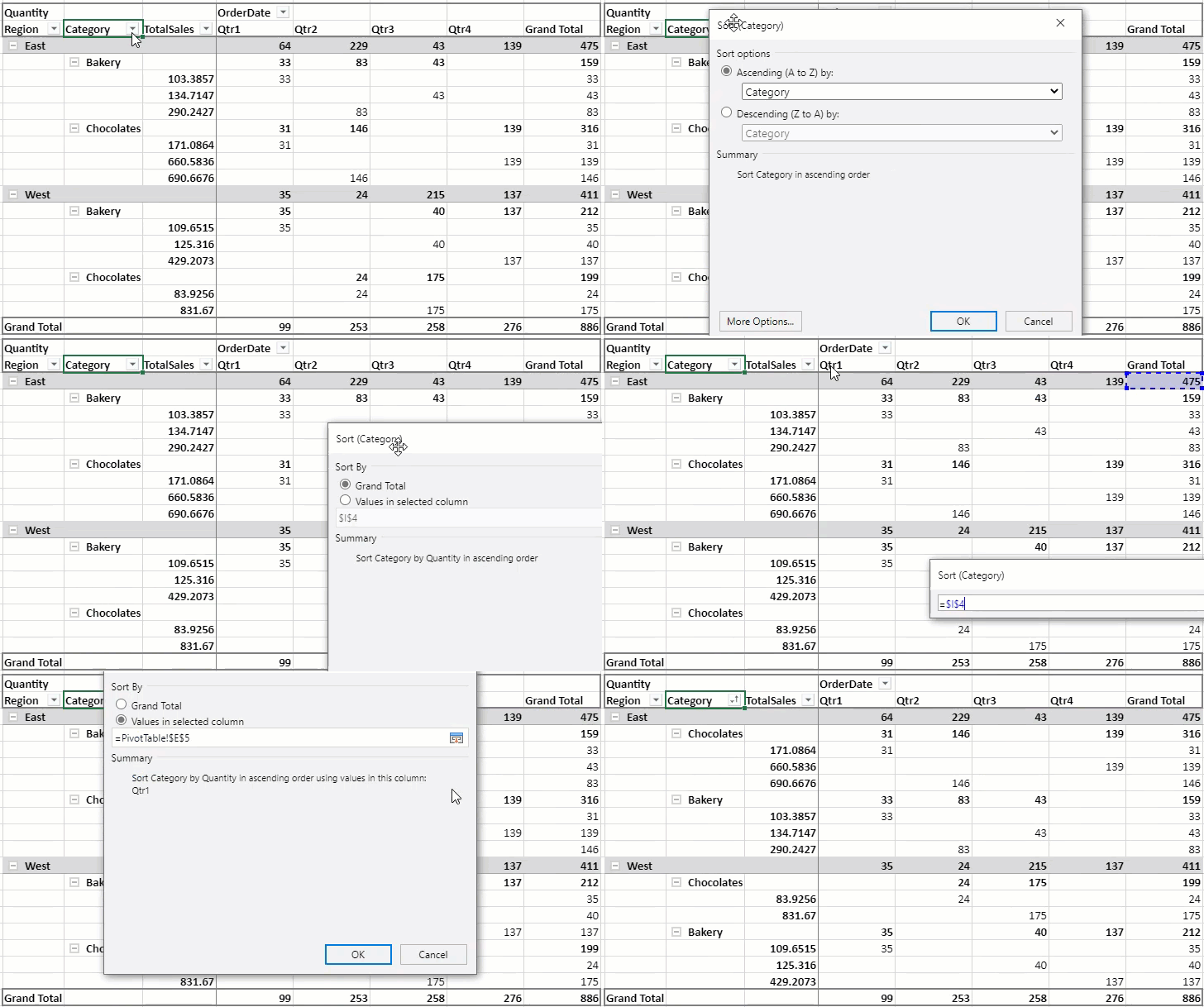
You can also sort data through the designer by clicking **More Sort Options...** from the **Filter Dropdown** of a field. This option opens a **Sort Field** dialog where you select the sort order for the target field and then click **More Options...** button to open another **Sort** dialog. On this dialog, by default, GrandTotal is selected, which gives the same results as that of sort by value. For sorting by custom field item value, select a range using the range selector of **Values in selected column** and click **OK.**
> The dialog options are disabled for a row or column area field. For example, in this case, if you click More Options.. button for Category field, it will be disabled, so you must select Quantity field and then click the **More Options...** button.
The following image demonstrates how to sort by custom field item value using the designer:
## Sort by Custom Callback
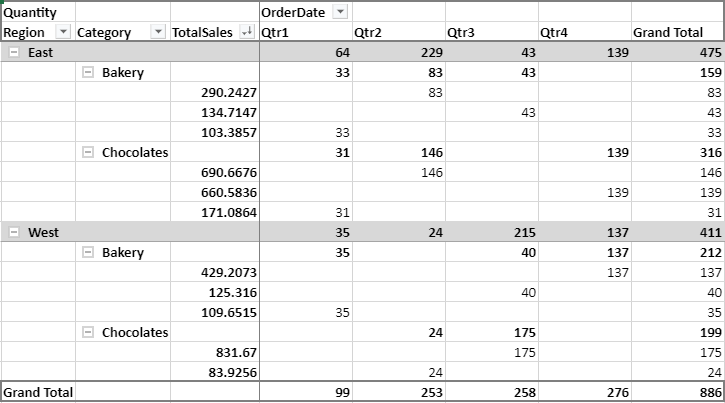
To sort pivot table data using custom logic, instead of sorting in ascending or descending order of values, you can use the custom callback function.
The below image demonstrates the sorting of the **TotalSales** column by using a custom callback function.
The following code sample shows sorting on the TotalSales column by using a custom callback:
```javascript
let pivotTable = spread.getActiveSheet().pivotTables.get("PivotTable");
var sortInfo = {
sortType: GC.Pivot.SortType.desc,
customSortCallback: (fieldItemNameArray)=>{
alert("sorting from custom callback")
return fieldItemNameArray.sort((a,b)=>b-a);
}
};
pivotTable.sort("TotalSales", sortInfo);
```