# Parameter
## Content
In ReportSheet, the parameter specifies the filtered values to regenerate data using dynamic parameters instead of static values.
When you use a parameter, the generated data is filtered by the value specified in the parameter. Additionally, the [parameterUI](/spreadjs/docs/v17/) in ReportSheet allows you to change parameter values and perform filters through runtime UI interactions.
> **Note**: You can set parameters when setting [filter conditions](/spreadjs/docs/v17/).
To arrange parameters and use them to regenerate data, SpreadJS provides [GC.Spread.Sheets.IParameter](/spreadjs/api/v17/interfaces/GC.Spread.Sheets.IParameter) interface.
The following code sample shows how to define parameters for a ReportSheet.
```javascript
const reportSheet = spread.getActiveSheetTab();
const templateSheet = reportSheet.getTemplate();
// Set value and binding for the template.
templateSheet.setTemplateCell(2, 0, { // A3
binding: "Orders[OrderId]",
type: "Group",
filter: {
condition: {
and: [
{
"parameter": "startDate", // Parameter
"column": "orderDate",
"operator": "GreaterThan"
},
{
"parameter": "endDate", // Parameter
"column": "orderDate",
"operator": "LessThan"
},
{
"parameter": "customerId", // Parameter
"column": "customerId",
"operator": "Equal"
}
]
}
}
});
let columns = ["CustomerId", "orderDate", "freight", "shipName", "shipCity"];
columns.forEach((item, index) => {
templateSheet.setTemplateCell(2, index + 1, {
type: "Group",
binding: `Orders[${item}]`
})
});
// Set the report parameters.
reportSheet.parameter({
startDate: new Date("1997-01-01"),
endDate: new Date("1998-01-01"),
customerId: "VINET"
});
reportSheet.refresh();
```
### Using SpreadJS Designer
Follow the steps below to create and use a parameter in ReportSheet.
1. Select **INSERT** \> **ReportSheet** in the ribbon.
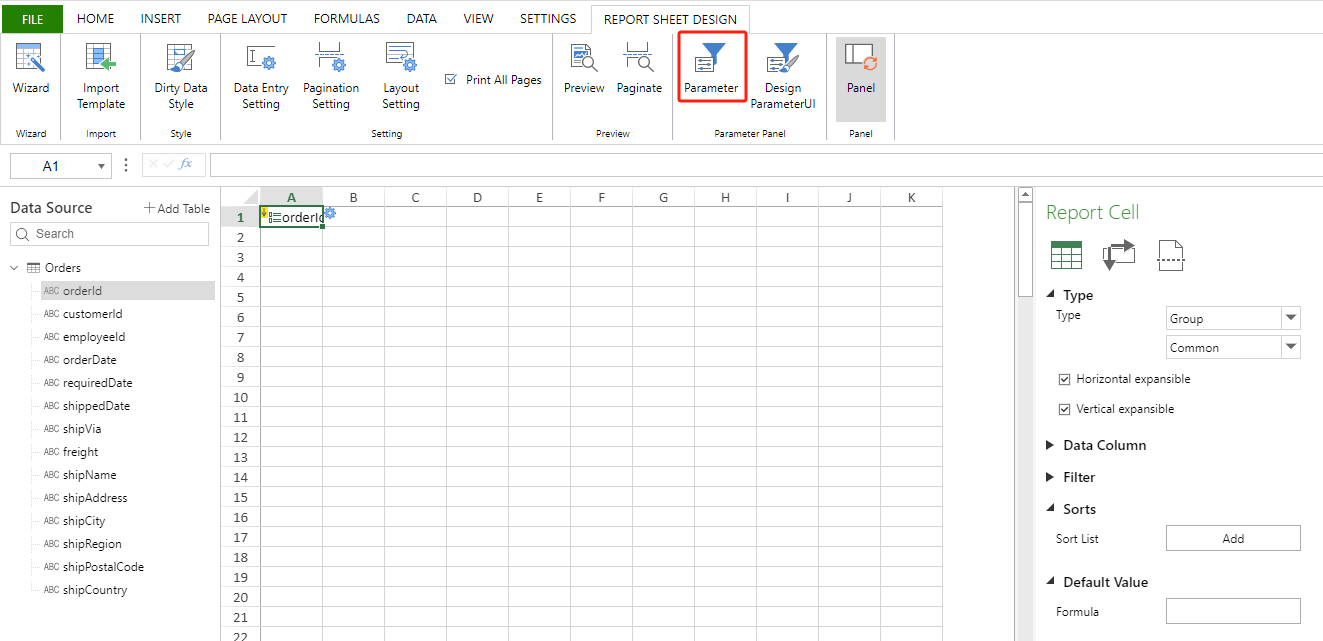
2. Select **Parameter** in the **REPORT SHEET DESIGN** ribbon.
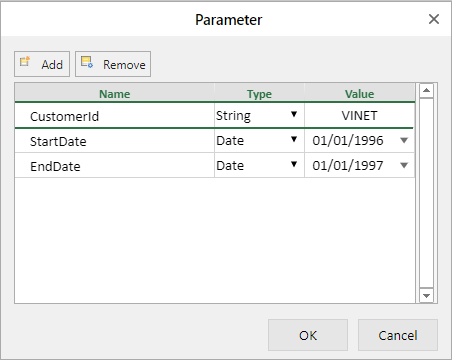
3. You can **Add** / **Remove** / **Edit** parameter values within the designated section in the **Parameter** dialog.
Parameter value supports data types such as String, Number, Boolean, and Date.
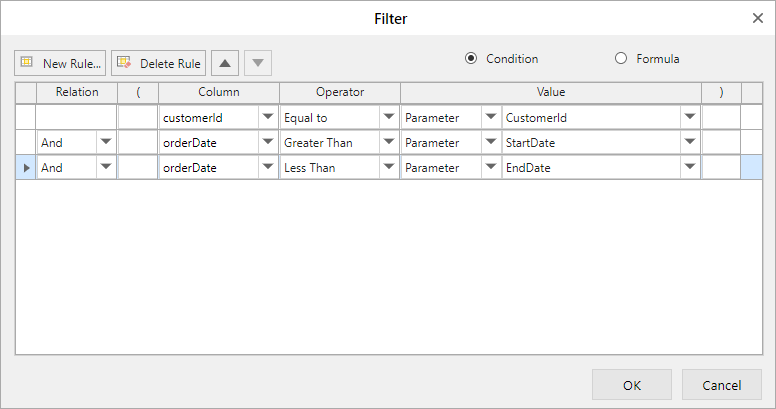
4. Use the created parameters in the template cell filter condition by selecting **Report Cell** \> **Filter** setting.
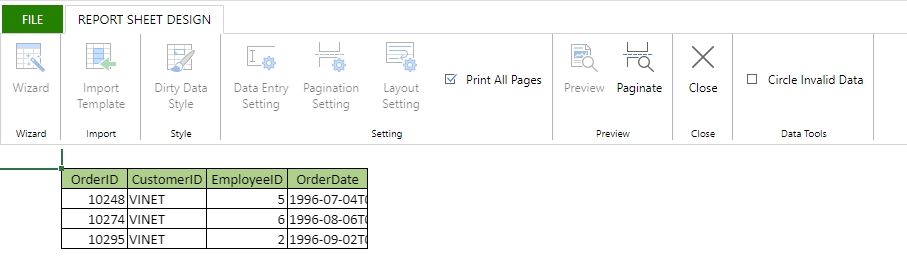
5. Preview the ReportSheet and see the filtered results based on the parameter values.