# Multiple Grouping
## Content
TableSheet supports multiple grouping where more than one field can be defined in the `groupBy` method to create a multi-level grouping.
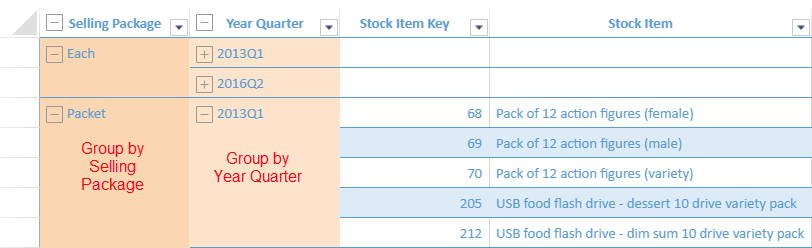
The following code sample shows how to set multiple groupings in a tablesheet view.
```javascript
function grpByMultipleFields() {
// group by "sellingPackage" field first and then group by date in quarters of available years using DATEPART formula
sheet.groupBy([
{ caption: "Selling Package", field: "sellingPackage", width: 150, style: { backColor: "#FAD7B2" } },
{ caption: "Year Quarter", field: `=DATEPART([@validFrom],"yyyyQQQ")`, width: 150, style: { backColor: "#FCE3CA" } }
]);
}
```
## Behavior of Multiple Grouping
When applying multiple grouping in a tablesheet, the layout takes more space by default. The following behavior of multiple grouping can help show the grouping result in a better way.
* When a group is collapsed, the cells of detail columns will display empty cells.

* When a parent group is collapsed, the cells of the child group will also display empty cells.

You can set the expand or collapse state of multiple grouping using the [expandGroup](/spreadjs/api/v17/classes/GC.Spread.Sheets.TableSheet.TableSheet#expandGroup) and [expandGroupItem](/spreadjs/api/v17/classes/GC.Spread.Sheets.TableSheet.TableSheet#expandGroupItem) methods as well.
## Multiple Grouping Fields
SpreadJS already supports multiple grouping. So, the various fields associated with multiple grouping are indicated in the image below:
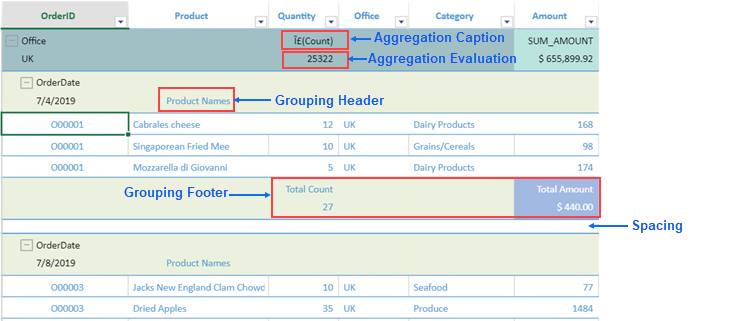
* **Grouping Header**: You can set header name for different level grouping items.
* **Grouping Footer**: You can set different aggregations at the bottom of the grouping items which are known as grouping footers.
* **Aggregations**: You can define different aggregations for independent grouping header or footer of different columns at the same time.
* **Aggregation Captions**: You can also set caption as its alias for each aggregate formula that can be displayed together with the evaluated result.
* **Summary Style**: You can apply the various styles such as backcolor, formatter, forecolor, or other font related properties for the grouping header or footer.
All the above grouping fields can be applied using the `groupBy` method as implemented in the following code sample:
```javascript
sheet.groupBy([
{
field: "Office",
style: { foreColor: '#000000', backColor: '#a1c0c5' },
summaryFields: [
{
caption: "SUM_AMOUNT",
formula: '=SUM([Amount])',
relateTo: "Amount",
style: {
formatter: "$ #,##0.00",
backColor: '#bce4df',
foreColor: '#000000'
}
},
{
caption: "Σ(Count)",
formula: "=SUM([Quantity])",
style: {
foreColor: '#000000'
}
},
]}
```
* **Spacing**: You can give the space to separate the grouping level items for Outline and Condensed grouping mode by setting the value for `spacing` property.
The following sample code shows how to implement the `spacing` property.
```javascript
sheet.options.groupLayout = {
mode: GC.Spread.Sheets.TableSheet.GroupLayoutMode.outline,
spacing: {
row: 20
}
};
```
* **Position**: You can change the default summary position from header to footer using the `position` property.
The following sample code shows how to implement the `position` property.
```javascript
sheet.options.groupLayout.position = 'footer';
```