# Define Columns
## Content
TableSheet in SpreadJS allows you to add, update, or remove a column with meaningful column types to design the table at runtime.
To display the **Add Column** button behind the last column, set the `enableDefineColumn` TableSheet option to true. On right-clicking, it displays the context menu with options to modify, remove, and set the primary key of the column as depicted in the image below.
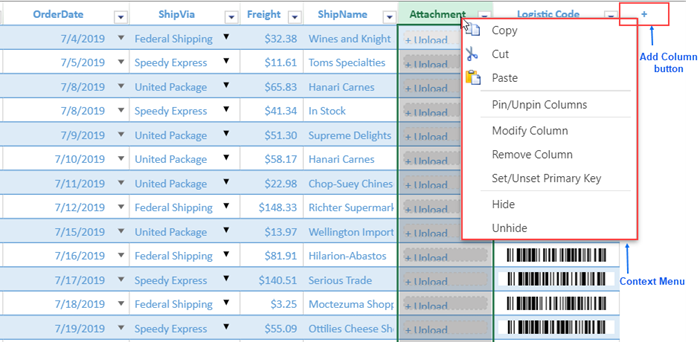
The following sample code shows how to enable the **Add Column** button in the TableSheet.
```javascript
tableSheet.options.enableDefineColumn = true;
```
## Built-In Column Types
TableSheet allows you to define **Column Type** with predefined column properties that are categorized according to the type of column. Here is the list of built-in column types- *Number, Text, Formula, Checkbox, Date, Currency, Percent, Phone, Email, URL, Lookup, CreatedTime, ModifiedTime, Attachment, Select, and Barcode.*
The main properties defined for the column types are as follows:
* **Value (Required)**: Includes column value but this field cannot hold formula or relation if its type is not Formula or Lookup type.
* **Caption (Optional)**: Includes the display name for the column header.
* **Type (Required)**: Allows to select a built-in column type. Some of the built-in columns are displayed in the image below.
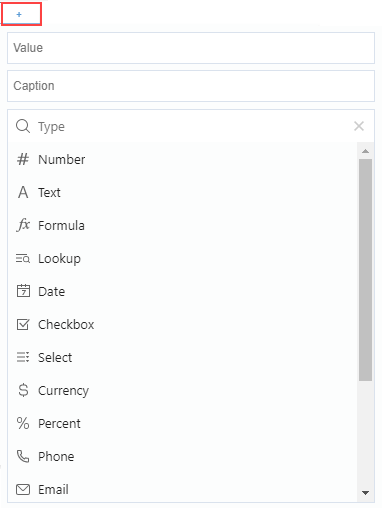
Data types and sample column options of all the supported column types are listed in the table below.
| **Column Type** | **Data Type** | **Sample Column Options** |
| ----------- | --------- | --------------------- |
| Number | number | {
value: "Number",
type: "Number",
caption: "Number",
dataType: "number",
defaultValue: 0,
style: {formatter: "0.00", mask: { pattern: "0{0,}" } }
} |
| Text | string | {
value: "Text",
type: "Text",
caption: "Text",
dataType: "string"
} |
| Formula | depends on the result | {
name: "NamedFormula", // it's a name of the formula for the Referencing Calculated Fields which will be a named formula
value: "=[@Amount]\*[@UnitPrice]",
type: "Formula",
caption: "Total Sales",
dataType: "formula",
style: {formatter: "0.00"}
readonly: true,
} |
| Lookup | depends on the related | {
value: "customer.ContactName",
type: "Lookup",
caption: "Customer",
readonly: true,
} |
| Date | date | type DateTimePickerOptions = {
showTime: boolean;
calendarPage: "year" \| "month" \| "day";
startDay: "monday" \| "tuesday" \| "wednesday" \| "thursday" \| "friday" \| "saturday" \| "sunday";
};
{
value: "Date",
type: "Date",
caption: "Date",
dataType: "date",
style: {
formatter: "m/d/yyyy",
cellButtons:[{
buttonBackColor: "transparent",
command: "openDateTimePicker",
enabled: true,
visibility: 'always',
imageType: "dropdown",
useButtonStyle: false,
}],
dropDowns:[{
type: "dateTimePicker",
// The cell type is DateTimePickerOptions
option: {
calendarPage: "day",
showTime: false,
startDay: "sunday",
}
}]
}
} |
| Checkbox | boolean | type CheckboxOptions = {
type: "checkbox";
caption: string;
textTrue: string;
textIndeterminate: string;
textFalse: string;
textAlign: "top" \| "bottom" \| "left" \| "right";
isThreeState: boolean;
boxSize: number;
};
{
value: "Checkbox",
type: "Checkbox",
caption: "Checkbox",
dataType: "boolean",
style: {
// The cell type is CheckboxOptions
cellType: {
type: "checkbox"
}
}
} |
| Select | depends on the option | type ItemOptions = {
text: string;
value: any;
};
type ComboBoxOptions = {
type: "combobox";
editorValueType: "text" \| "index" \| "value";
items: string\[\] \| ItemOptions\[\];
itemHeight: number;
maxDropDownItems: number;
editable: boolean;
};
{
value: "Select",
type: "Select",
caption: "Select",
dataType: "number",
style: {
// The cell type is ComboBoxOptions
cellType: {
type: "combobox",
}
}
} |
| Currency | number | {
value: "Currency",
type: "Currency",
caption: "Currency",
dataType: "number",
style: {formatter: "[$$-409]#,##0.00"}
} |
| Percent | number | {
value: "Percent",
type: "Percent",
caption: "Percent",
dataType: "number",
style: {formatter: "0%"}
} |
| Phone | string | {
value: "Phone",
type: "Phone",
caption: "Phone",
dataType: "string",
style: {
mask: {
pattern: "1 \\(0{3}\\) 0{3}-0{4}"
}
}
} |
| Email | string | {
value: "Email",
type: "Email",
caption: "Email",
dataType: "string",
style: {
mask: {
pattern: "[a0.*\\-]{1,}@[a0.*\\\\-\]\{1\,\}\.\(com\|cn\|gov\|edu\)"
}
}
} |
| URL | string | type HyperlinkOptions = {
type: "hyperlink";
linkColor: ColorString;
visitedLinkColor: ColorString;
text: string;
linkToolTip: string;
target: "blank" \| "self" \| "parent" \| "top";
activeOnClick: boolean;
};
{
value: "URL",
type: "URL",
caption: "URL",
dataType: "string",
style: {
// The cell type is HyperlinkOptions
cellType: {
type: "hyperlink"
}
}
} |
| CreatedTime | date | {
value: "CreatedTime",
type: "CreatedTime",
caption: "CreatedTime",
dataType: "date",
defaultValue: "=NOW()",
readonly: true,
trigger: {
when: "onNew",
formula: "=NOW()",
},
style: {
formatter: "m/d/yyyy",
// not necessary options(cell buttons and dropDowns)
cellButtons:[{
buttonBackColor: "transparent",
command: "openDateTimePicker",
enabled: true,
visibility: 'always',
imageType: "dropdown",
useButtonStyle: false,
}],
dropDowns:[{
type: "dateTimePicker",
option: {
calendarPage: "day",
showTime: false,
startDay: "sunday",
}
}]
}
} |
| ModifiedTime | date | {
value: "ModifiedTime",
type: "ModifiedTime",
caption: "ModifiedTime",
dataType: "date",
readonly: true,
trigger: {
when: "onNewAndUpdate",
formula: "=NOW()",
fields: "\*",
},
style: {
formatter: "m/d/yyyy",
// not necessary options(cell buttons and dropDowns)
cellButtons:[{
buttonBackColor: "transparent",
command: "openDateTimePicker",
enabled: true,
visibility: 'always',
imageType: "dropdown",
useButtonStyle: false,
}],
dropDowns:[{
type: "dateTimePicker",
option: {
calendarPage: "day",
showTime: false,
startDay: "sunday",
}
}]
}
} |
| Attachement | object | type FileUploadOptions = {
type: "fileUpload";
maxSize?: number;
accept?: string;
isPreviewEnabled?: boolean;
isDownloadEnabled?: boolean;
isClearEnabled?: boolean;
marginTop?: number;
marginRight?: number;
marginBottom?: number;
marginLeft?: number;
valuePath?: string;
};
{
value: "Attachment",
type: "Attachment",
caption: "Attachment",
style: {
// The cell type is FileUploadOptions
cellType: {
type: "fileUpload"
}
}
} |
| Barcode | depends on the input | {
value: "Barcode",
type: "Barcode",
caption: "Barcode",
defaultValue: 0,
style: {
formatter: "=BC\_QRCODE([@Barcode],\\"#000000\\",\\"#FFFFFF\\",\\"L\\",2,\\"auto\\",\\"auto\\",false,0,,\\"UTF-8\\",,,,)"
}
} |
## **Remote Configuration**
SpreadJS allows you to communicate with the remote table using custom functions as mentioned below.
| **Custom Functions** | **Description** | **SampleDefinition** |
| ---------------- | ----------- | ---------------- |
| getColumns | Retrieve the columns from the table. | getColumns: {
url: apiColumnUrl } |
| addColumn | Add a column to the table. | addColumn: {
url: apiColumnUrl,
method: 'POST' } |
| updateColumn | Update the properties of a column in the table. | updateColumn: {
url: apiColumnUrl,
method: 'PUT' } |
| removeColumn | Remove a column from the table. | removeColumn: {
url: apiColumnUrl,
method: 'DELETE' } |
| batch | Changes are posted together in the batch mode. | batch: {
url: apiUrl + 'Collection' } |
The appropriate request and response linked to the custom functions during their interaction with the data structure are as follows:
| **Custom Functions** | **Request Data** | **Response Data** |
| ---------------- | ------------ | ------------- |
| getColumns | None | Column[] |
| addColumn | ColumnWithDefaultData | ColumnData |
| updateColumn | ModifiedColumnData | ModifiedColumnData |
| removeColumn | ColumnData | ColumnData |
| batch | BatchItemData[] | BatchResultData[] |
The column remote APIs can be handled by self-defined functions similar to Handle Requests in the **autoSync** and **batch** modes are as follows:
```javascript
var orderTable = dataManager.addTable("orderTable", {
remote: {
read: function(): Promise{
return Promise.resolve([...])
},
getColumns: function(): Promise{
return Promise.resolve([...])
},
addColumn: function(change): Promise{
return Promise.resolve()
},
updateColumn: function(change): Promise{
return Promise.resolve();
},
removeColumn: function(change): Promise{
return Promise.resolve();
},
// batch: function(changes): Promise{
// return Promise.resolve([...]);
// },
},
autoSync: true,
// batch: true
});
```
When the **autoSync** mode is enabled, any changes in the columns of TableSheet will sync to the remote table immediately. However, when the **batch** mode is enabled, the column changes will be stored in the local. Then on calling the `submitChange` command, the changed column information and changed data information are sent to the remote table together.
```javascript
[
{ "type": "updateColumn", "column": { field: 'columnName', dataType: 'number', ...otherproperties }, "originalColumn": { field: 'columnName0', ...otherproperties } },
{ "type": "addColumn", "column": { field: 'columnName1', dataType: 'number', ...otherproperties }, },
{ "type": "removeColumn", "column": { field: 'columnName2', ...otherproperties }, },
{ "type": "delete", "dataItem": { ...} },
{ "type": "insert", "dataItem": { ...} },
{ "type": "update", "dataItem": { ...}, "oldDataItem": { ...}, "sourceIndex": 1 }
]
```
Whereas, on calling the `cancelChange` command, it cancels all the changes. For the **batch** mode, the `getChanges` command on the TableSheet retrieves the column and data changes together.
## Commands to Define Columns
SpreadJS also provides functionality to add, update, or remove columns using commands like `DefineColumn`, `ModifyColumn`, and `RemoveColumn`. These commands enable you to add, update, and delete columns from a table by implementing their properties such as **value**, **dataType**, **defaultValue**, **isPrimaryKey**, **type**, or **name** from the **IColumn** interface.
Let's discuss some code samples to implement each of these commands.
### Define Column
The following sample code shows how to implement the `DefineColumn` command.
```javascript
spread.commandManager().execute({
cmd: "DefineColumn",
sheetName: spread.getActiveSheetTab().name(),
// col: 3, // optional
column: {
type: 'Number', // specify the column type
value: 'Number1', // the column identifier of the column instance from the column type
caption: '# Number1', // the display of the column for the culture
style: { formatter: '#,##0.00_);[Red](#,##0.00)' } // the formatter could be specified or be converted from the UI operations
} as GC.Data.IColumn,
});
```
### Modify Column
The following sample code shows how to implement the `ModifyColumn` command.
```javascript
spread.commandManager().execute({
cmd: "ModifyColumn",
sheetName: spread.getActiveSheetTab().name(),
col: 3,
column: {
type: 'Text', // specify the column type
value: 'Text1', // the column identifier of the column instance from the column type
caption: 'A Text1', // the display of the column for the culture
} as GC.Data.IColumn,
});
```
### Remove Column
The following sample code shows how to implement the `RemoveColumn` command.
```javascript
spread.commandManager().execute({
cmd: "RemoveColumn",
sheetName: spread.getActiveSheetTab().name(),
col: 3,
});
```
## Define Custom Columns
TableSheet provides the ability to customize the column types or add some special column types using the self-defined commands such as `defineColumnCommand`, `submitDefineColumnCommand` or update the built-in columns using `columnTypeItems` command.
The following code sample shows how to add some special column types or update the built-in column types.
```javascript
// Select some column types to show
const items = tableSheet.options.columnTypeItems.filter((item)=>item.name === 'Select' || item.name === 'Attachment' || item.name === 'Barcode' || item.name === 'CreatedTime' || item.name === 'ModifiedTime' || item.name === 'Currency')
tableSheet.options.columnTypeItems = tableSheet.options.columnTypeItems.slice(0, 4).concat(items);
// Add self-defined column type
tableSheet.options.columnTypeItems.unshift({ name: 'CustomizingType', text: 'Progress', iconClass: 'gc-defined-column-type-icon-number'
});
```
The `defineColumnCommand` specifies the command to replace the default command that opens the defined column popup for the **Add Column** button or **Modify Column** menu item.
The following sample code shows how to implement `defineColumnCommand`.
```javascript
// Handle opening defined column popup
const defineCommand = tableSheet.options.defineColumnCommand;
tableSheet.options.defineColumnCommand = 'defineColumnCustom';
spread.commandManager().register('defineColumnCustom', {
canUndo: false,
execute: function (context, options) {
// it could build self-defined UI on the modify/add column triggered
// opening the default UI for the sample
options.cmd = defineCommand;
spread.commandManager().execute(options);
}
});
```
The `submitDefineColumnCommand` specifies the command for submitting defined column options when the submit button is selected for the column defined popup.
The following sample code shows how to implement `submitDefineColumnCustom`.
```javascript
// Handle submitting defined column options
tableSheet.options.submitDefineColumnCommand = 'submitDefineColumnCustom';
spread.commandManager().register('submitDefineColumnCustom', {
canUndo: false,
execute: function (context, options) {
if (options.command === 'DefineColumn' && options.column.type === 'CustomizingType') {
options.column.defaultValue = 0.1;
options.column.style = {
formatter: "=HBARSPARKLINE([@"+options.column.value+"], \"#66B032\")"
};
}
options.cmd = options.command;
spread.commandManager().execute(options);
}
});
```
## Using Designer
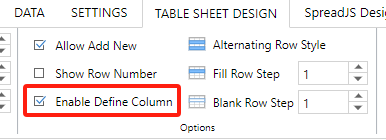
SpreadJS Designer component also provides the ability to define columns by selecting the **Enable Define Column** checkbox from the **TABLE SHEET DESIGN** \> **Options** group.
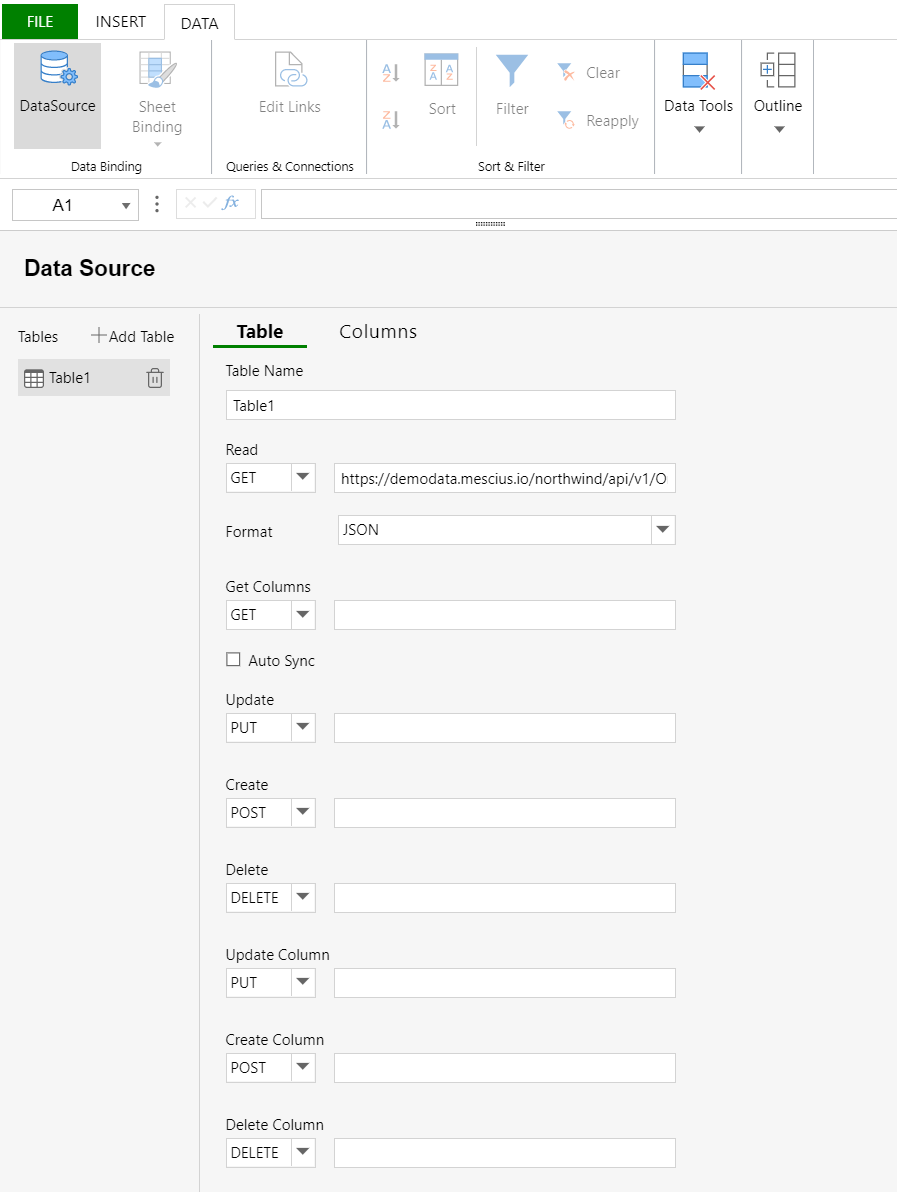
You can also configure the remote APIs to communicate with remote data tables in the SpreadJS Designer component from the **DATA** \> **DataSource** \> **Table** section, if the remote data table supports.