# Save Spreadsheet Changes
## Content
The following section describes the steps to store changes made in a spreadsheet and to remove all the changes by refreshing the spreadsheet.
## Step 1: Modify Spreadsheet and Protect it
1. Modify the **refresh** function created in [Data Binding](/spreadjs/docs/v17/getstarted/quick-start/binding-to-datasource) section. After invoking **loadTable** function, execute the **suspendDirty** and **resumeDirty** methods so that the changes made to column F are not stored.
2. Set the value, background color, and horizontal al.ignment for cell F1 of the spreadsheet.
3. Set **isProtected** option to true to protect the spreadsheet.
4. Set **locked** method to false to prevent locking of cells in the spreadsheet.
```javascript
//1: Set the value, backcolor, and halign between suspending / resume dirty & Protect the sheet and lock F column
function refresh() {
var ss = GC.Spread.Sheets.findControl(document.getElementById("ss"));
// Get activesheet
var sheet = ss.getActiveSheet();
// Reset the sheet and set the column count
sheet.reset();
sheet.setColumnCount(7);
// Load the table to the Spread instance using the sample data
var data = createSampleData();
loadTable(ss, data);
// Set the value, backcolor, and halign between suspending / resume dirty
// Suspend dirty cells
sheet.suspendDirty();
// Set the value, background color and halign for cell F1
sheet
.getCell(0, 5)
.backColor("yellow")
.value("Changes")
.hAlign(GC.Spread.Sheets.HorizontalAlign.center);
// Resume dirty cells
sheet.resumeDirty();
// Protect the sheet and lock F column
sheet.options.isProtected = true;
// 4.1) Setting the sheets default stye to not lock the cells
var s = sheet.getDefaultStyle();
s.locked = false;
sheet.setDefaultStyle(s);
// 4.1) Specifying to lock column F to display the new and old value (column index 5)
sheet.getRange(-1, 5, -1, 1).locked(true);
```
5. Create an HTML input button ' Refresh' that will execute the refresh function.
```javascript
```
## Step 2: Get Dirty Cell Information
1. Create **showChanges** function and use **getDirtyCells** and **hasPendingChanges** methods to get information on dirty cells along with the pending changes.
2. Create a data array, **dirtyDataArray,** to store the dirty cell information about row, col, rowCount, and colCount.
3. Use **setValue** method to set the value of cell in column F such that it displays the old and the new values of dirty cells in it.
```javascript
// Step 2: Create showChanges()
function showChanges(ss, row, col, rowCount, colCount) {
// Get activesheet
var sheet = ss.getActiveSheet();
// If the activesheet has pending changes
if (sheet.hasPendingChanges()) {
// Suspend Paint, Event, Dirty
ss.suspendPaint();
ss.suspendEvent();
sheet.suspendDirty();
// Store dirty cell collection in data array called dirtyDataArray
var dirtyDataArray = sheet.getDirtyCells(row, col, rowCount, colCount);
// Skip dirty changes for column 'F'
for (var i = 0; i < dirtyDataArray.length; i++) {
// Store dirty cell data in the dirty data array
var dirtyCell = dirtyDataArray[i];
// Display the old and new value from the dirtyDataArray values
// row index --> dirtyCell.row returns the row index of the row that had the changes made
// column index --> 5 is for the row index for column F
sheet.setValue(
dirtyCell.row,
5,
"old: " + dirtyCell.oldValue + ", new: " + dirtyCell.newValue
);
}
// Resume dirty, event, paint
sheet.resumeDirty();
ss.resumeEvent();
ss.resumePaint();
}
}
```
## Step 3: Display Dirty Cell Values
Bind **CellChanged** and **RangeChanged** events to the active sheet to execute the **showChange** function each time the spreadsheet is modified.
```
// Step 3: Bind CellChanged and RangeChanged events to the sheet
$(document).ready(function () {
// initializing Spread
var spread = new GC.Spread.Sheets.Workbook(document.getElementById("ss"));
// Invoke the refresh function
refresh();
// Bind CellChanged
spread.bind(GC.Spread.Sheets.Events.CellChanged, function (event, data) {
var row = data.row,
col = data.col;
if (
data.propertyName !== "value" ||
row === undefined ||
col === undefined
) {
return;
}
// Execute the showChanged function
showChanges(spread, row, col);
});
// Bind RangeChanged
spread.bind(GC.Spread.Sheets.Events.RangeChanged, function (event, data) {
var row = data.row,
col = data.col,
rowCount = data.rowCount,
colCount = data.colCount;
if (
row === undefined ||
col === undefined ||
rowCount === undefined ||
colCount === undefined
) {
return;
}
// Execute the showChanged function
showChanges(spread, row, col, rowCount, colCount);
});
});
```
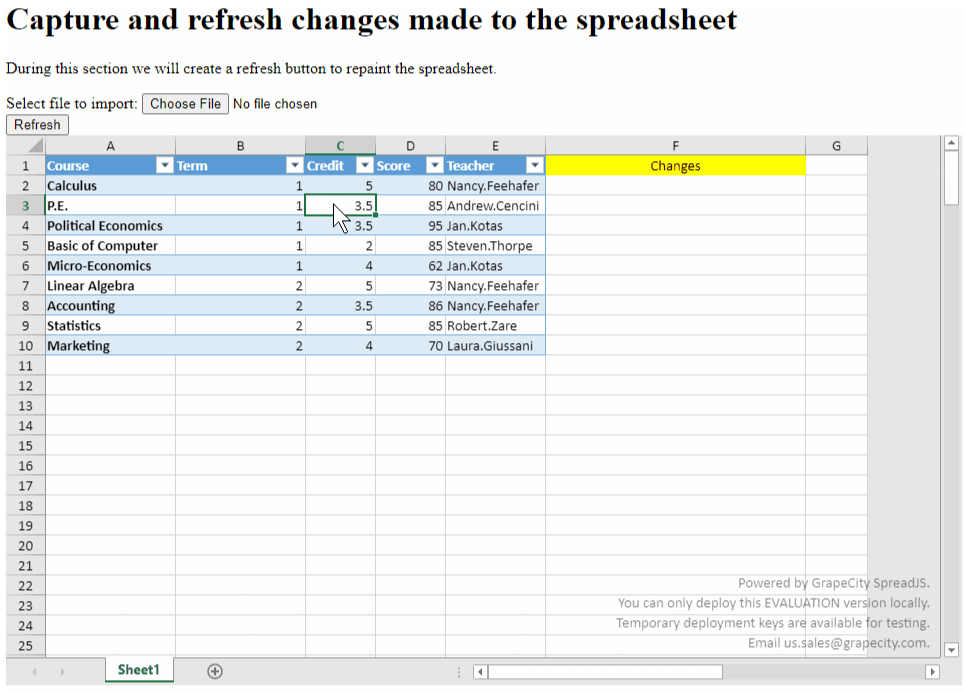
The old and new values will appear in column F. Also, column F is locked so that its content cannot be modified. You can also refresh the spread instance using Refresh button, to remove all changes. The output of above code will look like below:
The following section describes the steps to save spreadsheet changes to the database.
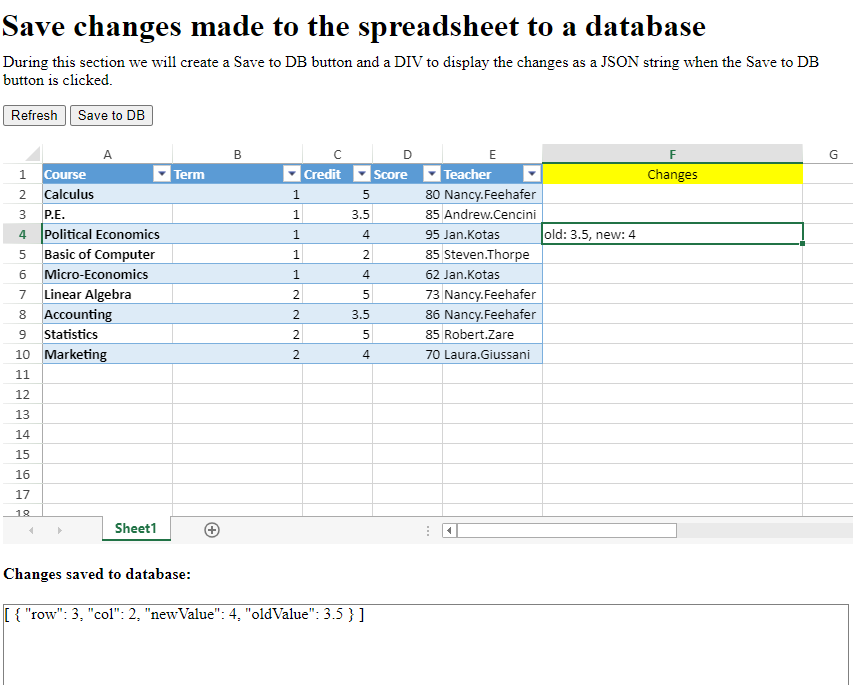
> **Note:** SpreadJS does not update the database directly, but you can get the changed data by the following method and update the database accordingly.
## Step 1: Get Dirty Cell Information and Convert it to JSON String
1. Create **saveToDB** function and use **getDirtyCells** method to get information about changed cells, known as dirty cells.
2. Use **JSON.stringify** method to convert dirty cell information to JSON string.
```javascript
//1: Create saveToDB()
function saveToDB() {
// Get the activesheet from the DOM element "ss"
var ss = GC.Spread.Sheets.findControl(document.getElementById("ss"));
var sheet = ss.getActiveSheet();
// Store the dirty cells information in the dirtyCells variable
var dirtyCells = sheet.getDirtyCells();
// Get the HTML
element "msg" by id, this will be created in Step 2
var div = document.getElementById("msg");
// Display the JSON string in the div element to visualize the changed cell information
div.innerHTML = JSON.stringify(dirtyCells, null, 4);
// Note: Post changes to your database
}
```
## Step 2: Save Changes to Database
1. Create an HTML `
` element with **msg** ID after SpreadJS `
` element to display JSON string.
2. Create an input button **Save to DB** where the **saveToDB** function is invoked. The changes captured and converted to JSON string will be displayed in the **msg** ID `
` when clicking the Save to DB button.
The new HTML `` with all buttons and `
` elements will look like below:
```
Save changes made to the spreadsheet to a database
During this section we will create a Save to DB button and a DIV to
display the changes as a JSON string when the Save to DB button is
clicked.
Changes saved to database:
```
The JSON string which contains the changes and will be posted to the database is displayed in the output as shown below: