# Excel 가져오기 및 내보내기
## Content
SpreadJS는 다음과 같은 방법으로 Excel 파일의 가져오기와 내보내기를 지원합니다:
* 클라이언트 측에서 Excel 가져오기 및 내보내기
* SJS 파일 형식으로 가져오기 및 내보내기
* 암호화된 Excel 파일 가져오기 및 내보내기
## 클라이언트 측에서 가져오기 및 내보내기
클라이언트 측에서 `import`와 `export` 메서드를 사용하여 Excel 파일(.xlsx, .xlsm, .xltm)을 JSON으로 가져오거나 JSON 객체를 Excel로 내보낼 수 있습니다.
내보낸 Excel 파일은 인터넷에서 받은 파일이기 때문에 잠김 상태입니다. Excel 내보내기는 서버가 아닌 클라이언트 측에서 발생하므로 클라이언트 측 다운로드 시 파일이 잠깁니다. 따라서 Excel 파일을 처음 열 때 경고 메시지가 표시됩니다.
위젯을 올바르게 보려면 ``을 포함해야 하며, Excel 파일 가져오기 및 내보내기를 위해 `gc.spread.sheets.io.x.x.x.min.js` 참조 파일을 포함해야 합니다.
Excel 파일을 로컬에 다운로드하거나 반환된 Excel 파일(blob 타입)을 서버로 전송할 수도 있습니다.
### 코드 사용 예시
다음 예제는 Excel 파일을 가져오고 내보내는 방법을 보여줍니다. 코드의 첫 부분에서는 클라이언트 측 가져오기 및 내보내기에 필요한 의존성을 나열합니다.
```javascript
```
## SJS 파일 형식으로 가져오기 및 내보내기
`open`과 `save` 메서드를 사용하여 Excel 파일(.xlsx, .xlsm, .xltm)을 .SJS(SpreadJS 파일 형식)로 가져오고, .SJS 파일을 Excel로 내보낼 수 있습니다. .SJS 형식은 매우 큰 Excel 파일 작업 시 로드 시간과 메모리 사용량을 크게 개선하며, 다시 저장할 때 파일 크기를 상당히 줄여줍니다.
다음 예제는 open과 save 메서드를 사용해 Excel 파일을 여닫는 방법입니다.
```javascript
// SJS 파일을 스프레드에 열기
function OpenFile()
{
var excelFile = document.getElementById("fileDemo").files[0];
spread.open(excelFile, () => {
}, function (e) {
console.log(e);
});
}
// 스프레드를 xlsx 파일로 저장
function SaveFile()
{
var fileName = document.getElementById("exportFileName").value;
if (fileName.substr(-5, 5) !== '.xlsx')
{ fileName += '.xlsx'; }
spread.save(sjs, function (blob) {
saveAs(blob, fileName);
}, function (e) {
console.log(e);
});
}
```
다음 표는 Excel 파일에서 가져오거나 Excel 파일로 내보내는 기능들을 나열합니다.
| 카테고리 | 설명 | 가져오기 (excel → JSON) | 내보내기 (JSON → excel) |
| ---- | --- | ------------------- | ------------------- |
| workbook(spread) | tabstrip: tabStripVisible, startSheetIndex, tabStripRatio, tabColor | √ | √ |
| | scrollbar: showHorizontalScrollbar, showVerticalScrollbar | √ | √ |
| | sheets: 시트 표시 여부, 시트 이름 | √ | √ |
| | 참조 스타일: R1C1 또는 A1 | √ | √ |
| | 사용자 지정 이름 | √ | √ |
| sharedStrings | 시트 데이터에 사용되는 문자열 (공통 문자열, 공백 포함 문자열) | √ | √ |
| theme | 색상 스킴 | √ | √ |
| | 글꼴 스킴 (SpreadJS는 상세 글꼴 없음) | √ | √ |
| | 서식 스킴 (SpreadJS는 서식 스킴 없음) | X | √ |
| style | cellStyles: 모든 SpreadJS 지원 스타일 | √ | √ |
| | 다양한 서식 (테이블, 조건부 서식, 필터에 사용되는 서식) | √ | √ |
| | tableStyles | √ | √ |
| worksheet | rowRangeGroup, colRangeGroup | √ | √ |
| | 행 개수 및 열 개수 | √ | √ |
| | 0 표시 여부 | √ | √ |
| | 그리드선 표시 및 색상 | √ | √ |
| | 행 헤더 및 열 헤더 표시 여부 | √ | √ |
| | 확대/축소 | √ | √ |
| | 선택 영역 | √ | √ |
| | 활성 행, 활성 열 | √ | √ |
| | 고정 (frozenRowCount, frozenColumnCount) | √ | √ |
| | 기본 행 높이, 기본 열 너비 | √ | √ |
| | columnInfo: 열 너비, 열 표시 여부, 열 스타일 | √ | √ |
| | 병합 셀 (스팬) | √ | √ |
| | 보호된 시트 | √ | √ |
| | rowInfo: 행 높이, 행 표시 여부, 행 스타일 | √ | √ |
| | cellInfo: 셀 값, 셀 수식, 셀 스타일 | √ | √ |
| | 사용자 지정 이름 | √ | √ |
| | 조건부 서식 | √ | √ |
| | 댓글 | √ | √ |
| | 그림 | √ | √ |
| | 슬라이서 | √ | √ |
| | 스파크라인 | √ | √ |
| | 테이블 | √ | √ |
| | 필터 | √ | √ |
| | 검증 | √ | √ |
| | 개요 | √ | √ |
| | 인쇄 | √ | √ |
## 매크로가 포함된 파일 가져오기 및 내보내기
SpreadJS는 Excel 매크로 사용 워크북 파일(.xlsm)과 Excel 매크로 사용 템플릿 파일(.xltm)에 대해 무손실 가져오기 및 내보내기를 지원합니다.
즉, SpreadJS 환경 내에서 이들 파일을 업로드하고 저장할 수 있으며, 내장된 VBA 매크로가 Microsoft Excel에서 다시 열 때 유지되고 정상 작동합니다.
### 참고 및 제한사항
* 매크로 위험
* 악성코드 경고: Excel은 신뢰되지 않은 출처(예: 인터넷 다운로드)의 매크로를 차단합니다. 내보낸 파일을 다시 열 때 사용자가 매크로를 수동으로 활성화해야 합니다.
* 보안 설정:
* 마이크로소프트의 매크로 보안 지침을 따르세요: [Internet macros blocked by default | Microsoft Learn](https://learn.microsoft.com/en-us/microsoft-365-apps/security/internet-macros-blocked "https://learn.microsoft.com/en-us/microsoft-365-apps/security/internet-macros-blocked").
* 형식 제약
* 매크로 손실:
* .xlsx 또는 SpreadJS 고유 형식(.sjs, .ssjson)으로 내보낼 경우 매크로는 제거됩니다.
* 편집 불가 매크로:
* SpreadJS 내에서 매크로를 보고, 편집하거나 실행할 수 없습니다.
* 시트 레이아웃 변경 시 특정 셀 주소를 참조하는 매크로 로직에 영향을 줄 수 있습니다.
### 코드 사용 예시
다음 예제는 `excelFileType` 매개변수를 `'XLSM'`으로 설정하여 .xlsm 파일을 가져오고 내보내는 방법을 보여줍니다.
```javascript
// 파일명 설정
var fileName = "fileNamehere.xlsm";
// 내보내기
spread.export(function (blob) {
// blob을 파일로 저장
saveAs(blob, fileName);
}, function (e) {
console.log(e);
}, {
fileType: GC.Spread.Sheets.FileType.excel,
excelFileType: 'XLSM'
});
// 파일 blob 가져오기
var file = document.getElementById("fileInput").files[0];
// 가져오기
spread.import(file, function () {
// 성공 콜백
}, function (e) {
console.log(e); // 오류 콜백
}, {
fileType: GC.Spread.Sheets.FileType.excel,
excelFileType: 'XLSM'
});
```
## 암호화된 Excel 파일 가져오기 및 내보내기
`` 참조를 포함하면 암호화된 Excel 파일을 가져오고 내보낼 수 있습니다.
### 암호화된 Excel 파일 가져오기
비밀번호로 보호된 Excel 파일을 가져오기 위해서는 spread의 `import` 메서드에서 `password` 속성을 전달해야 합니다. 올바른 비밀번호를 제공하면 파일이 정상적으로 가져와집니다. 그러나 잘못되었거나 유효하지 않은 비밀번호를 제공하면 `errorCallBack` 함수가 트리거되어 오류를 반환합니다. [ErrorCode](/spreadjs/api/v18/enums/GC.Spread.Sheets.IO.ErrorCode) 열거형의 멤버를 사용하여 오류 메시지를 지정할 수 있습니다.
다음 코드 예제는 암호화된 Excel 파일을 가져오는 방법을 보여줍니다:
```javascript
const userPassword = 'Asdf0123';
// 비밀번호가 있는 Excel 파일 가져오기
const errorCallback = (e) => {
if (e.errorCode === GC.Spread.Sheets.IO.errorCode.invalidPassword) {
console.log('Invalid Password!');
} else if (e.errorCode === GC.Spread.Sheets.IO.errorCode.noPassword) {
console.log('Please enter the password!');
}
}
spread.import(file, () => { }, errorCallback, {
fileType: GC.Spread.Sheets.FileType.excel,
password: userPassword,
});
```
### 암호화된 Excel 파일 내보내기
`export` 메서드에서 `password` 프로퍼티를 지정하여 비밀번호가 설정된 Excel 파일로 내보낼 수 있습니다. 비밀번호를 지정하지 않으면 암호화되지 않은 원본 Excel 파일이 내보내집니다.
```javascript
const userPassword = 'ABC0123';
const fileName = 'encrypt-export.xlsx';
// 비밀번호가 있는 Excel 파일 내보내기
spread.export(
blob => saveAs(blob, fileName),
e => console.log(e),
{
fileType: GC.Spread.Sheets.FileType.excel,
password: userPassword,
}
);
```
### 디자이너 사용하기
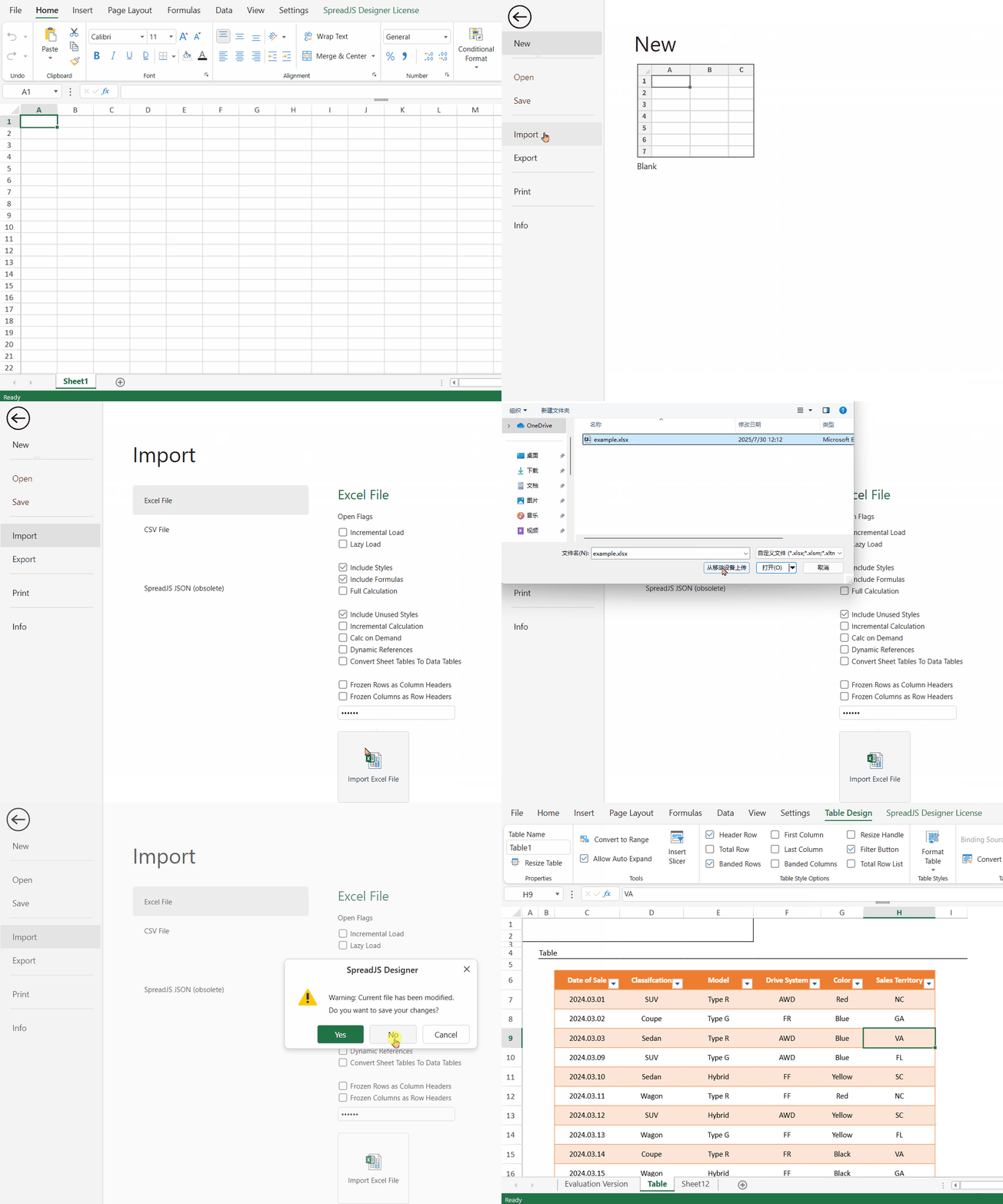
SpreadJS 디자이너에서 보호된 Excel 파일을 가져오거나 내보낼 때 비밀번호를 제공할 수도 있습니다. 암호화된 Excel 파일을 가져오려면 **파일**을 클릭한 다음 **가져오기**를 선택합니다. **가져오기** 메뉴 페이지에서 **Excel 파일**을 선택하고, 파일 가져오기 설정을 지정한 후 **비밀번호** 상자에 비밀번호를 입력하고 **Excel 파일 가져오기**를 클릭합니다.
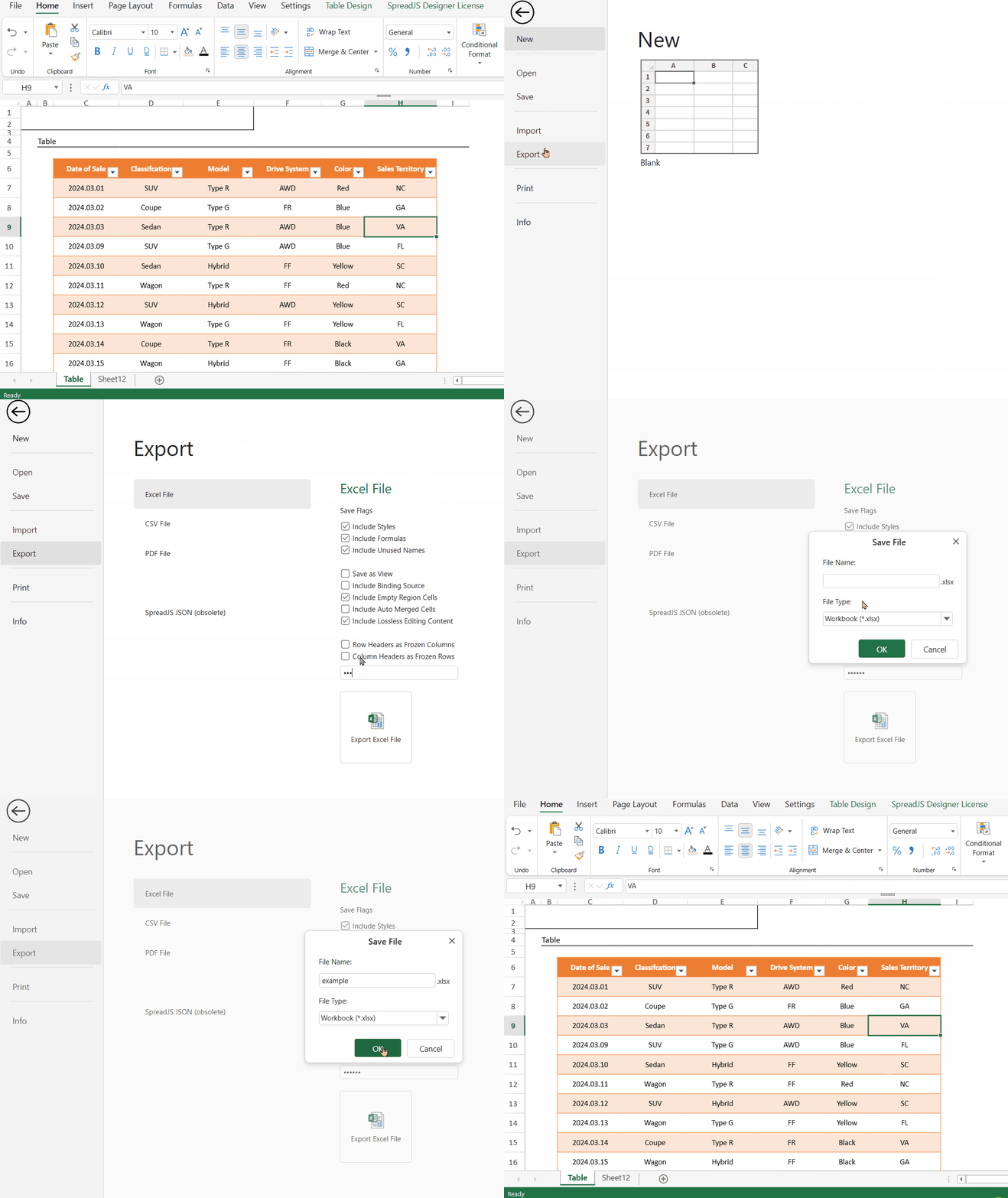
암호화된 Excel 파일을 내보내려면 **파일**을 클릭한 다음 **내보내기**를 선택합니다. **내보내기** 메뉴 페이지에서 **Excel 파일**을 선택하고, 내보내기 설정을 지정한 후 **비밀번호** 상자에 비밀번호를 입력하고 **Excel 파일 내보내기**를 클릭합니다.