# Excel 개체를 SpreadJS로 복사
## Content
Excel 스타일과 움직이는 개체를 Excel에서 복사하여 SpreadJS 워크시트에 붙여넣을 수 있습니다. 이렇게 하면 전체 스프레드시트를 가져오지 않고도 Excel 스타일과 움직이는 개체를 쉽게 복사할 수 있습니다. `allowCopyPasteExcelStyle` 속성을 true로 설정하여 스타일과 개체 복사 및 붙여넣기를 활성화할 수 있습니다.
## Excel 스타일
스타일 복사 및 붙여넣기를 허용하려면 **`allowCopyPasteExcelStyle`** 속성을 true로 설정하세요.
```JavaScript
spread.options.allowCopyPasteExcelStyle = true;
```
다음 표는 Excel에서 복사되어 SpreadJS에 붙여넣어지는 스타일 옵션을 나타냅니다.
| | Google Chrome | Mozilla Firefox | Microsoft Edge | Microsoft Internet Explorer | Safari on Mac | Chrome on Mac |
| --- | ------------- | --------------- | -------------- | --------------------------- | ------------- | ------------- |
| backColor | @cols=2:지원함 | @cols=2:지원함 | 지원함 | 지원함 |
| foreColor | @cols=2:지원함 | @cols=2:지원함 | 지원함 | 지원함 |
| font | @cols=2:지원함 | @cols=2:지원함 | 지원함 | 지원함 |
| vAlign | @cols=2:top -> top
center -> center
bottom -> bottom
justify -> bottom
distributed -> bottom | @cols=2:top -> center
center -> center
bottom -> center
justify -> center
distributed -> center | top -> top
center -> center
bottom -> bottom
justify -> bottom
distributed -> bottom | top -> top
center -> center
bottom -> bottom
justify -> bottom
distributed -> bottom |
| hAlign | @cols=2:left -> left
center -> center
right -> right
general -> general
fill -> general
justify -> general
center across selection -> general
distributed -> general | @cols=2:left -> left
center -> left
right -> left
general -> left
fill -> left
justify -> left
center across selection -> center
distributed -> left | left -> left
center -> center
right -> right
general -> general
fill -> general
justify -> general
center across selection -> general
distributed -> general | left -> left
center -> center
right -> right
general -> general
fill -> general
justify -> general
center across selection -> general
distributed -> general |
| borderLeft | @cols=2:@rows=4:thin -> medium
medium -> medium
dashed -> mediumDashed
dotted -> dotted
thick -> medium
double -> double
hair -> None
mediumDashed -> mediumDashed
dashDot -> None
mediumDashDot -> None
dashDotDot -> None
mediumDashDotDot -> None
slantedDashDot -> None | @cols=2:@rows=4:thin -> medium
medium -> medium
dashed -> mediumDashed
dotted -> dotted
thick -> medium
double -> double
hair -> None
mediumDashed -> mediumDashed
dashDot -> None
mediumDashDot -> None
dashDotDot -> None
mediumDashDotDot -> None
slantedDashDot -> None | @rows=4:thin -> medium
medium -> medium
dashed -> mediumDashed
dotted -> dotted
thick -> medium
double -> double
hair -> None
mediumDashed -> mediumDashed
dashDot -> None
mediumDashDot -> None
dashDotDot -> None
mediumDashDotDot -> None
slantedDashDot -> None | @rows=4:thin -> medium
medium -> medium
dashed -> mediumDashed
dotted -> dotted
thick -> medium
double -> double
hair -> None
mediumDashed -> mediumDashed
dashDot -> None
mediumDashDot -> None
dashDotDot -> None
mediumDashDotDot -> None
slantedDashDot -> None |
| borderRight |
| borderTop |
| borderBottom |
| textDecoration | @cols=2:strikethrough -> lineThrough
single -> underline
double -> underline
single accounting -> underline
double accounting -> underline | @cols=2:strikethrough -> lineThrough
single -> underline
double -> underline
single accounting -> underline
double accounting -> underline | strikethrough -> lineThrough
single -> underline
double -> underline
single accounting -> underline
double accounting -> underline | strikethrough -> lineThrough
single -> underline
double -> underline
single accounting -> underline
double accounting -> underline |
| wordWrap | @cols=2:지원함 | @cols=2:지원함 | 지원함 | 지원함 |
| formatter | @cols=2:지원함 | @cols=2:지원함 | 지원 안 함 | 지원함 |
## 움직이는 개체
이미지, 차트, 도형과 같은 움직이는 개체도 **`allowCopyPasteExcelStyle`** 속성을 true로 설정하여 Excel에서 복사해 SpreadJS 워크시트에 붙여넣을 수 있습니다. Excel에서 차트와 도형을 복사하여 SpreadJS에 이미지로 붙여넣을 수 있다는 점에 유의하세요. 이 기능은 SpreadJS에서 기본적으로 활성화되어 있지만 SpreadJS에서 Excel로 이미지 복사 및 붙여넣기는 지원하지 않습니다.
Windows와 Mac에서 Ctrl + V 및 Command + V 키 조합을 사용해 이미지를 SpreadJS 워크시트에 붙여넣을 수 있으며, 아래 gif에서 확인할 수 있습니다.
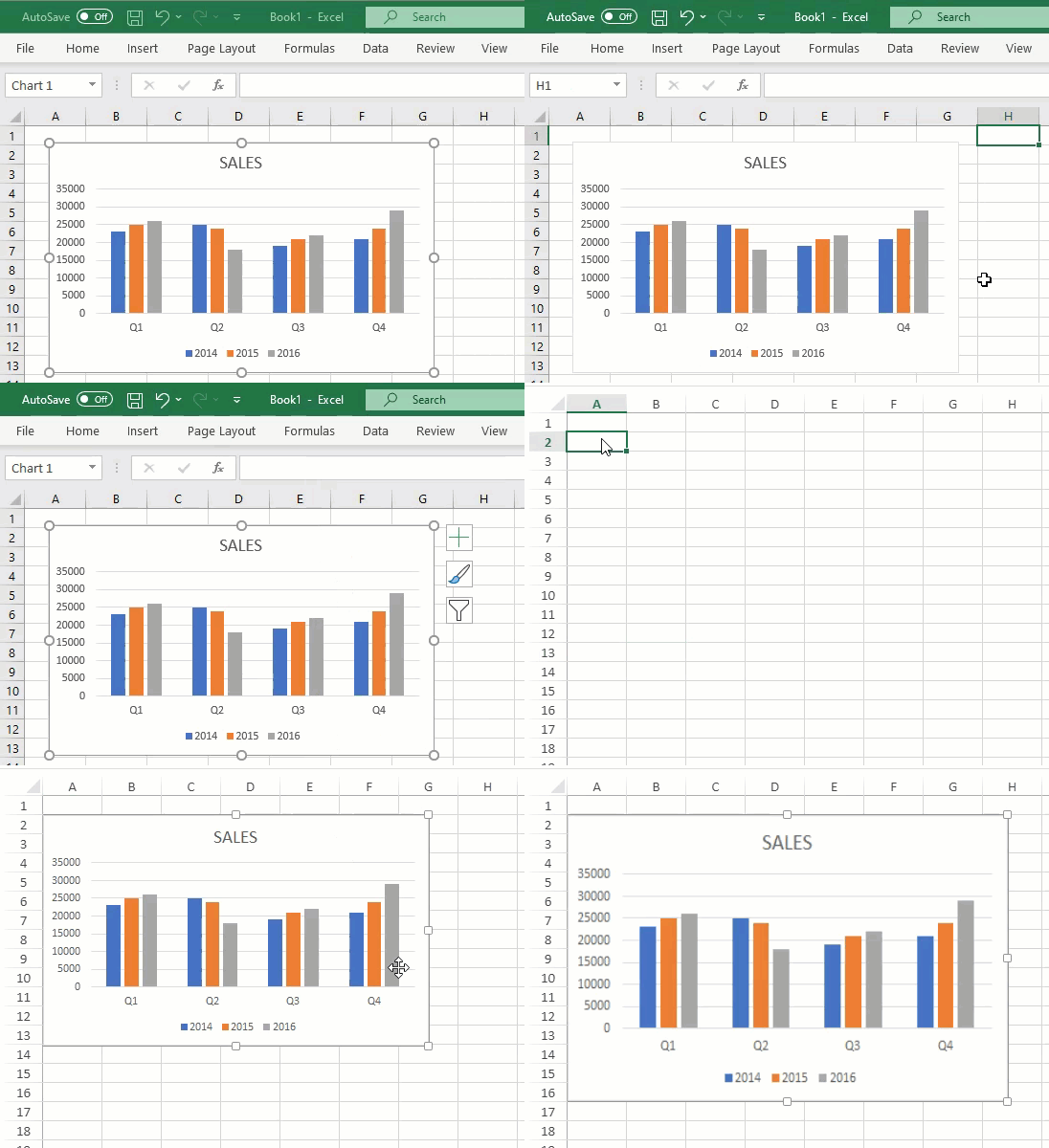
붙여넣을 때 원본 이미지의 크기와 내용에 영향이 없음을 확인할 수 있습니다. 하지만 크기 조절 핸들을 사용해 붙여넣은 이미지 크기를 변경할 수 있습니다. 워크시트 내 이미지 위치는 SpreadJS의 활성 셀에 의해 결정됩니다. 이미지를 한 개씩 복사-붙여넣기 하거나 Excel에서 모든 이미지를 복사해 워크시트에 하나의 큰 이미지로 붙여넣을 수 있습니다.