# 필터 조건 설정
## Content
일부 조건에서는 사용자가 특정 조건으로 필터링된 데이터만 보고 싶거나, 하나의 리포트에서 여러 데이터 테이블을 기본 키와 외래 키로 결합하고자 할 수 있습니다. 이러한 경우, SpreadJS에서는 템플릿 셀에서 필터 조건을 설정하여 데이터를 필터링할 수 있습니다.
템플릿 시트에서 데이터 필터링 조건을 구성하려면, 데이터 매니저에서 테이블 소스를 정의하고, 템플릿 셀의 `dataColumn` 옵션 내에 `tableName`과 `columnName`을 설정한 다음, 템플릿 셀의 `filter` 속성을 사용하여 원하는 필터 조건을 추가해야 합니다.
리포트 시트에서 데이터를 필터링하기 위해 다음 방법 중 하나를 사용할 수 있습니다.
* 정적 값으로 데이터 필터링
* 수식으로 데이터 필터링
* 조인 테이블로 데이터 필터링
데이터 필터에는 여러 조건 규칙이 있습니다.
| **필터 조건 규칙** | **설명** |
| -------- | --- |
| @cols=2:**filterByCondition** |
| ConditionRuleValueType | 정적 필터 조건으로, 필터 값의 데이터 유형은 `string` / `number` / `boolean` / `date` 중 하나입니다.
ConditionRuleOperator와 값에 따라 레코드를 필터링합니다. |
| ConditionRuleCellType | 셀 이름(예: A1). 셀 값이 정적 값인 경우, 필터 조건은 `ConditionRuleValueType`과 동일하게 동작합니다.
셀에 `dataColumn` 데이터 바인딩이 있는 경우, `ConditionRuleDataColumnType` 조건으로 필터링됩니다. |
| ConditionRuleDataColumnType | 현재 테이블의 열과 대상 테이블의 열을 `ConditionRuleOperator`로 연결하여 조인하는 테이블 조인 조건입니다. |
| ConditionRuleParameterType | 기존 매개변수 이름을 사용하는 정적 필터 조건입니다. |
| ConditionRuleFormulaType | 사용자가 수식을 설정할 수 있는 정적 필터 조건입니다. |
| @cols=2:**filterByFormula** |
| FilterConditionFormulaRule | 수식 조건과 일치하는 레코드를 필터링하는 정적 필터 조건입니다.
SpreadJS에서는 “=YEAR([@orderDate])=A1”과 같은 수식 내 셀 참조는 지원하지 않습니다. |
| ConditionRule | ConditionRule 열은 테이블 필드를 포함하는 수식입니다. |
다음 코드는 다양한 데이터 필터링 사용 사례를 보여줍니다:
```auto
// ConditionRule 값이 정적 값인 경우.
// CustomerId가 "VINET"과 같은 레코드를 필터링.
templateSheet.setTemplateCell(2, 0, {
type: "Group",
binding: `Orders[customerId]`,
filter: {
condition: {
column: "customerId",
operator: "Equal",
value: "VINET"
}
}
});
templateSheet.setTemplateCell(2, 1, {
type: "Group",
binding: `Orders[employeeId]`,
});
// ConditionRule 값이 셀 이름이고, 해당 셀 값이 정적 값인 경우.
templateSheet.setValue(1, 0, 'VINET');
templateSheet.setTemplateCell(1, 1, {
type: "Group",
binding: `Orders[customerId]`,
filter: {
condition: {
column: "customerId",
operator: "Equal",
cell: "A2"
}
}
});
templateSheet.setTemplateCell(1, 2, {
type: "Group",
binding: `Orders[employeeId]`,
});
// 테이블 조인 조건.
// 테이블 관계 추가
spread.dataManager().addRelationship(customerTable, "Id", "orderTable", ordersTable, "customerId", "customerTable");
templateSheet.setTemplateCell(2, 1, { // B1
type: "List",
binding: "Customers[CompanyName]",
filter: {
"condition": {
"column": "id",
"operator": "Equal",
"dataColumn": {
"tableName": "Orders",
"columnName": "customerId"
}
}
}
});
```
## 디자이너를 사용한 데이터 필터링
**리포트 셀(Report Cell)** 속성 패널에서 제공되는 **필터(Filter)** 옵션을 사용하여 디자이너에서도 데이터를 필터링할 수 있습니다.
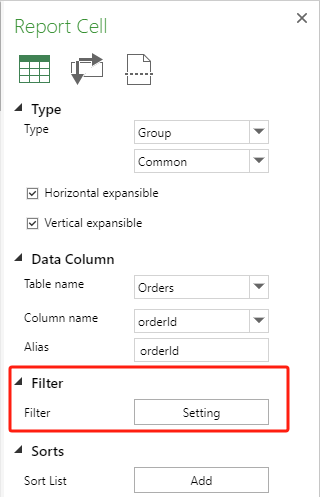
필터 대화상자에서는 여러 개의 정적 필터 조건, 테이블 조인 조건, 수식 필터 조건을 추가할 수 있으며, 조건의 순서를 변경하거나 규칙을 삭제할 수도 있습니다.
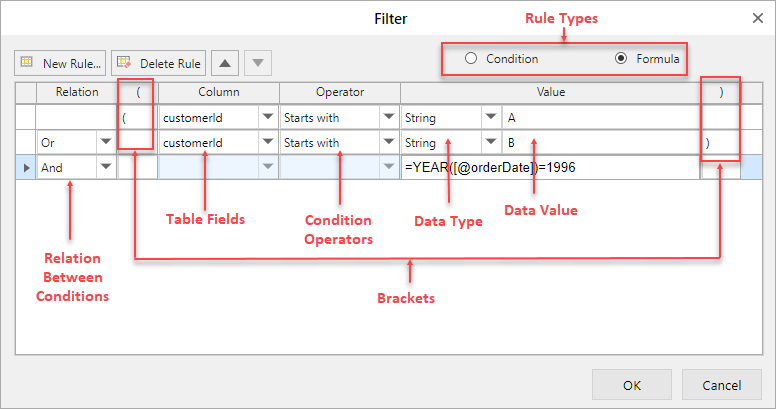
아래 표는 필터 대화상자에 있는 속성과 그 설명입니다:
| **속성** | **설명** |
| --- | --- |
| 관계(Relation) | 두 조건 간의 관계를 표시합니다. |
| 열(Column) | 현재 노드 테이블의 열 목록을 표시합니다.
`=YEAR([@orderDate])`와 같은 테이블 열을 사용하는 수식도 입력할 수 있습니다. |
| 연산자(Operator) | 모든 필터 조건 연산자 목록을 표시합니다. |
| 값(Value) | 다양한 데이터 유형으로 전환하고 값을 입력할 수 있습니다. |
| 브라켓(Brackets) | 조건의 우선순위를 변경할 때 사용합니다.
좌우 괄호는 항상 짝이 맞아야 합니다. |
| 규칙 유형(Rule Type) | 필터 규칙의 유형을 지정합니다.
유형이 `Condition`이면 열, 연산자, 값을 선택할 수 있고, `Formula`이면 수식만 설정할 수 있습니다. |